
Configure Facebook Comment Automation
Learn how to set up Facebook Comment Automation in SME Bot to instantly engage with users by auto-replying to comments while maintaining a natural and seamless interaction experience. 🚀
Navigate to https://app.smebot.ai/en/tools
At the Marketing Tools on the left navigation menu
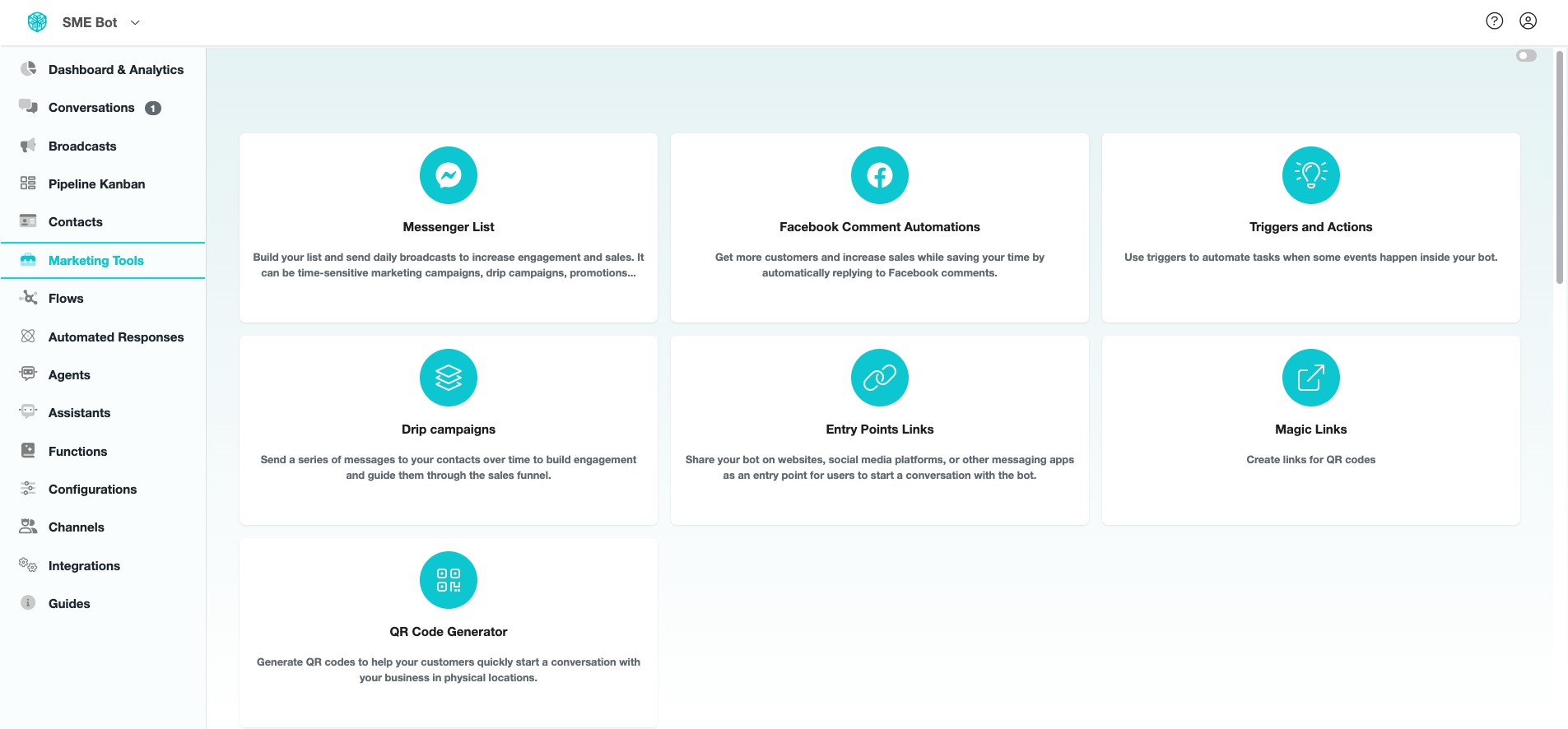

Click "Facebook Comment Automations"
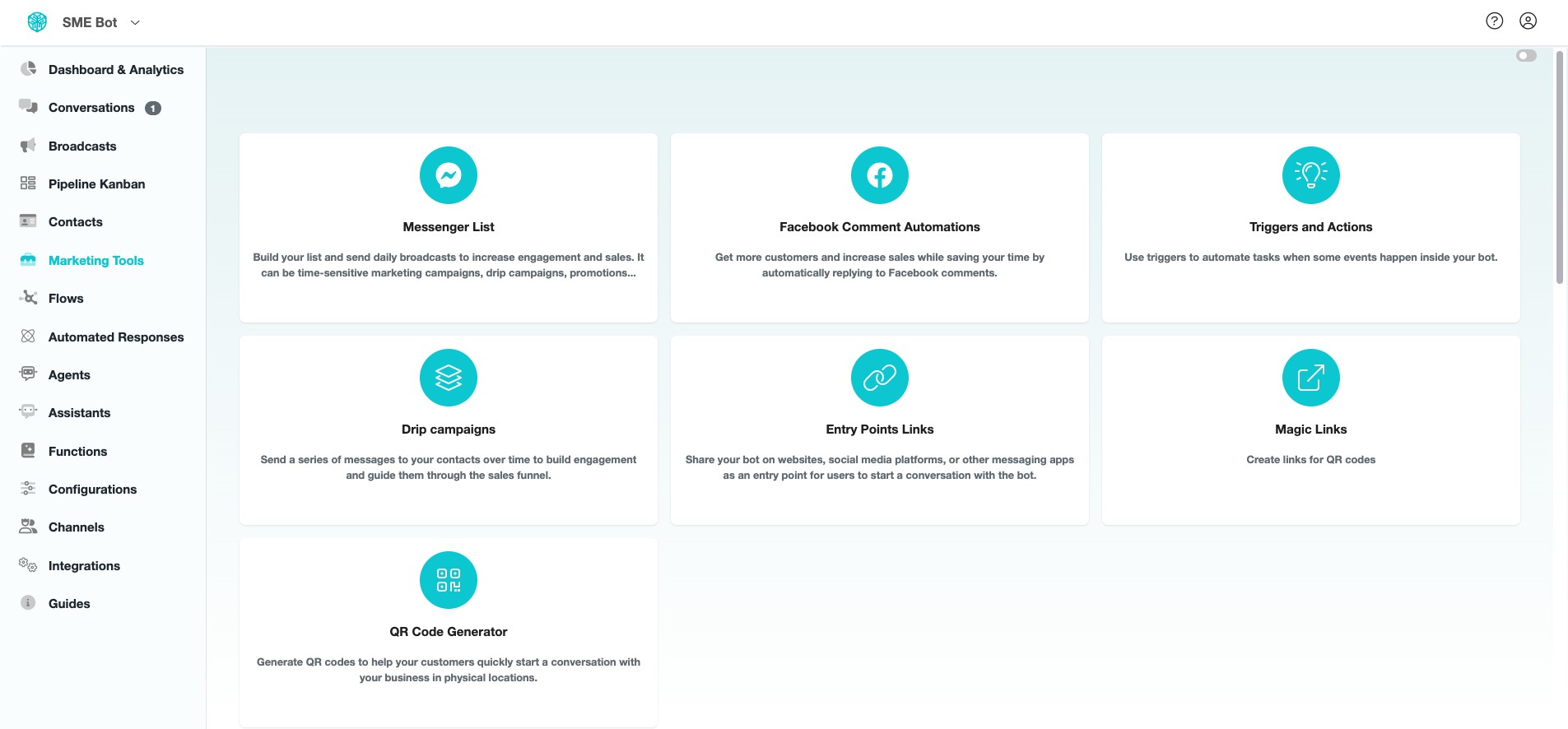
Click "Add"
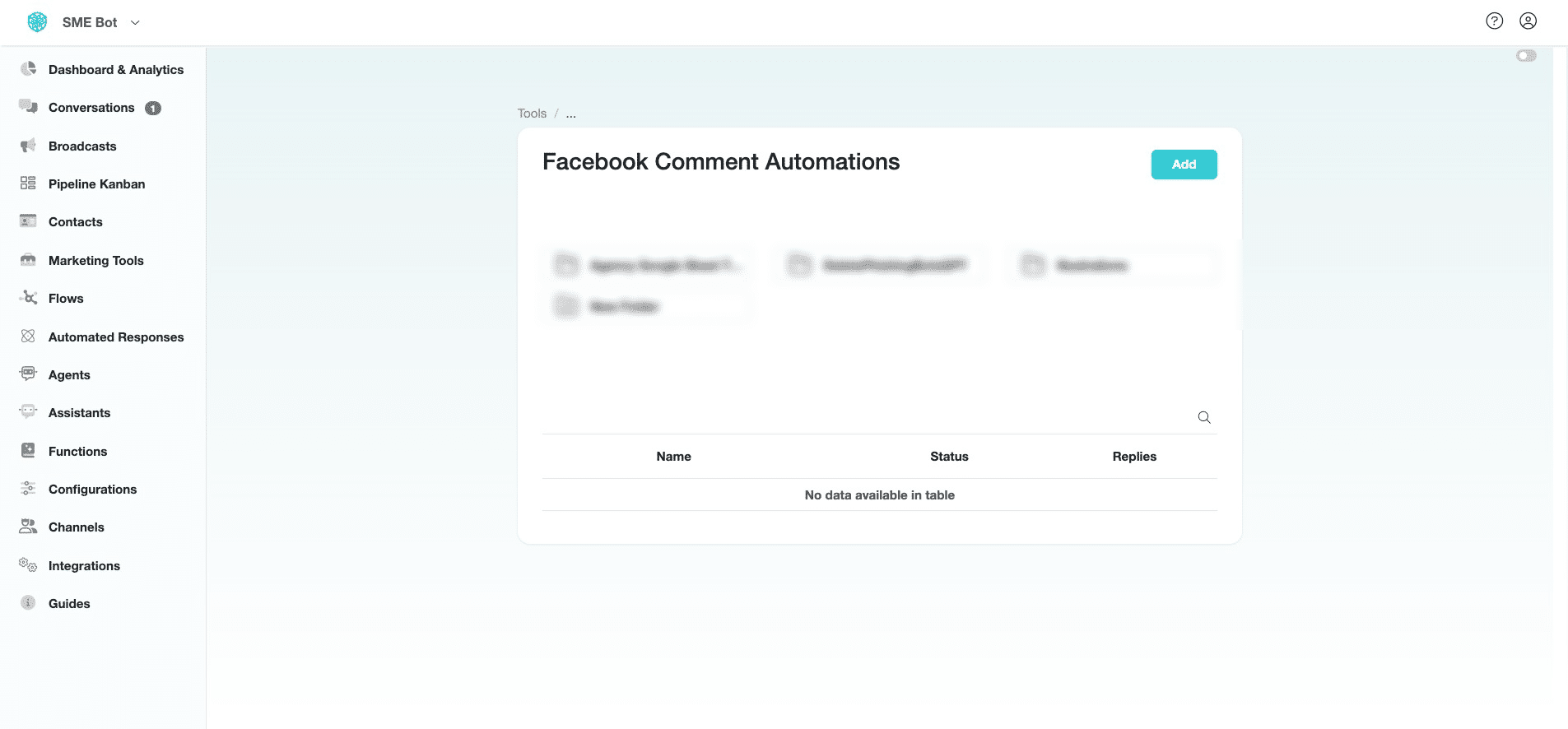
Enter a suitable name for your Facebook Comment Automation, and click "Continue".
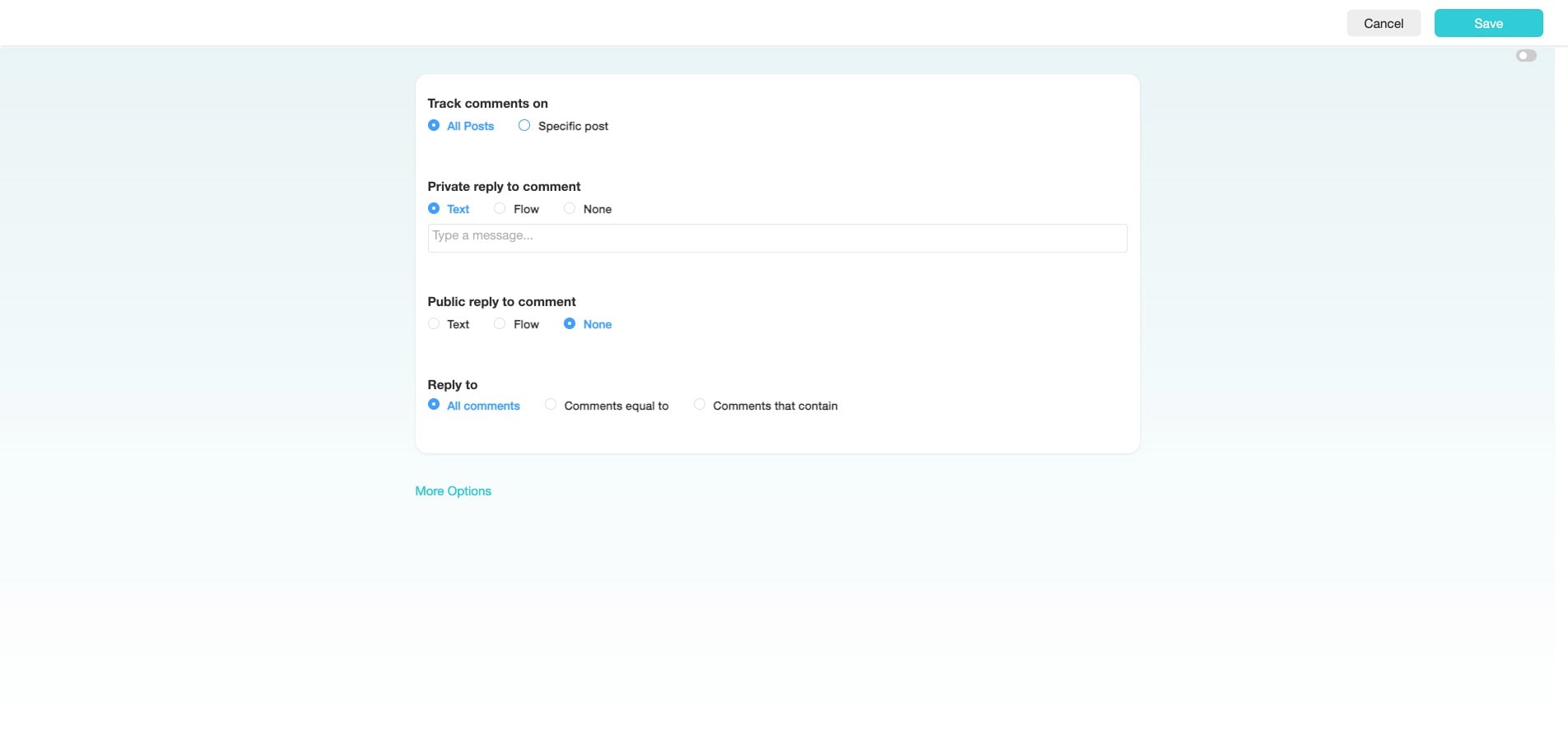
Select either "All Posts" or "Specific Post" for this Facebook Comment Automation.
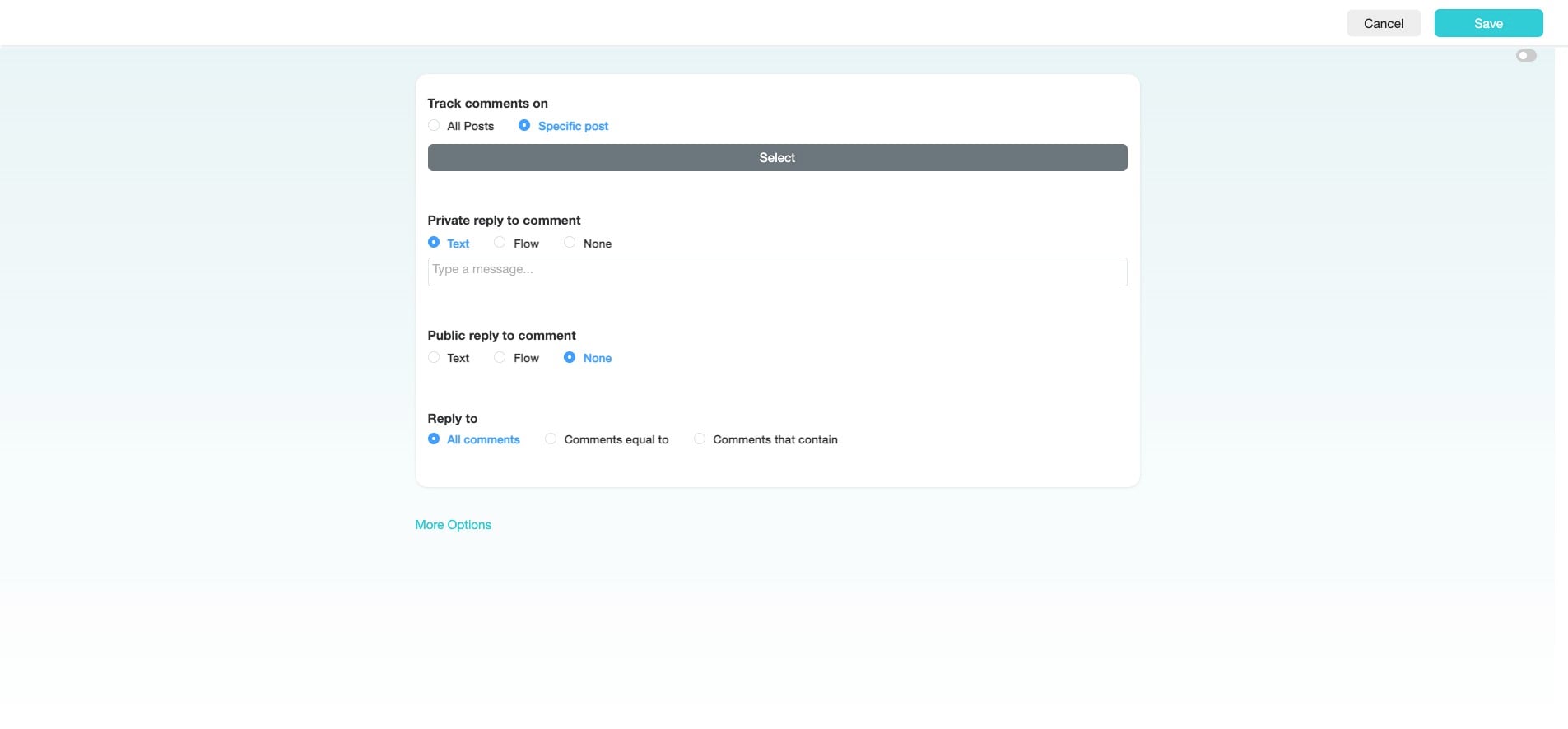
If you select "Specific Post," click "Select" to choose the intended Facebook post.
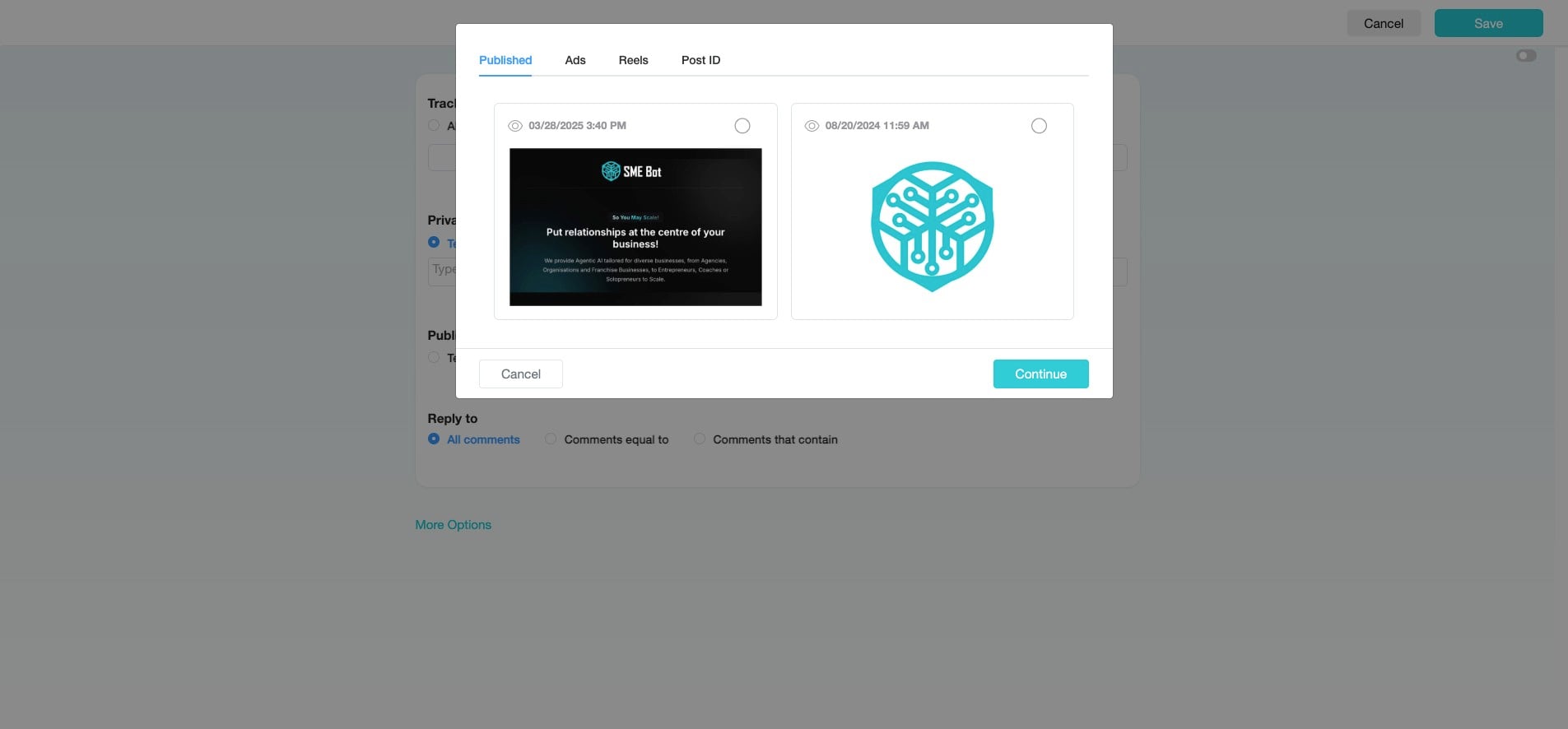
From the pop-up, select the intended Facebook post. You can choose multiple published posts, or select from Ads, Reels, or enter a Post ID.
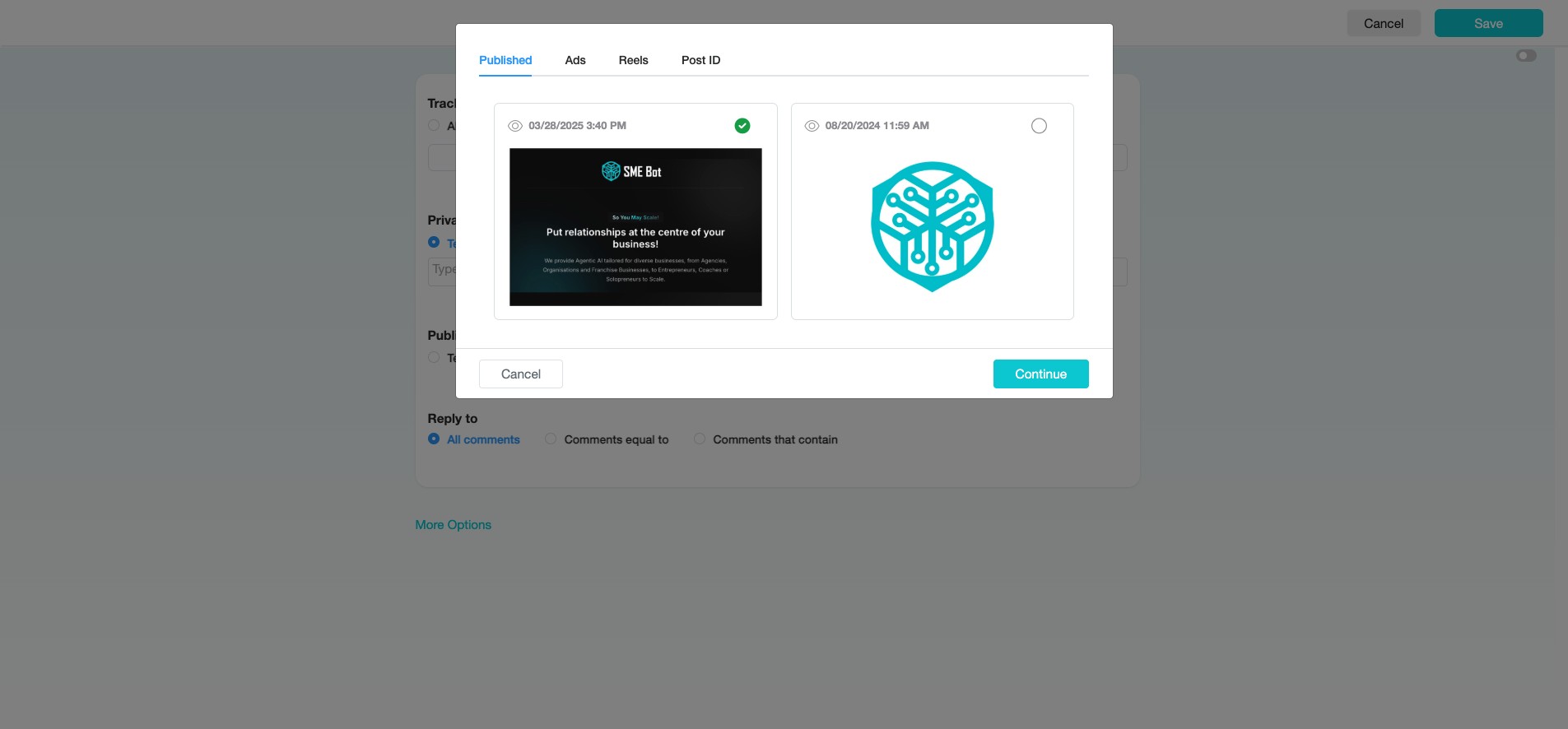
After selecting the post(s), click "Continue" to proceed.
Click "View Post" to open and review the selected post on Facebook. This step is optional; otherwise, proceed to the next step.
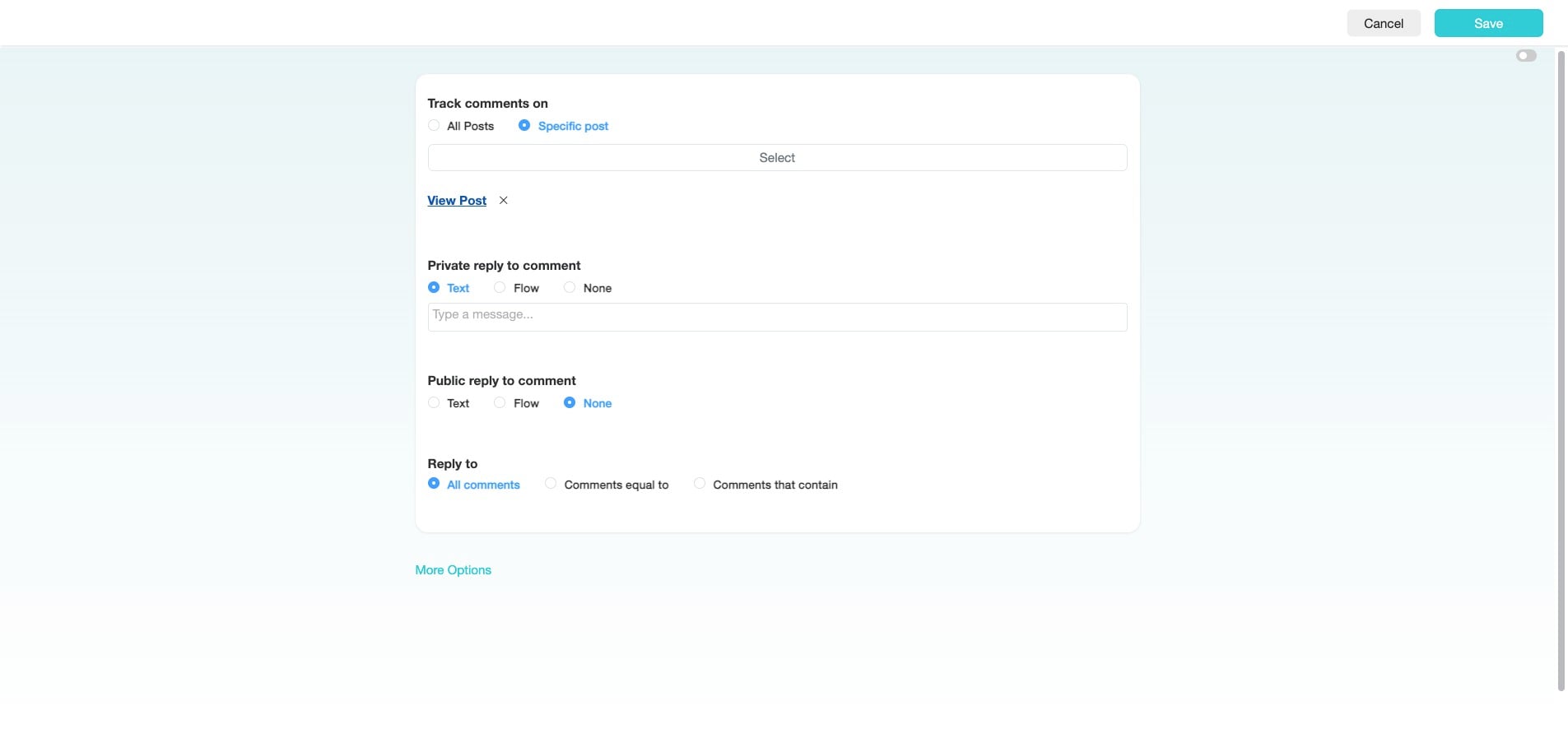
Under "Private Reply to Comment," click "Flow."
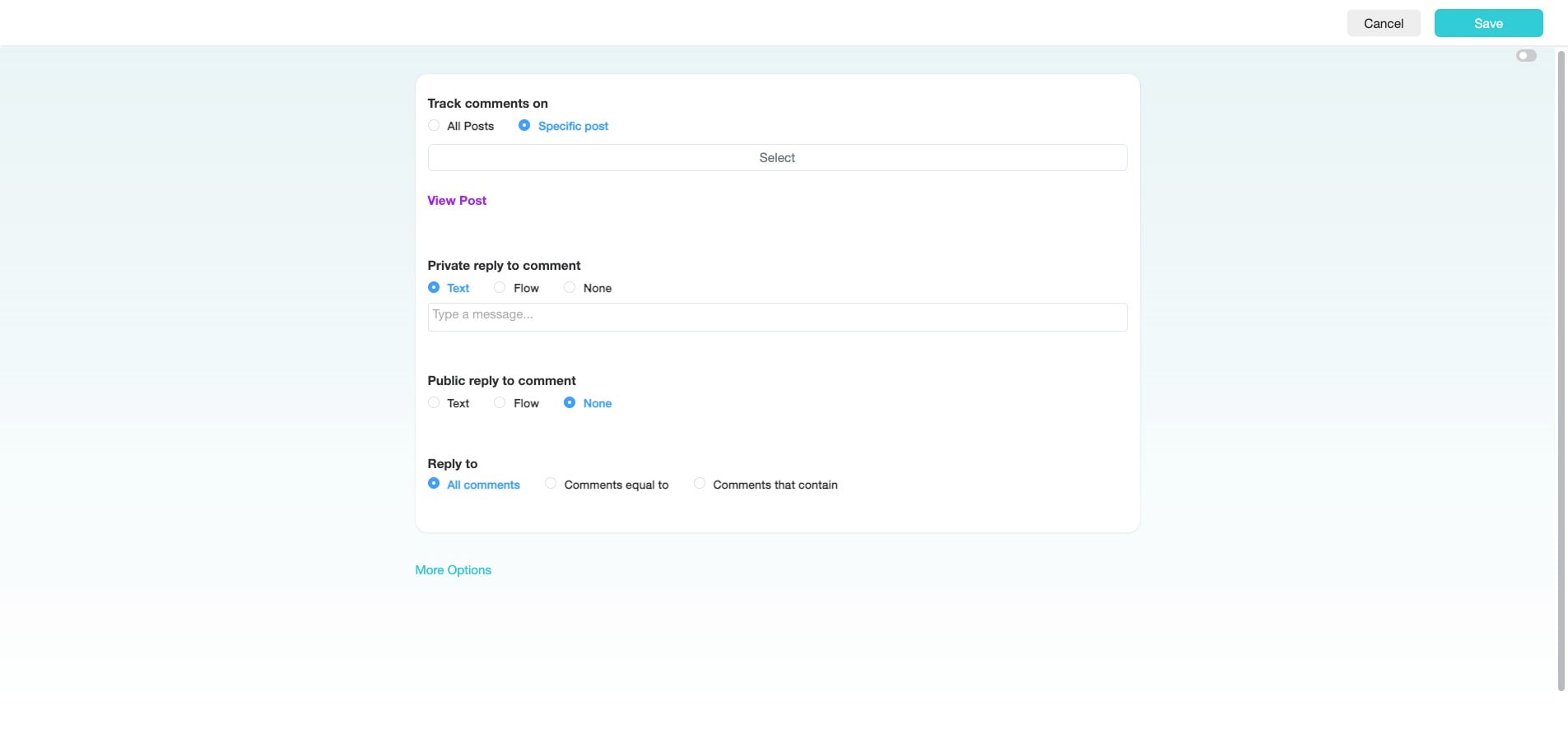
Click the intended Flow. In this example, we have selected the "Facebook Private Comment Reply" flow created for this automation.
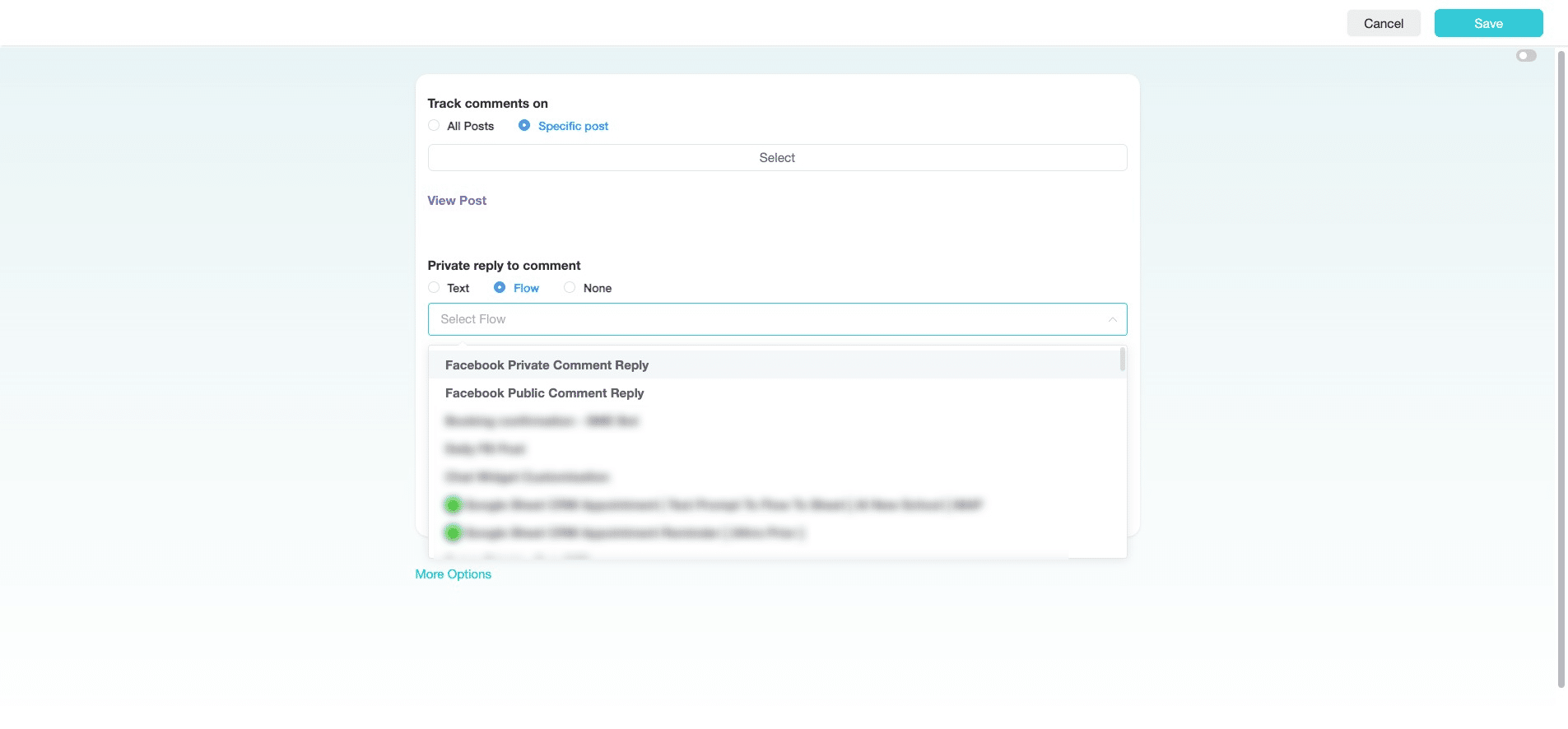
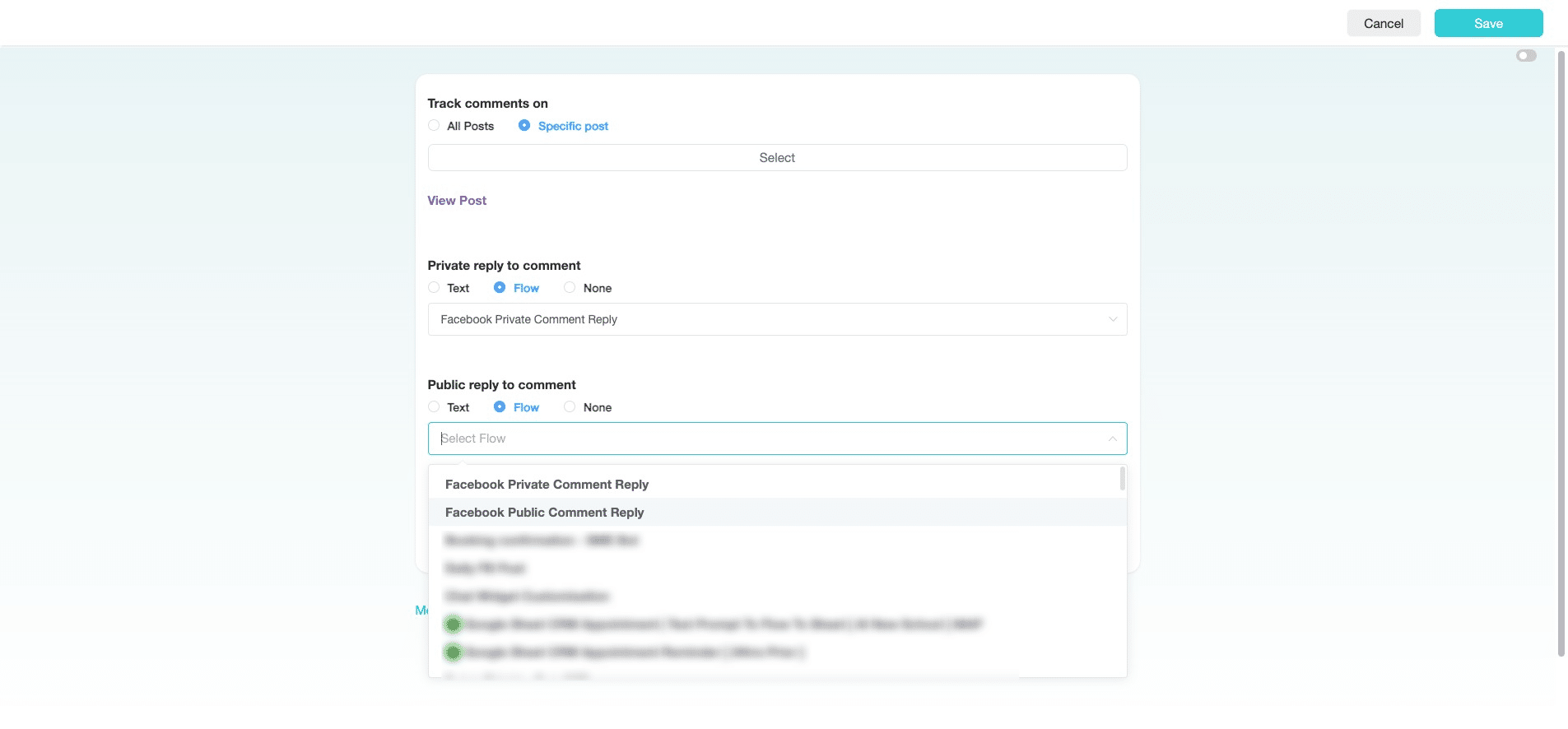
Under "Public Reply to Comment," click "Flow."
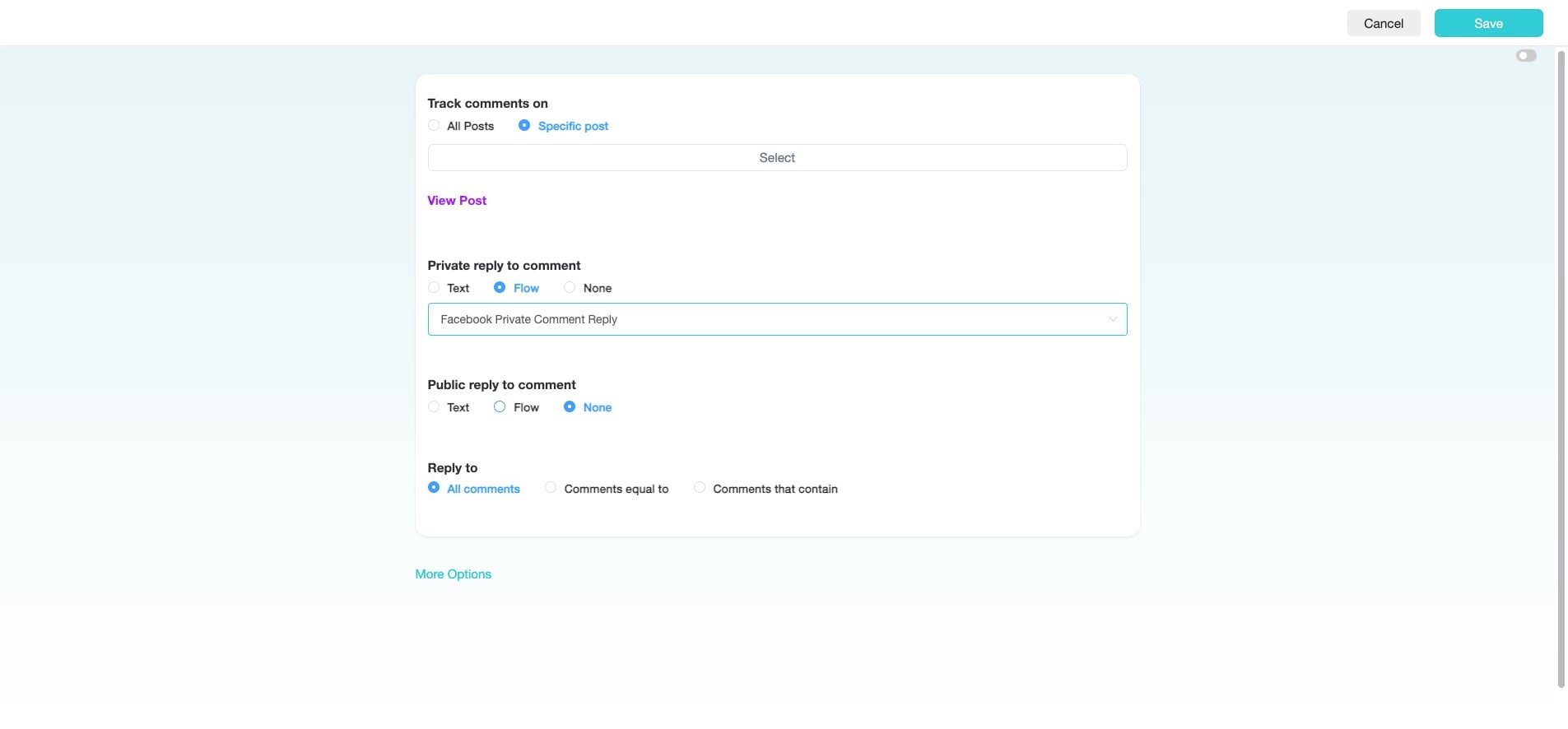
Click the intended Flow. In this example, we have selected the "Facebook Public Comment Reply" flow created for this automation.
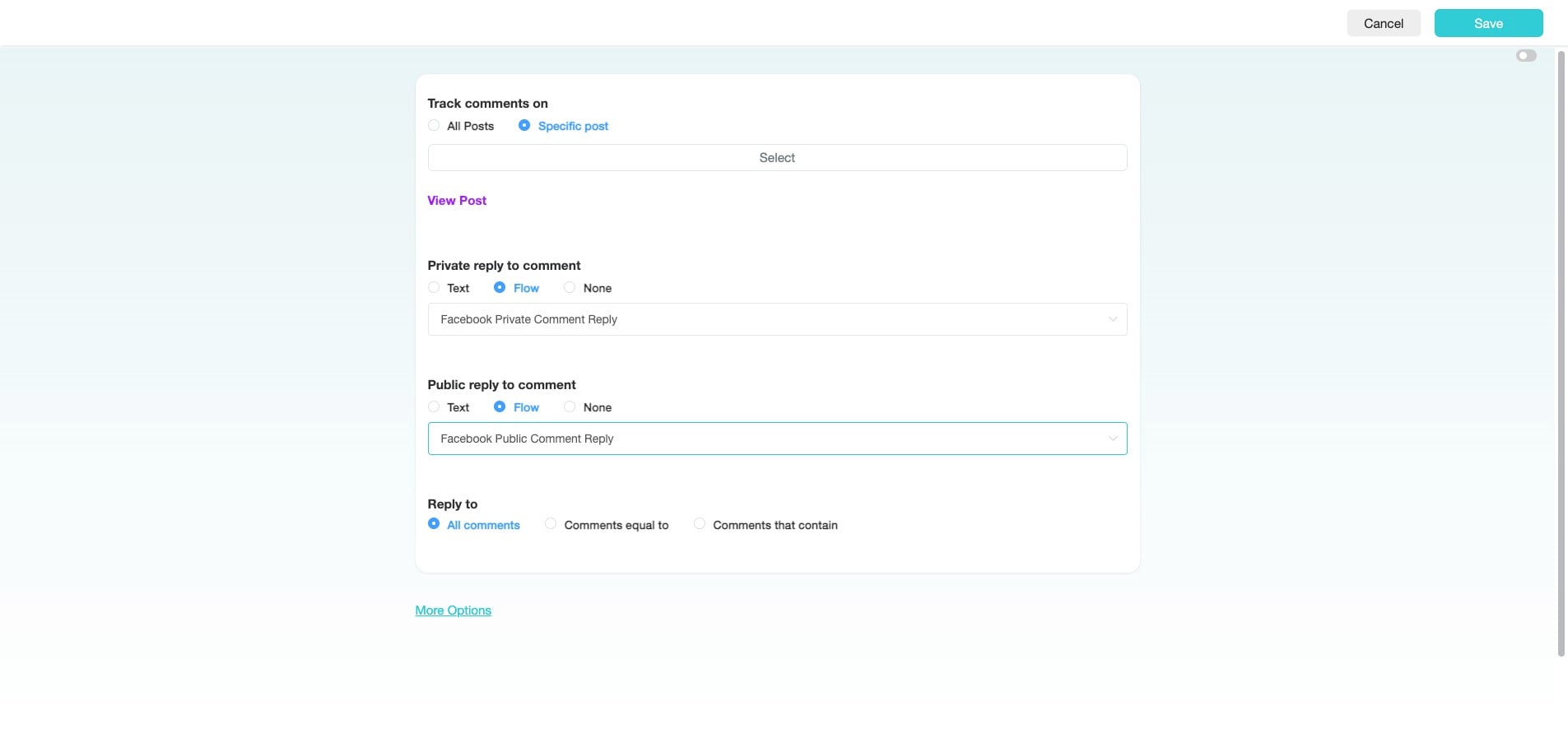
Click "More Options" to configure how the automation interacts with users.
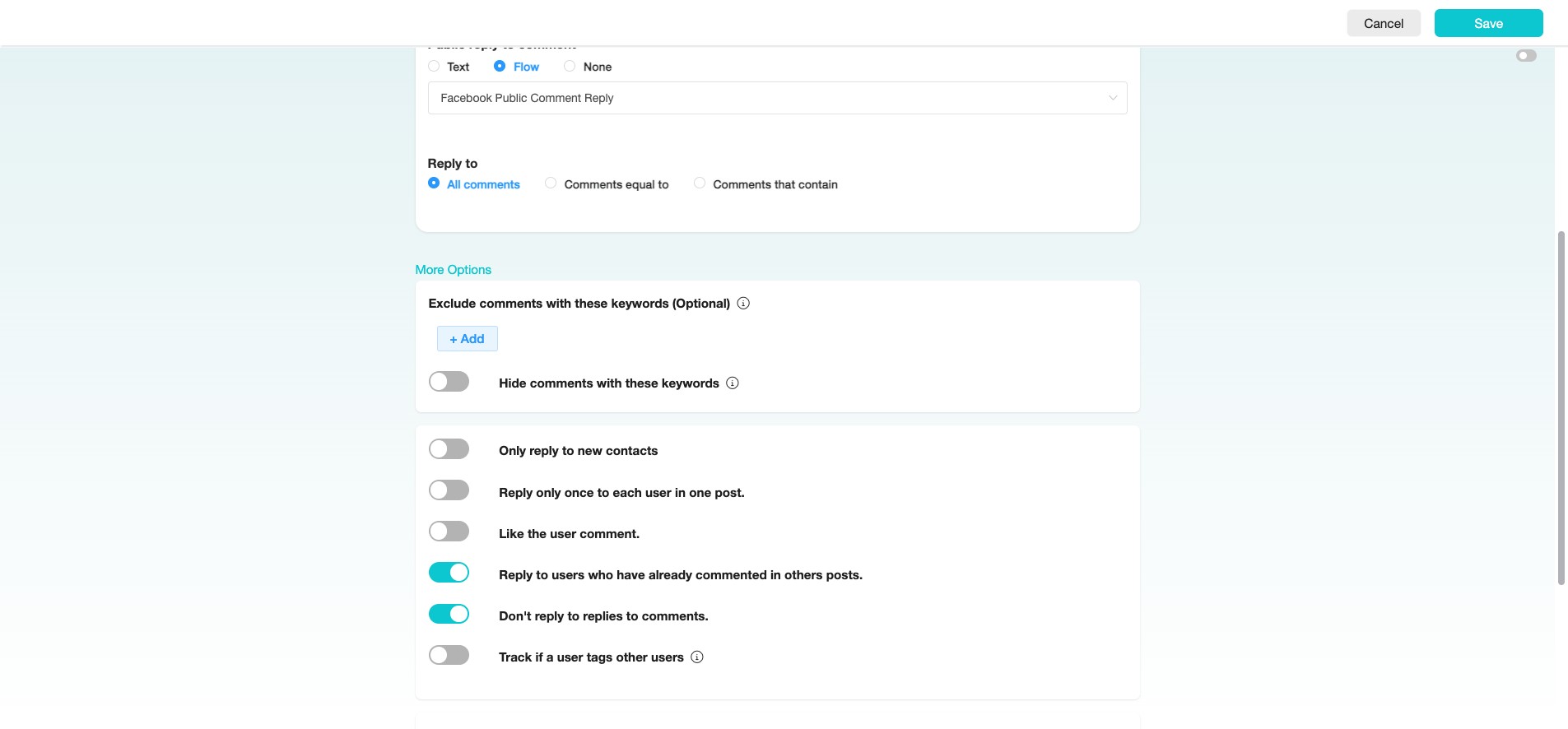
Under "Exclude comments with these keywords (Optional)," click "+ Add" to add keywords you want to exclude. SME Bot will not reply to comments containing these keywords.
We have added these common spam keywords to be excluded. "https://wa.me/", "https://t.me/", "copyright", "copyrights", "invest", "income", "earn", "trade".
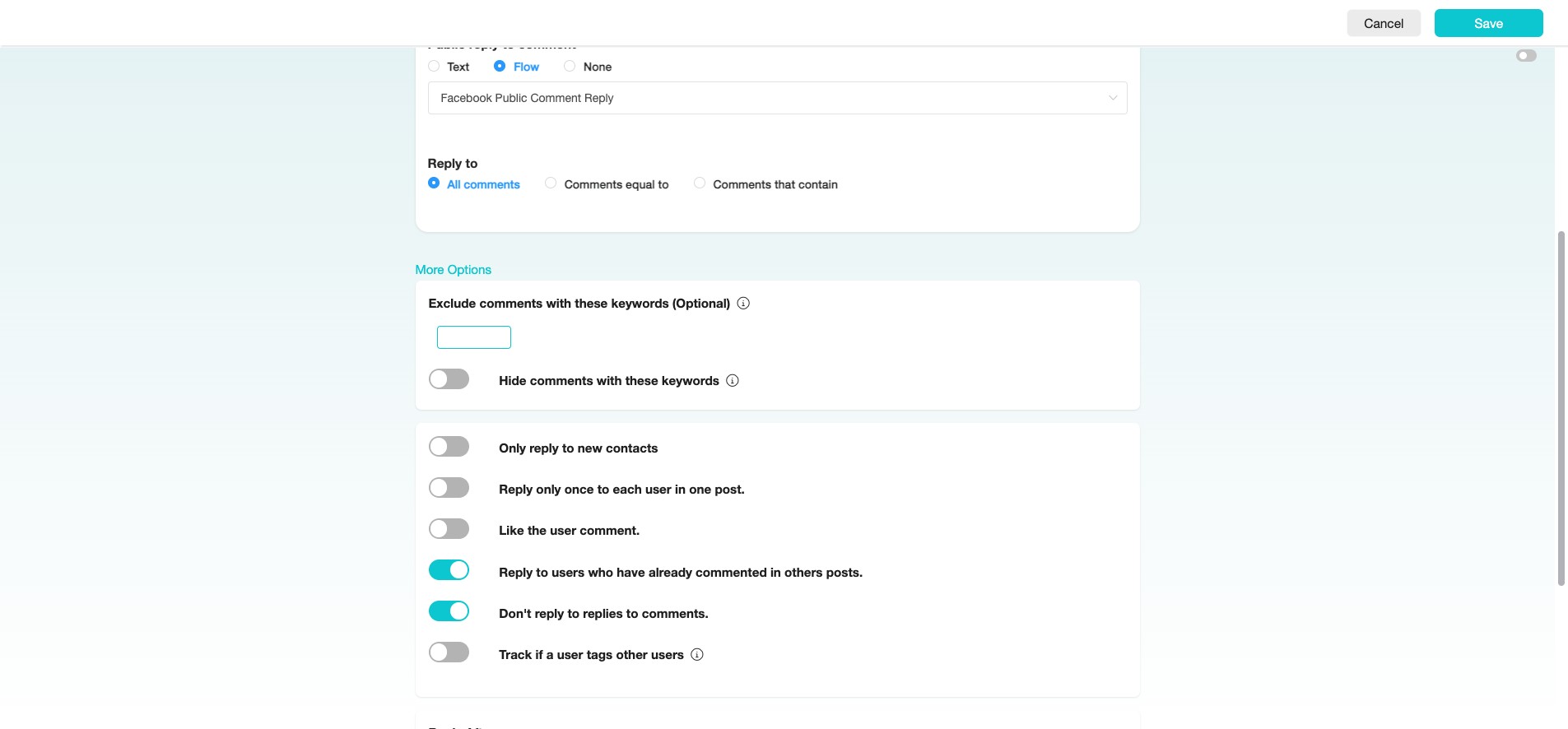
Click and enable "Hide comments with these keywords" to prevent comments containing the specified keywords from being visible.
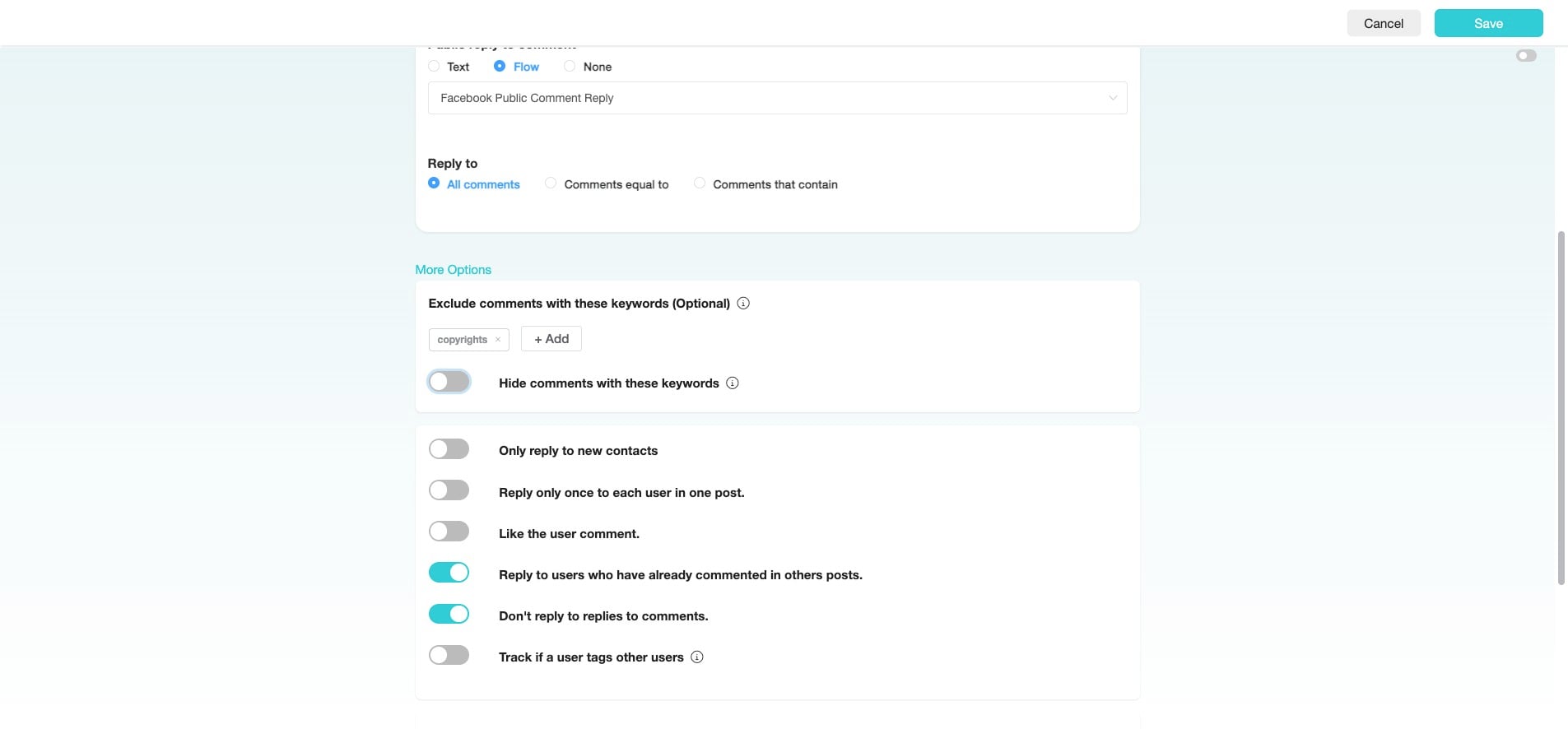
Click and enable the following options based on your preferences. Such as:
Only reply to new contacts – To only respond to users who have not interacted before. Reply only once to each user in one post – To prevent multiple replies from the bot to the same user on the same post.
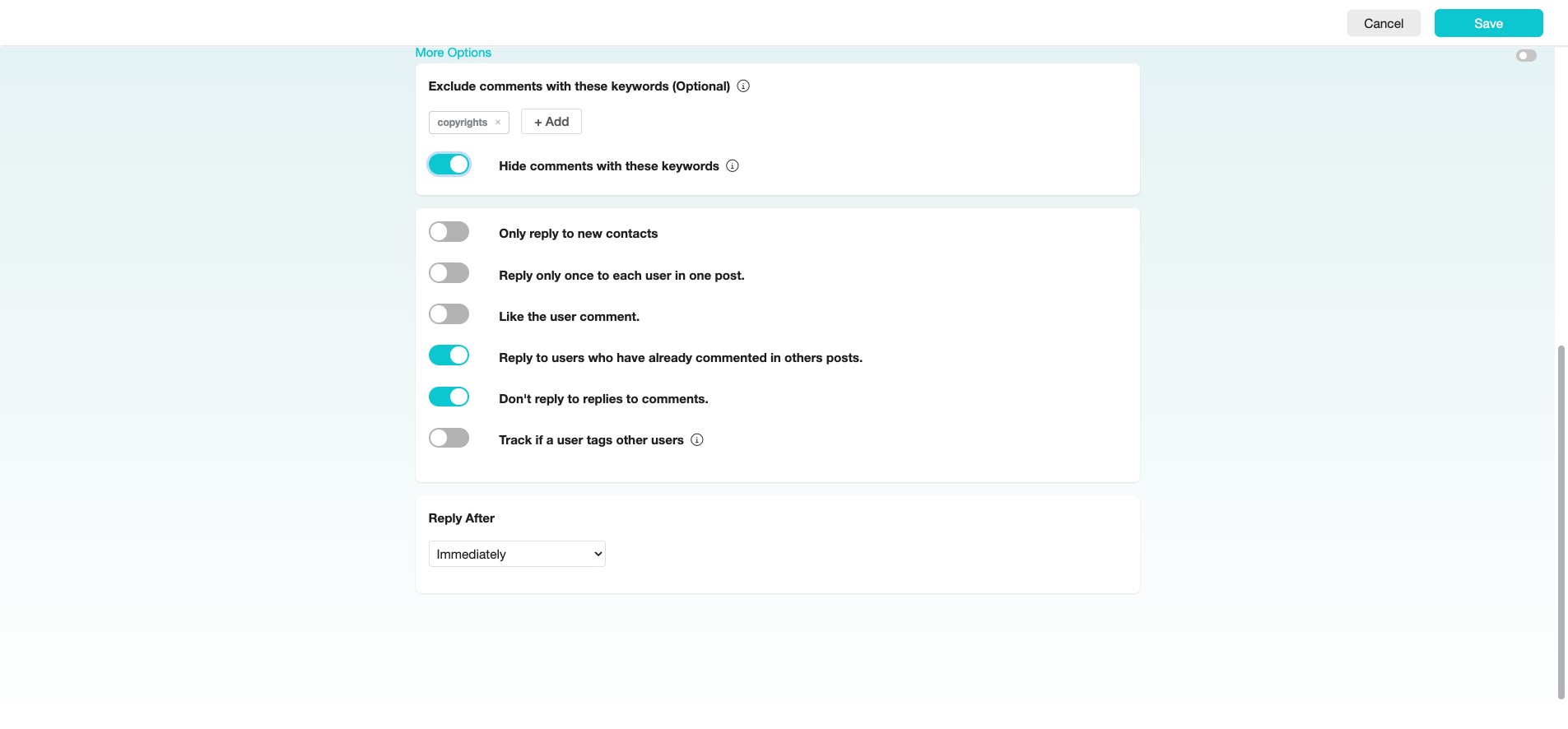
Continue to Click and enable the following options based on your preferences. Such as:
Like the user comment – To automatically like the comment after replying. Reply to users who have already commented on other posts – To ensure the bot responds to users who comment on different posts.
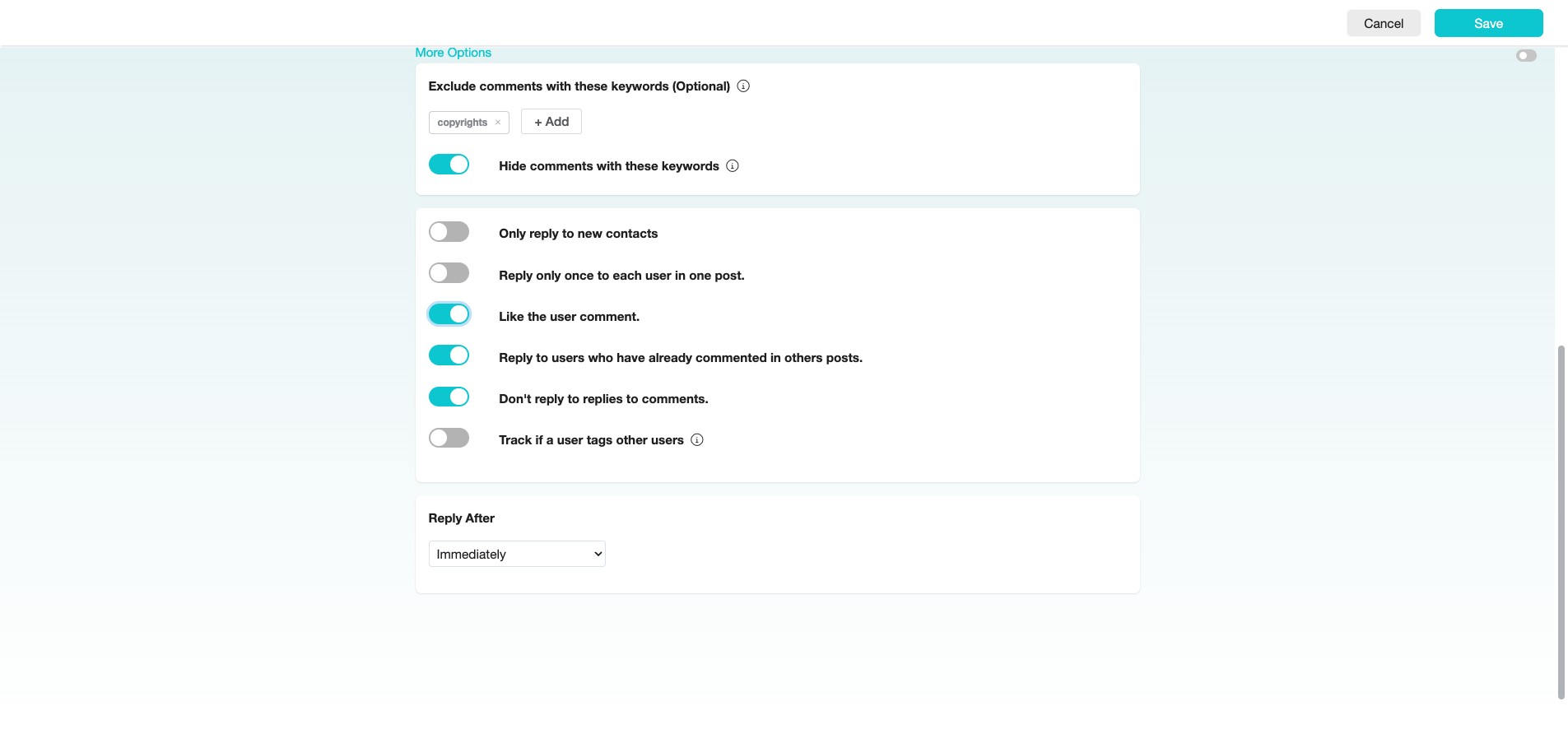
Continue to click and enable the following options based on your preferences. Such as:
Don't reply to replies to comments – To avoid replying to comments made on the bot’s reply. Track if a user tags other users – To keep track if users tag others in their comments.
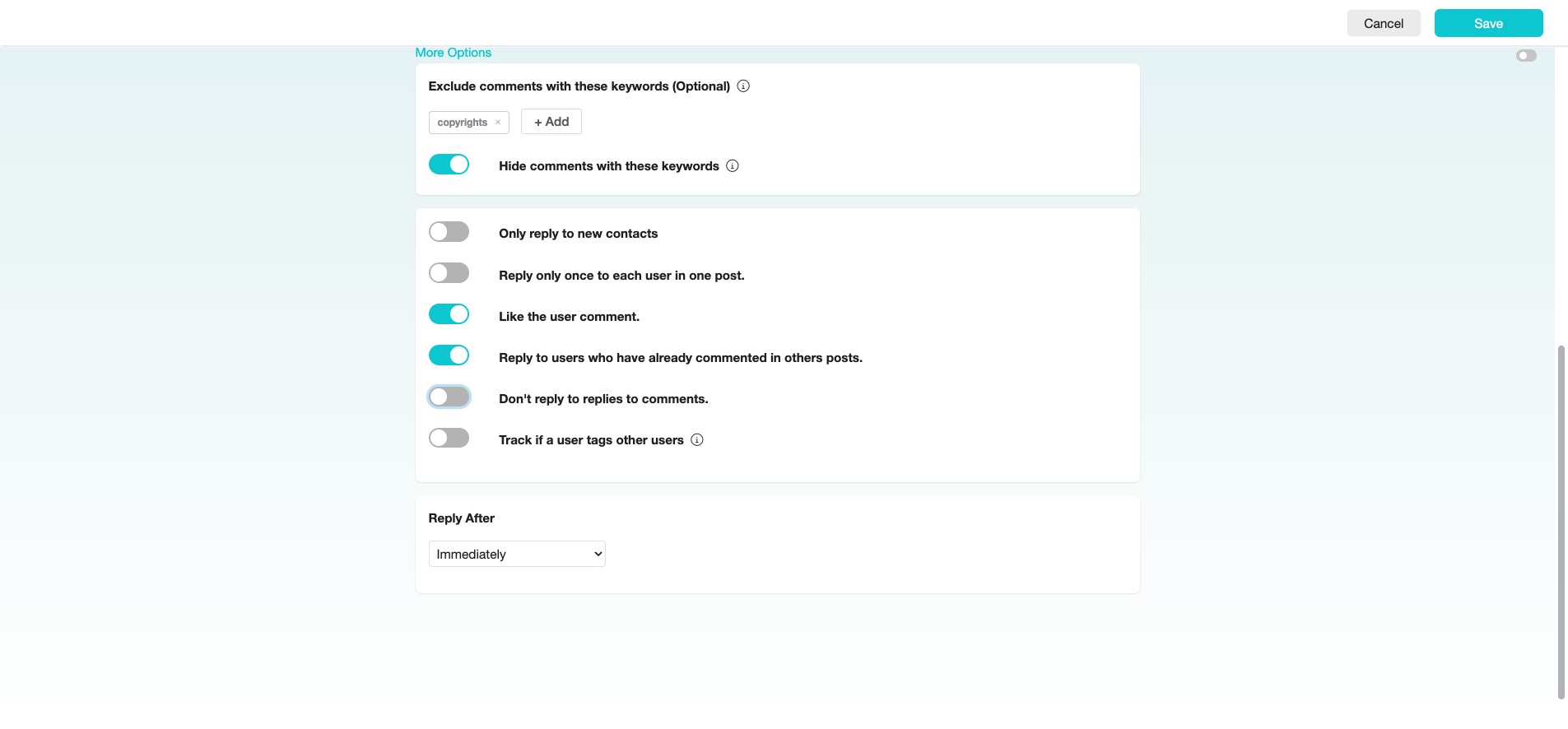
Click "Immediately" to allow SME Bot to respond to public comments right away and send you a private message when conducting tests for your SME Bot Facebook Comment Automation.
After testing, change the response time to be "Random within 3 minutes" or more if you anticipate a sudden surge in comment traffic. This helps maintain natural interaction, avoid spam detection, and improve the user experience by mimicking human-like response times.
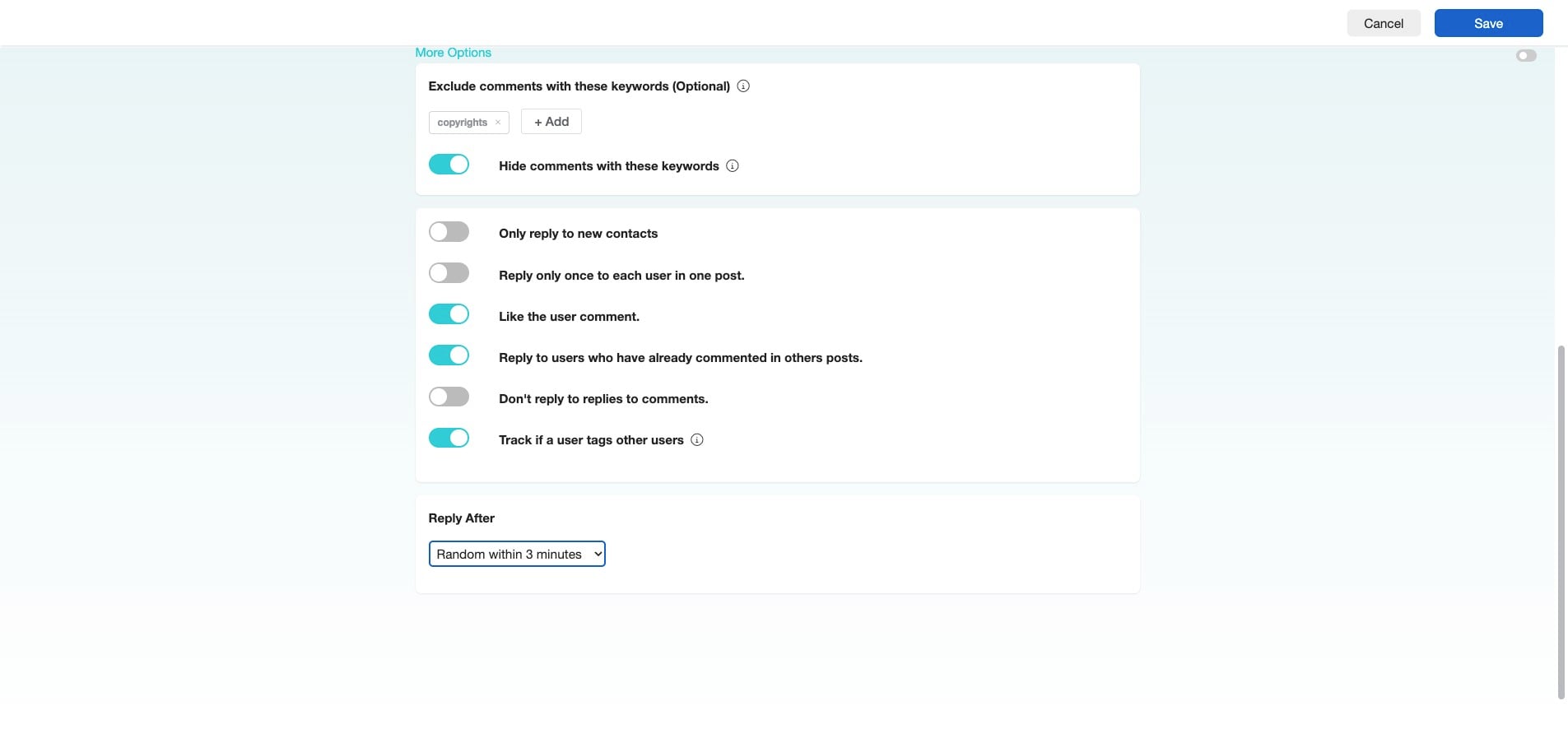
Click "Save" to save the configuration of your Facebook Comment Automation.
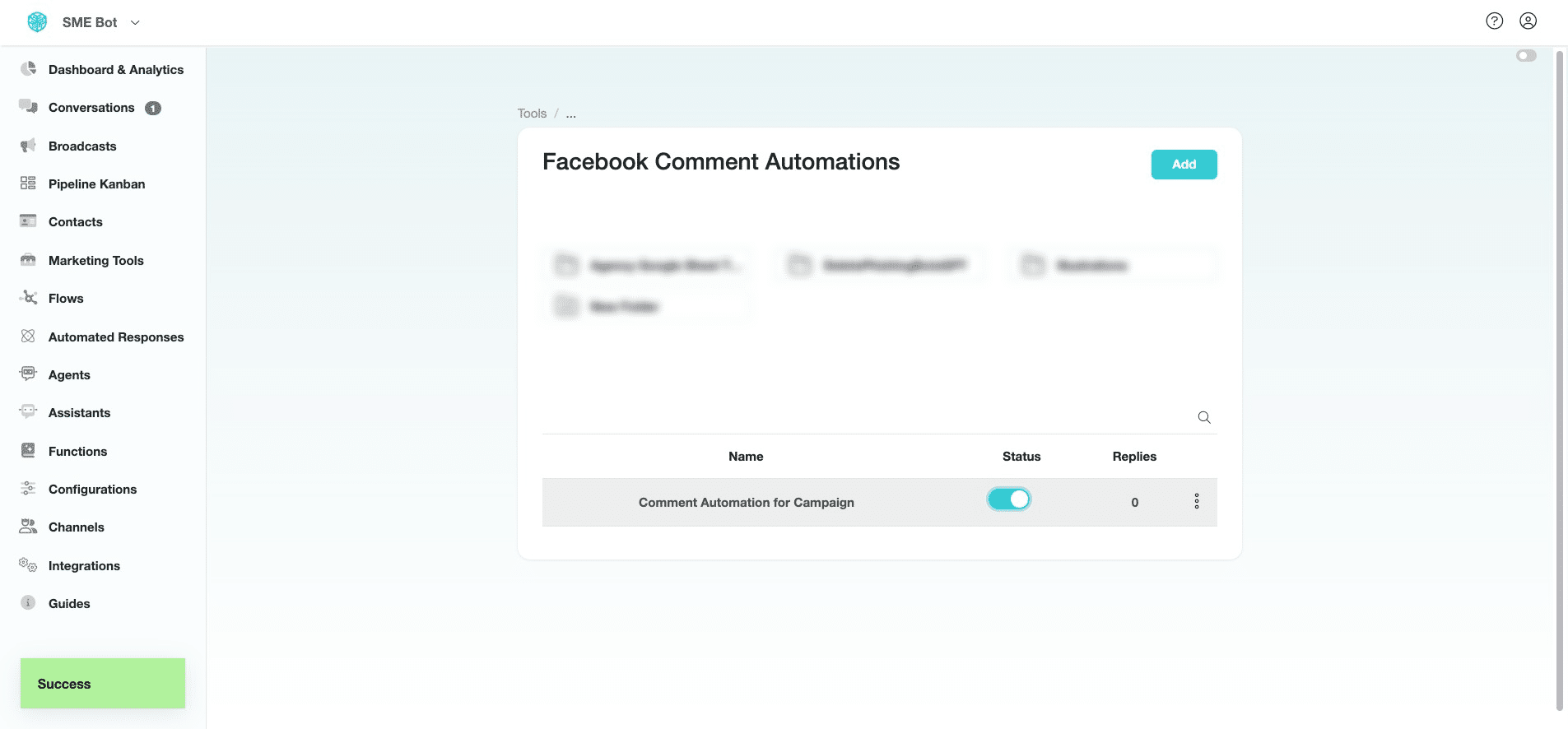
Click to turn the status on and activate your Facebook Comment Automation.
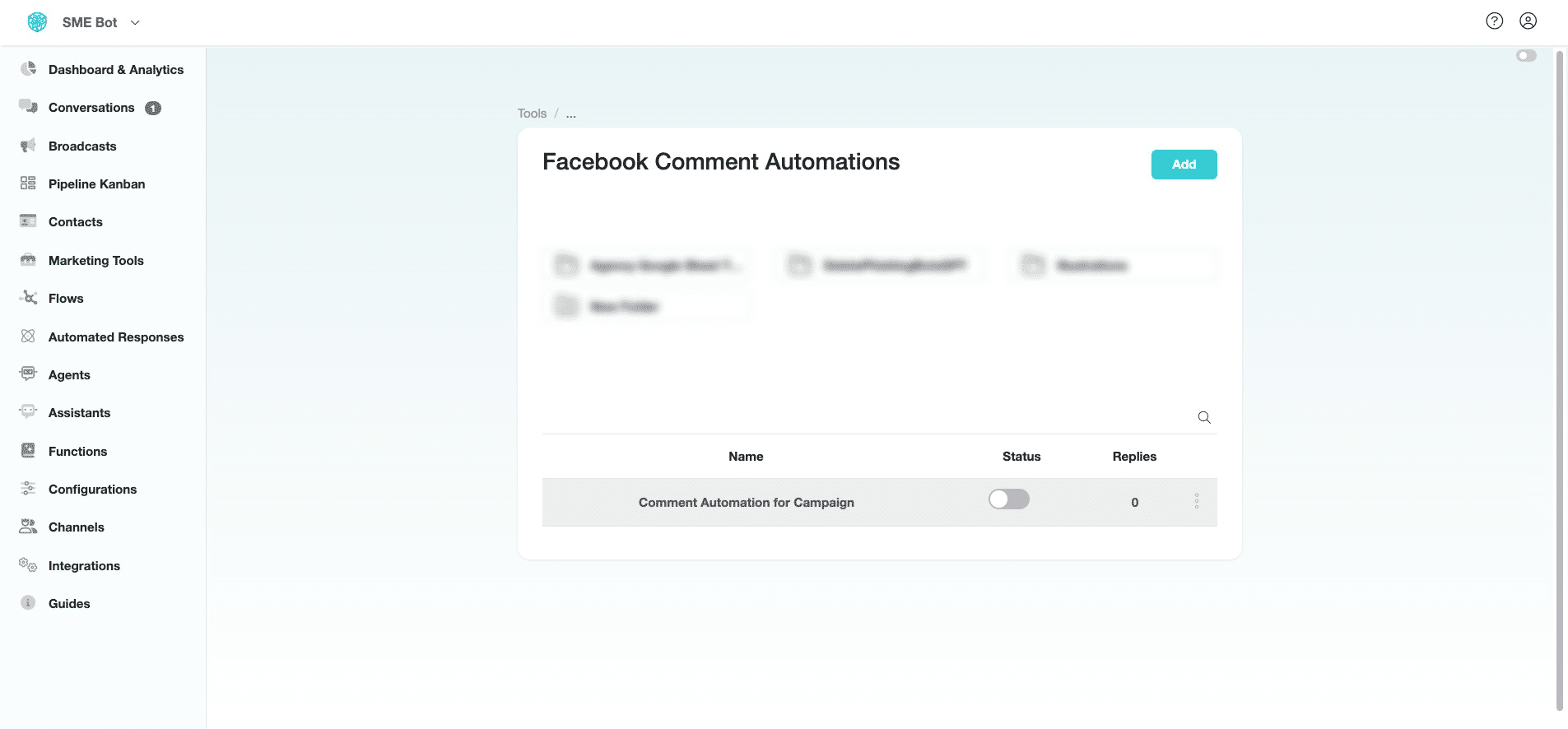
Click on the three dots icon to Rename, Duplicate, View Analytics, Move to Folder, or Delete the Facebook Comment Automation.
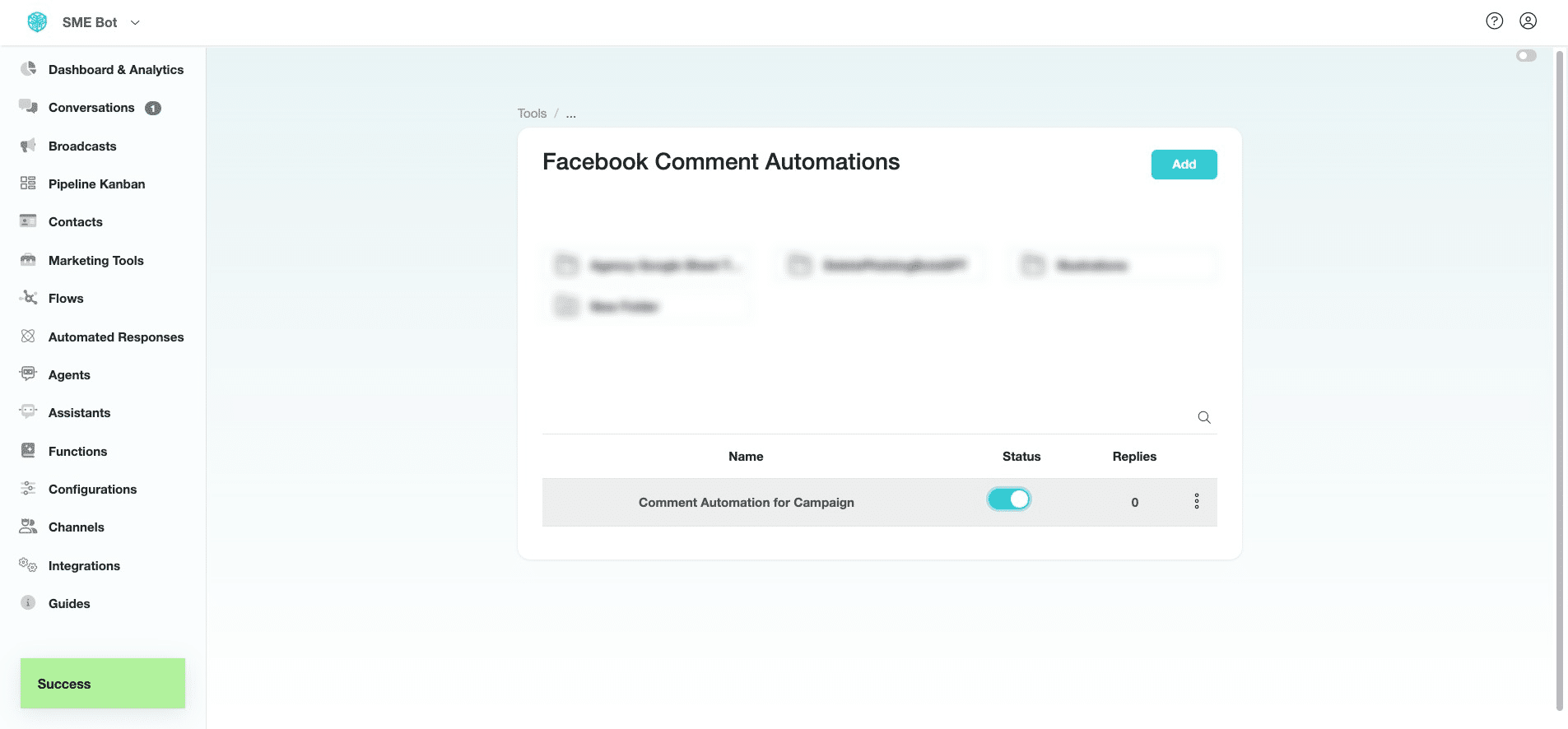
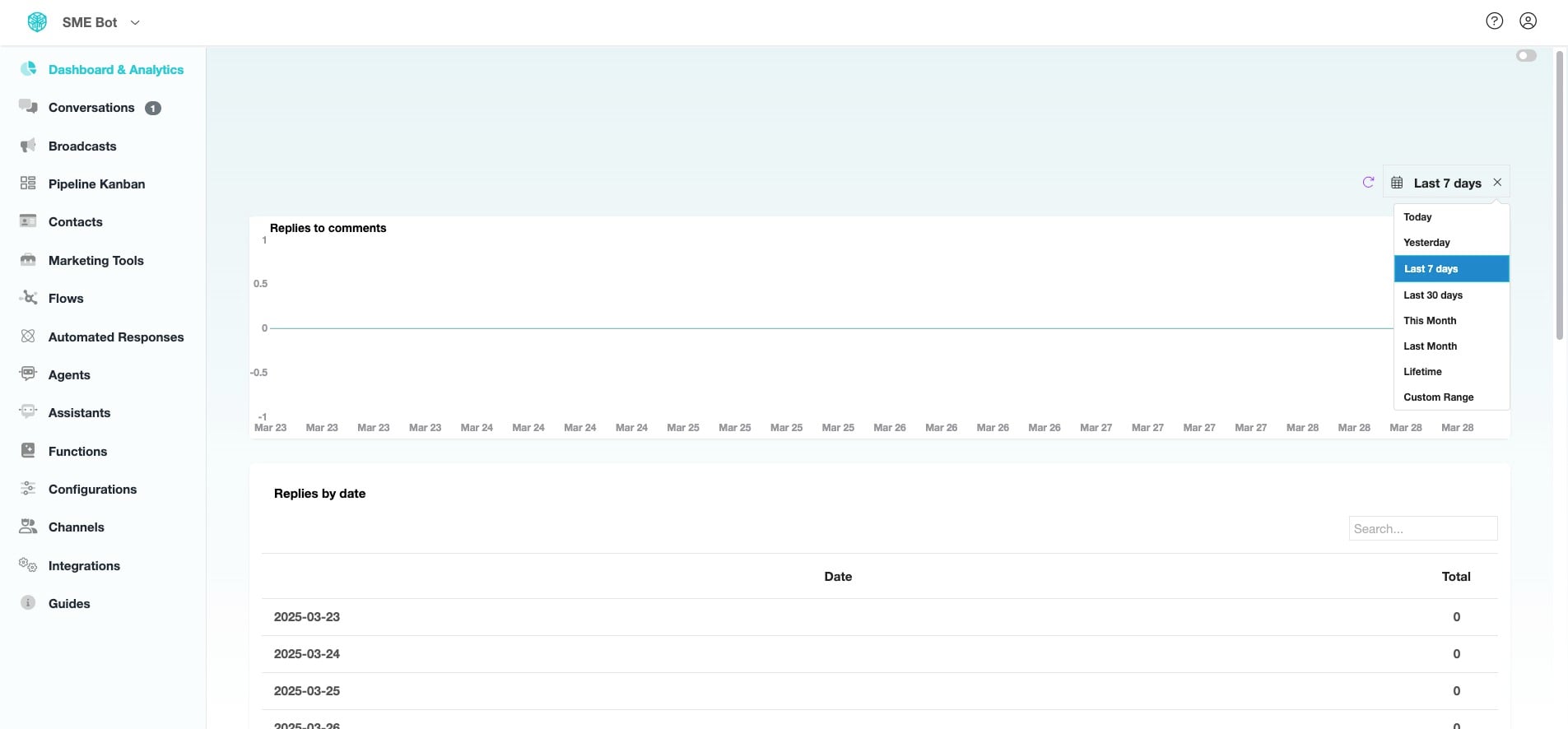
Click "View Analytics" to see the data of the Facebook Comment Automation.
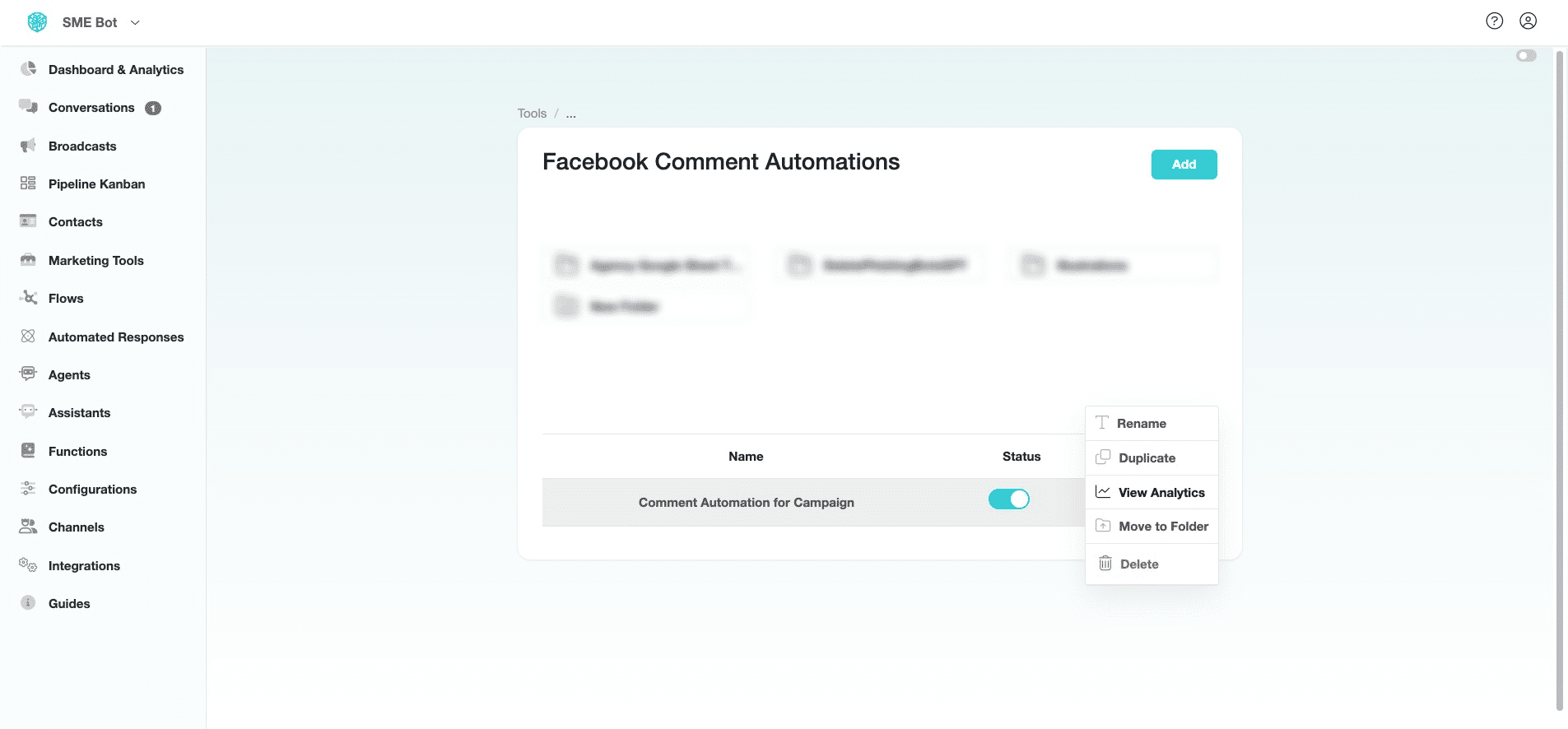
In the Facebook Comment Automation Analytics, you can view data from "Last 7 Days," "Lifetime," or set a "Custom Range".
✅ Done! You’ve successfully configured Facebook Comment Automation. 🚀
Frequently asked questions
- How do I set up the Flow for these Public Comment Automation?
See Facebook Public Comment Automation Flow in this https://help.smeguru.ai/guides/facebook-public-comment-automation-flow
- How do I set up the Flow for these Private Comment Automation?
See Facebook Private Comment Automation Flow in this https://help.smeguru.ai/guides/facebook-private-comment-automation-flow