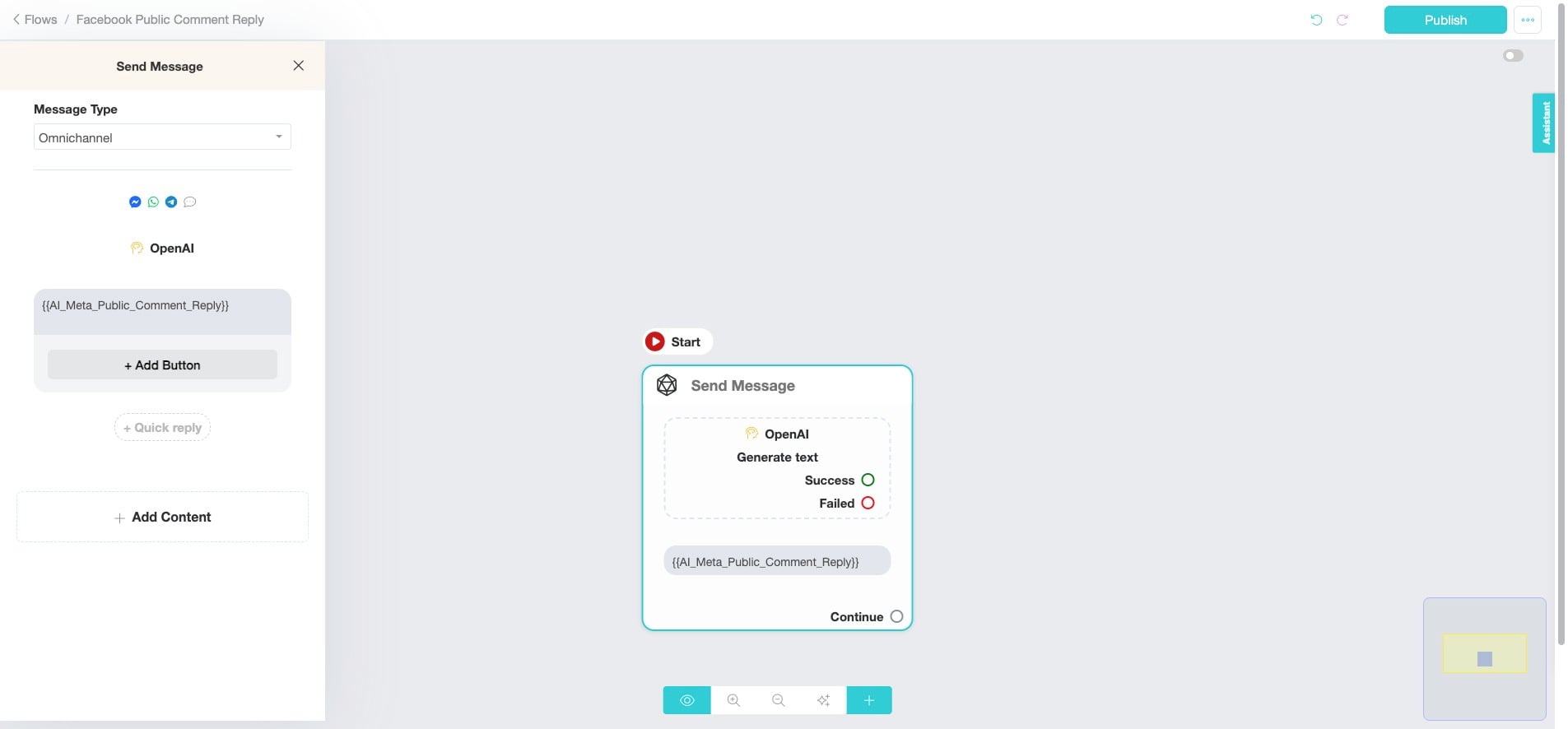
Facebook Public Comment Automation Flow
Learn how to automate Facebook comment replies using SME Bot and OpenAI. Set up a flow, configure AI settings, and use custom fields to generate smart, engaging responses. This ensures instant, personalized replies, improving customer interactions while saving you time.
Navigate to https://app.smebot.ai/flows
Click "Flows"
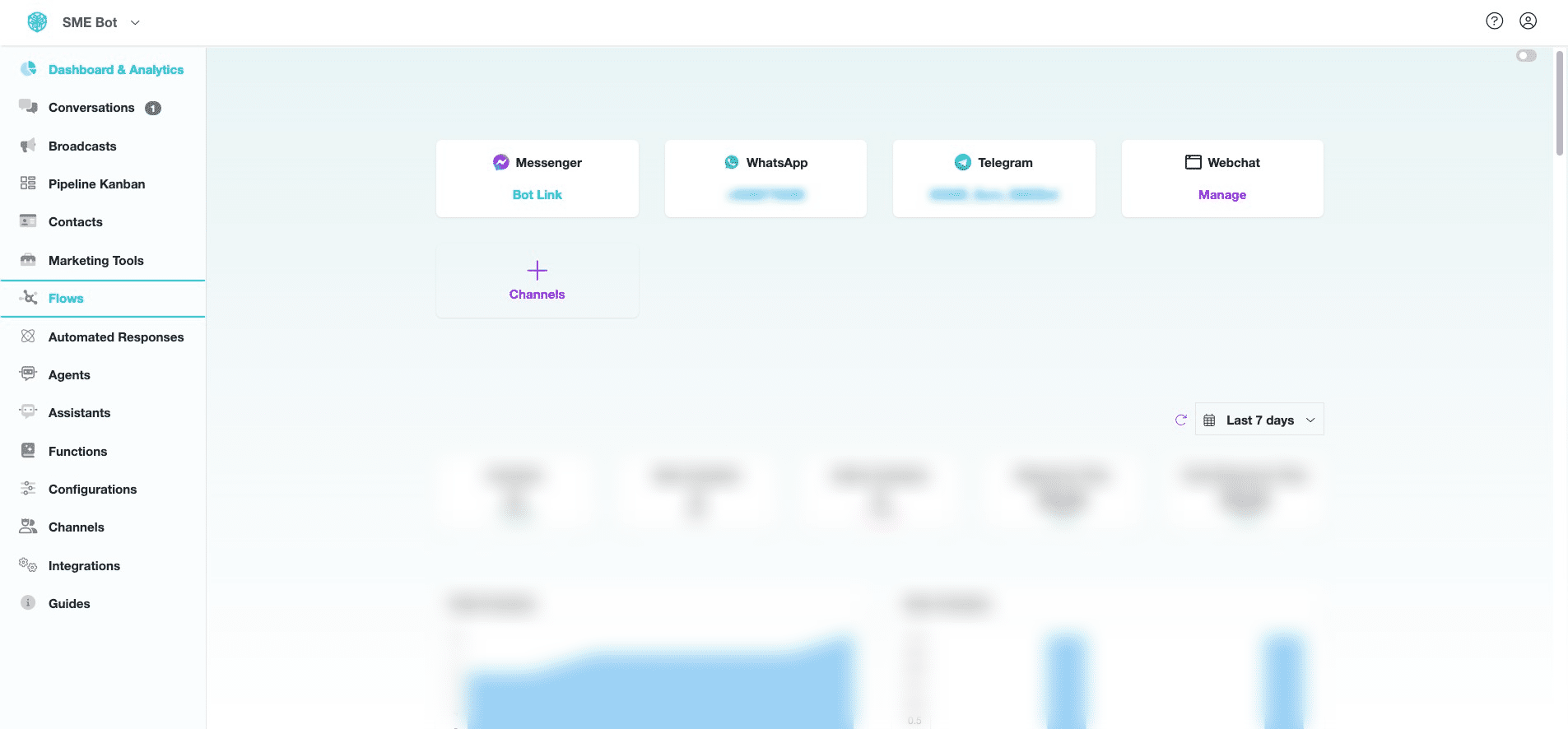

Click "Add" to create a new flow.
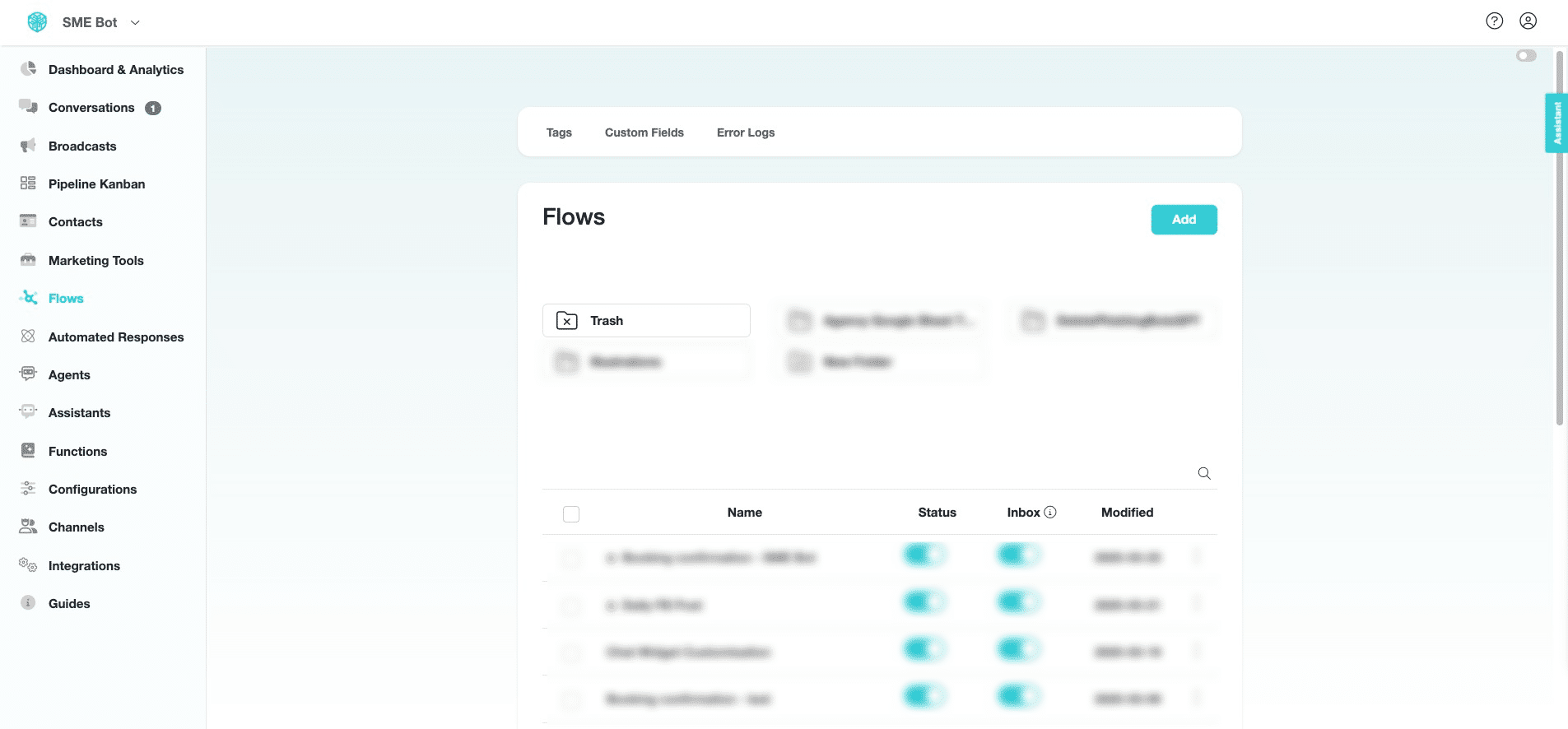
Assign a name to the flow that reflects its purpose, such as "Facebook Public Comment Reply"
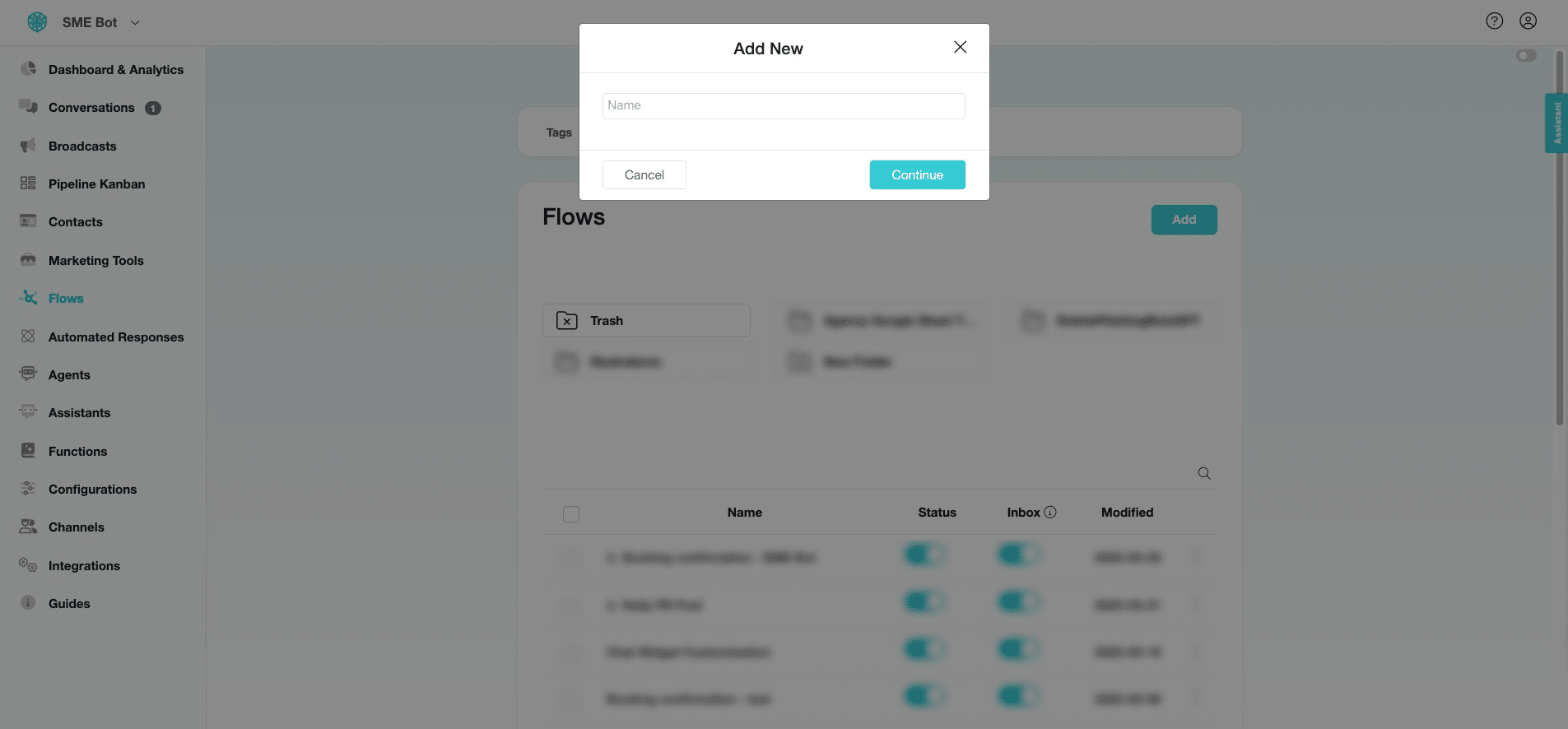
Click "Continue"
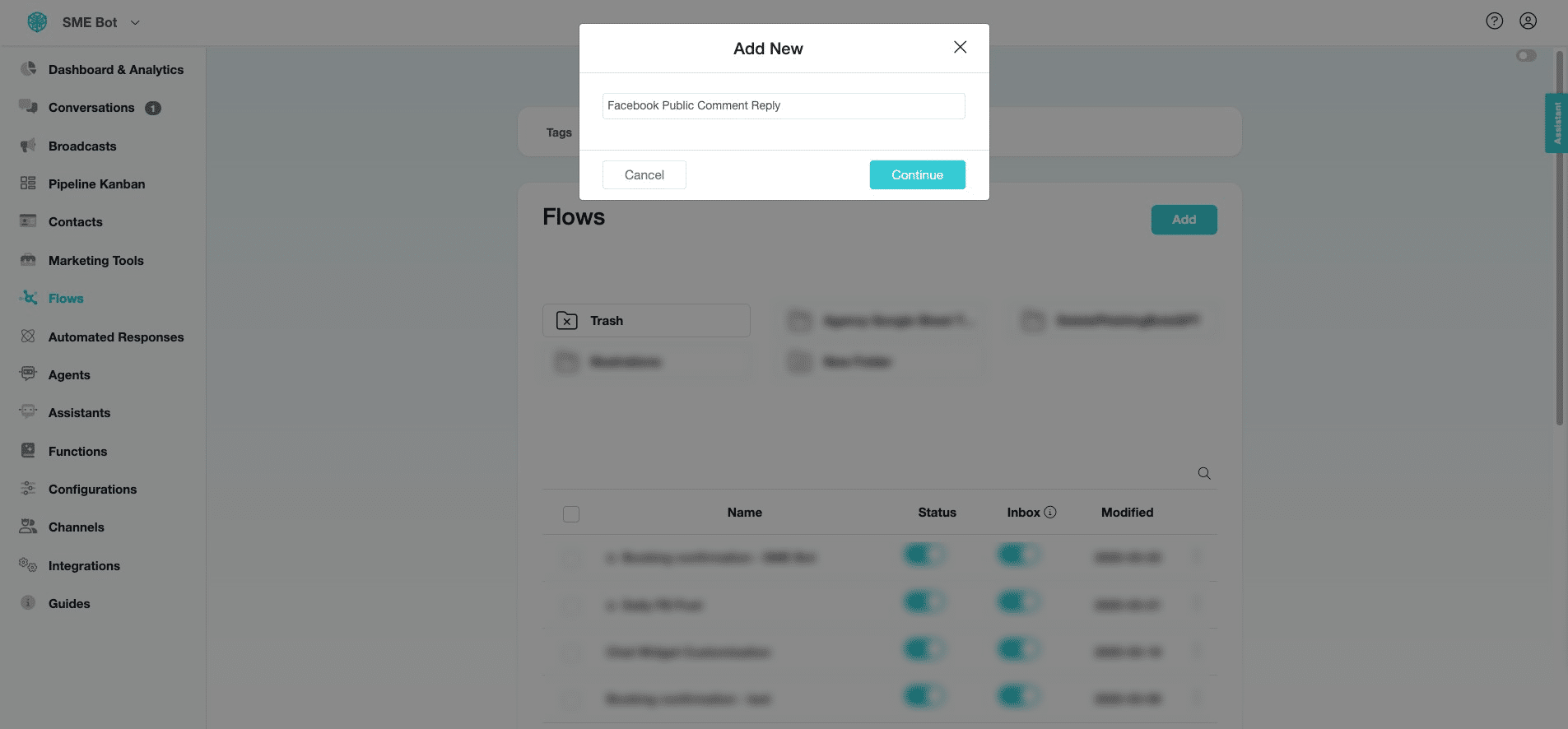
Start setting up your flow by clicking on the node.
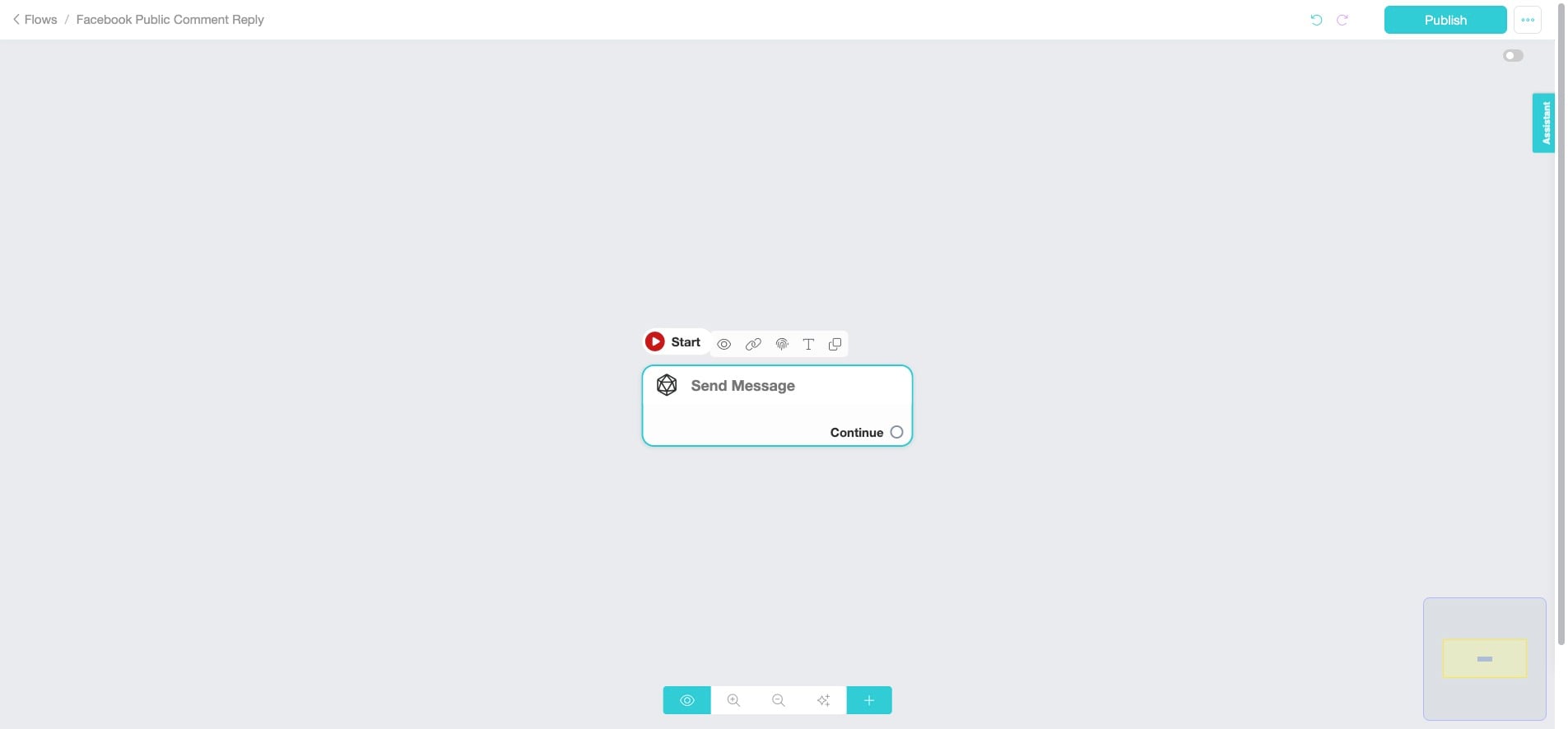
Click "Add Content"
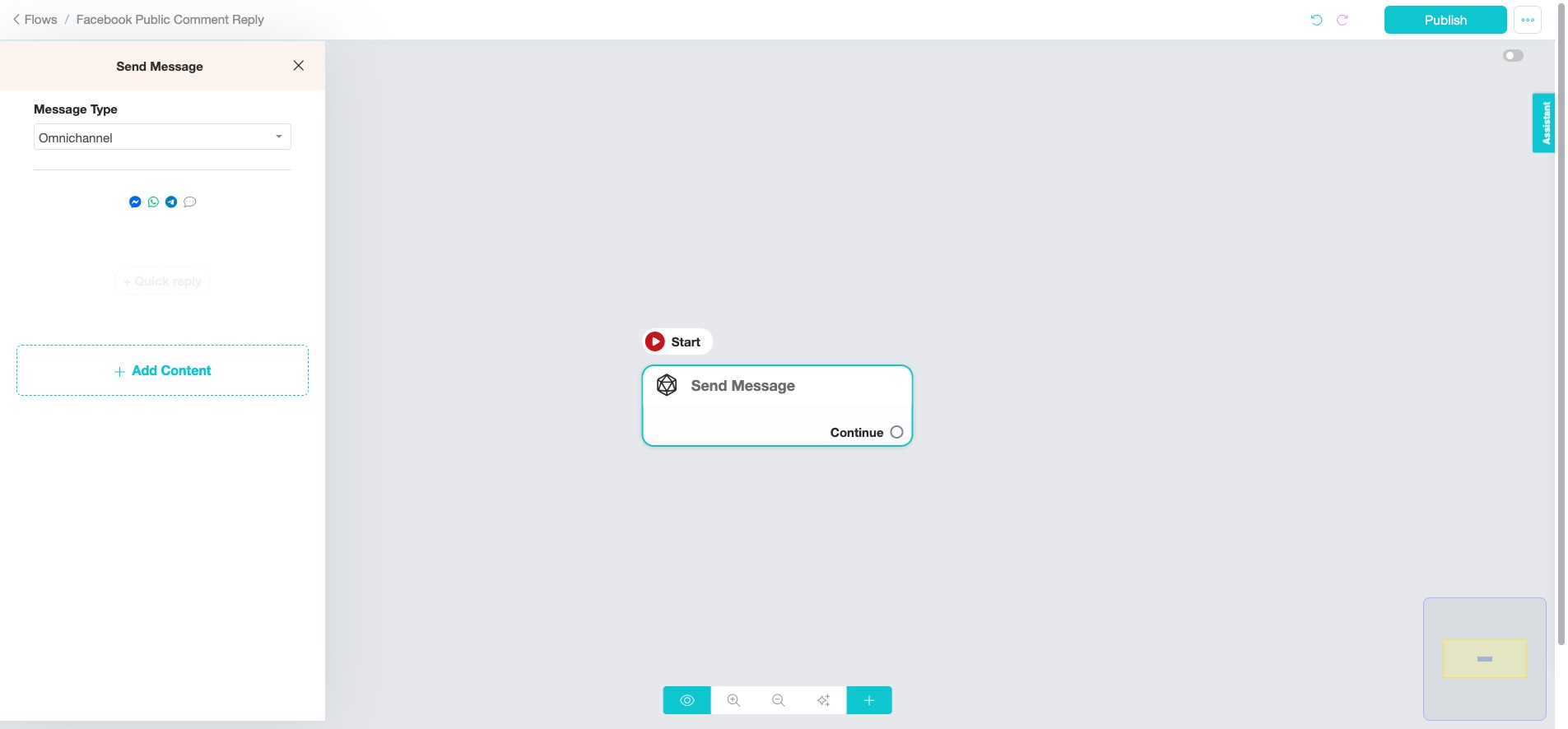
Click "Actions". In this example, we will use AI to reply to user's comment.
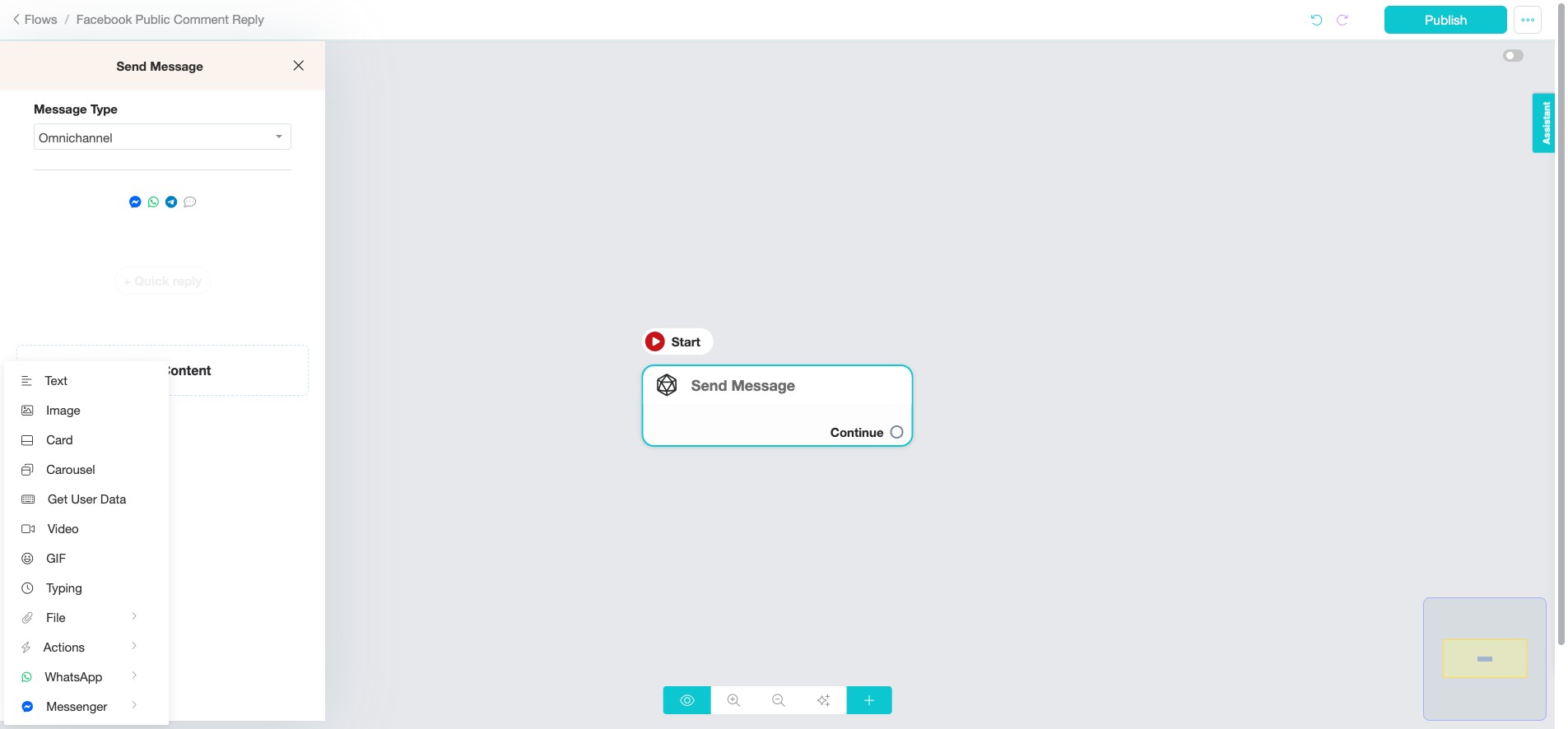
We will be using OpenAI—click "OpenAI" to proceed.
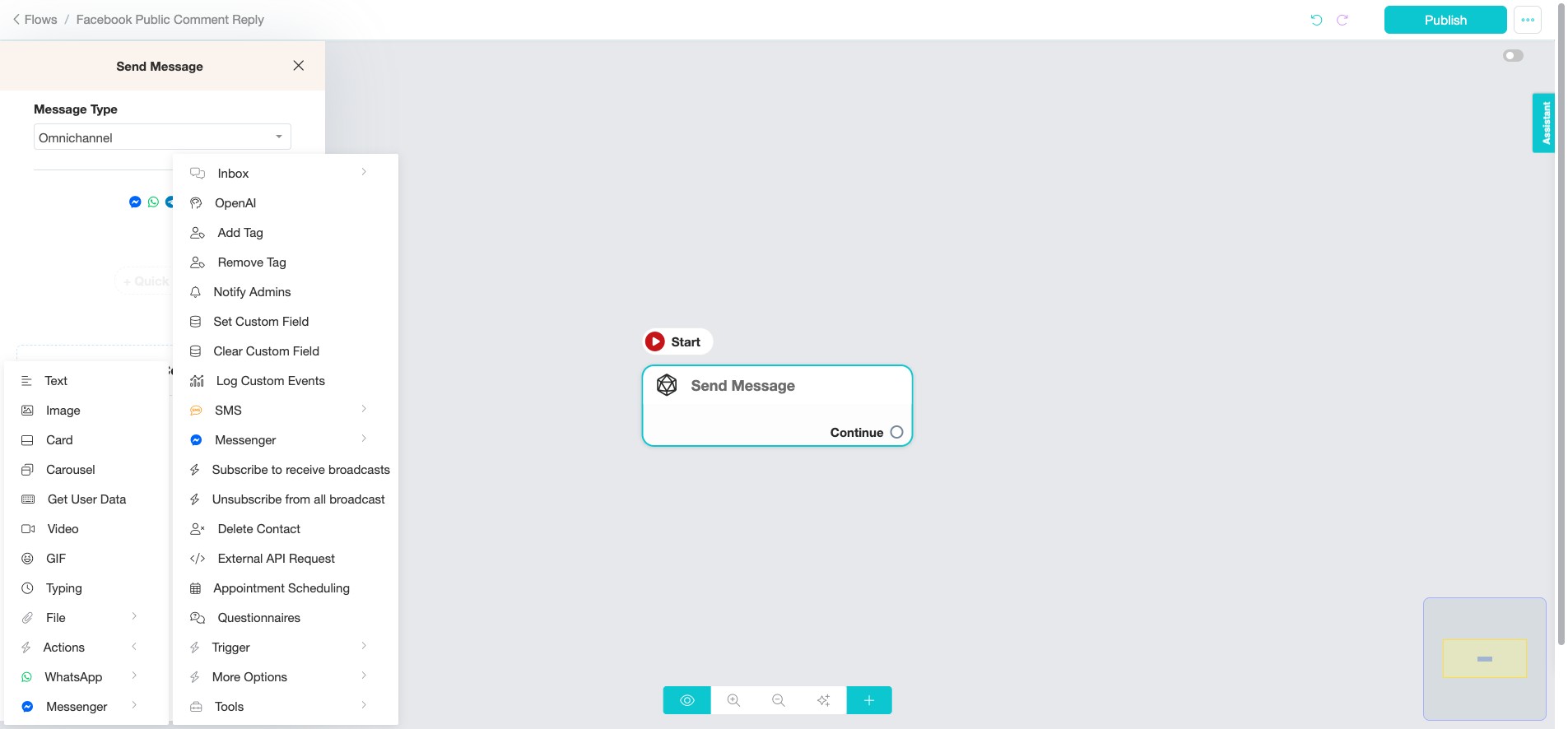
Click "OpenAI" to configure.
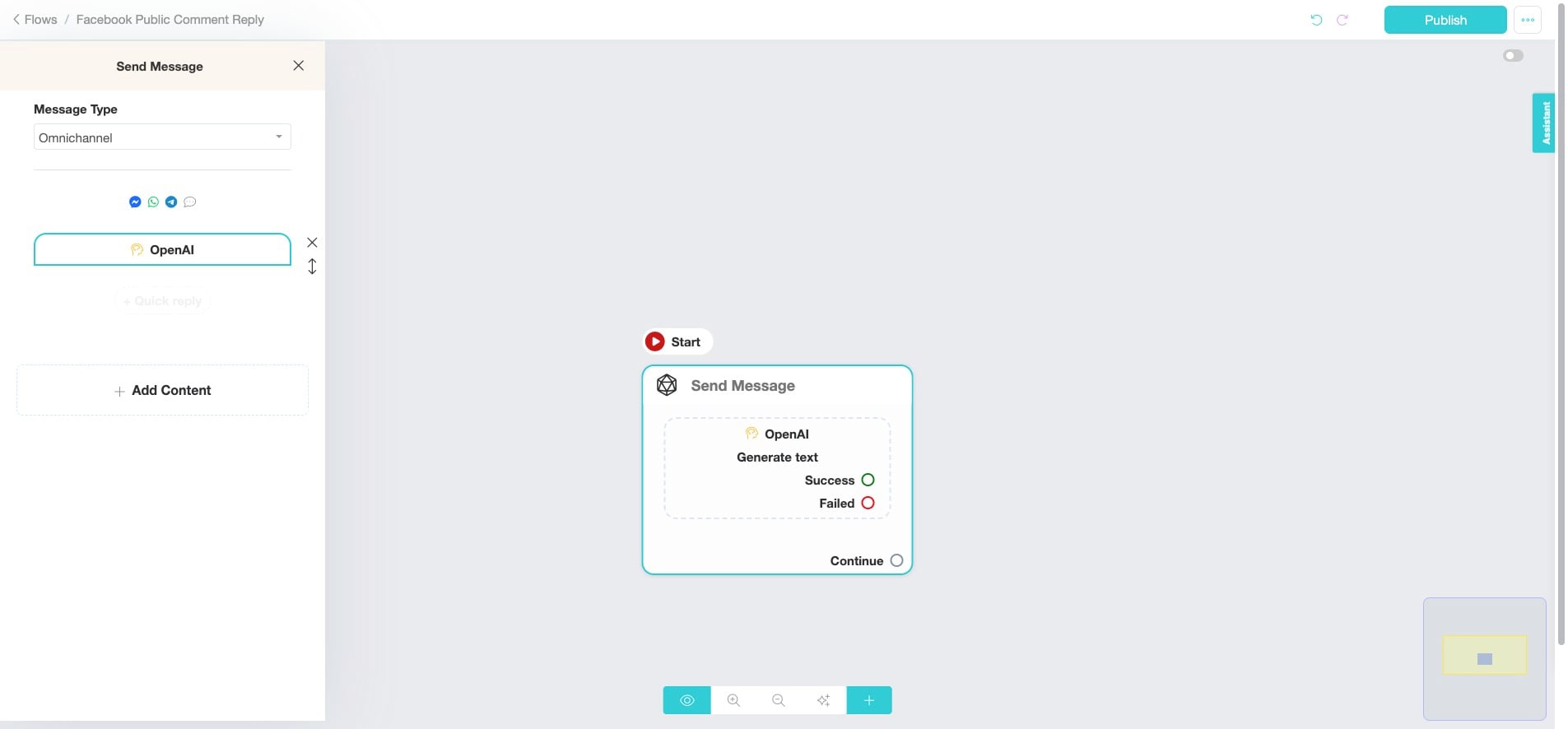
Click here to select how you want to use OpenAI.
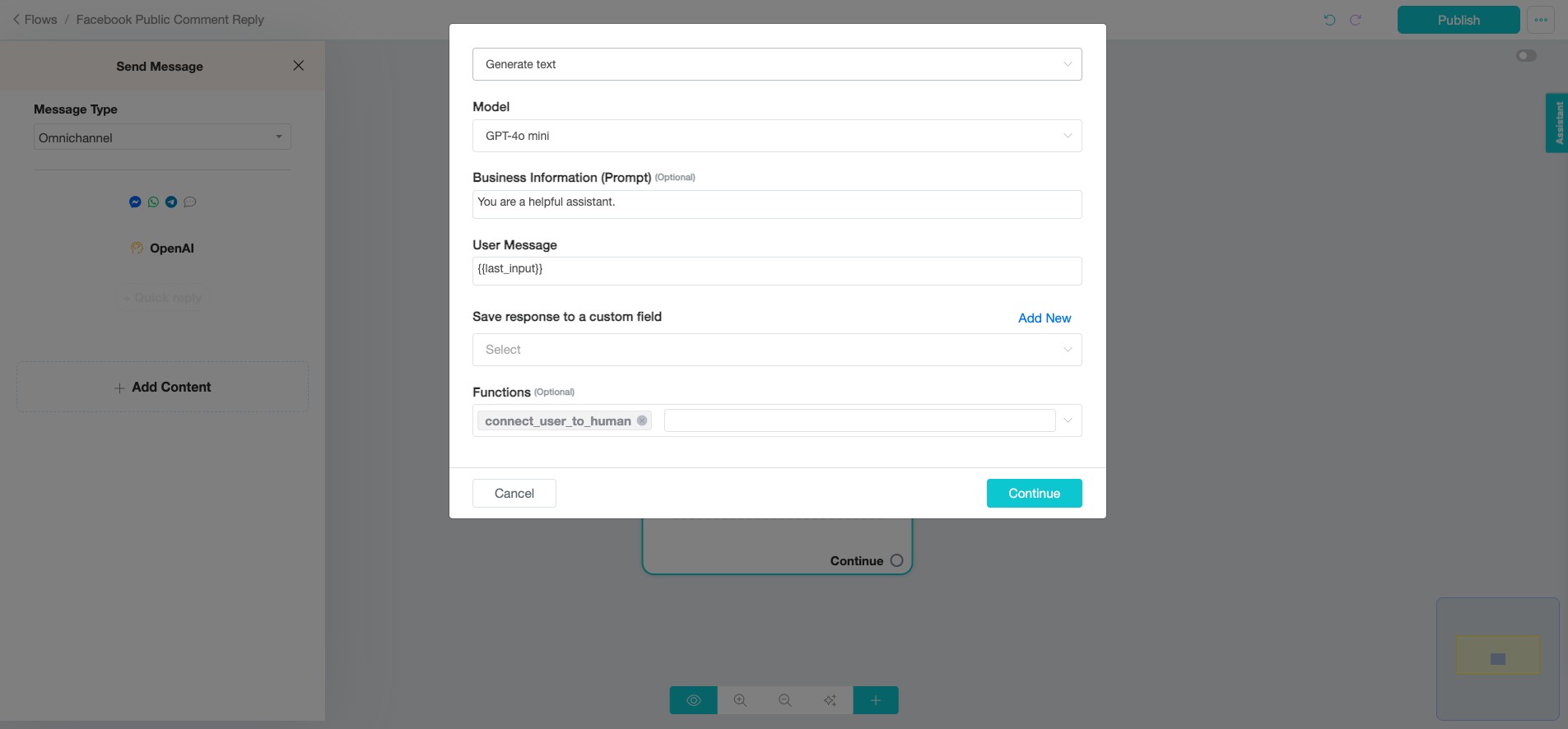
Click "Generate text - Advanced". This option gives you more control over the AI-generated responses.
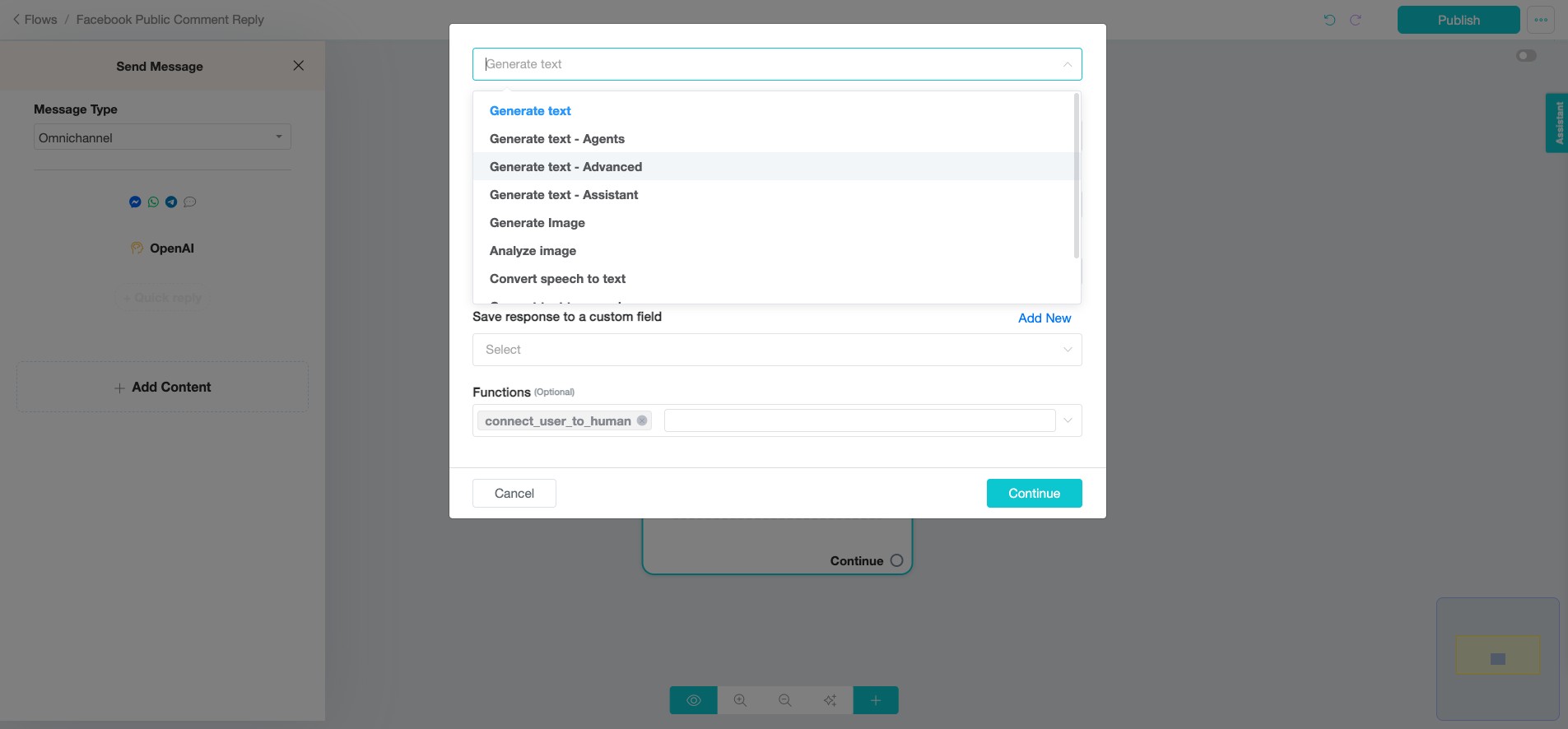
For the OpenAI model, we have selected "GPT-4o mini".
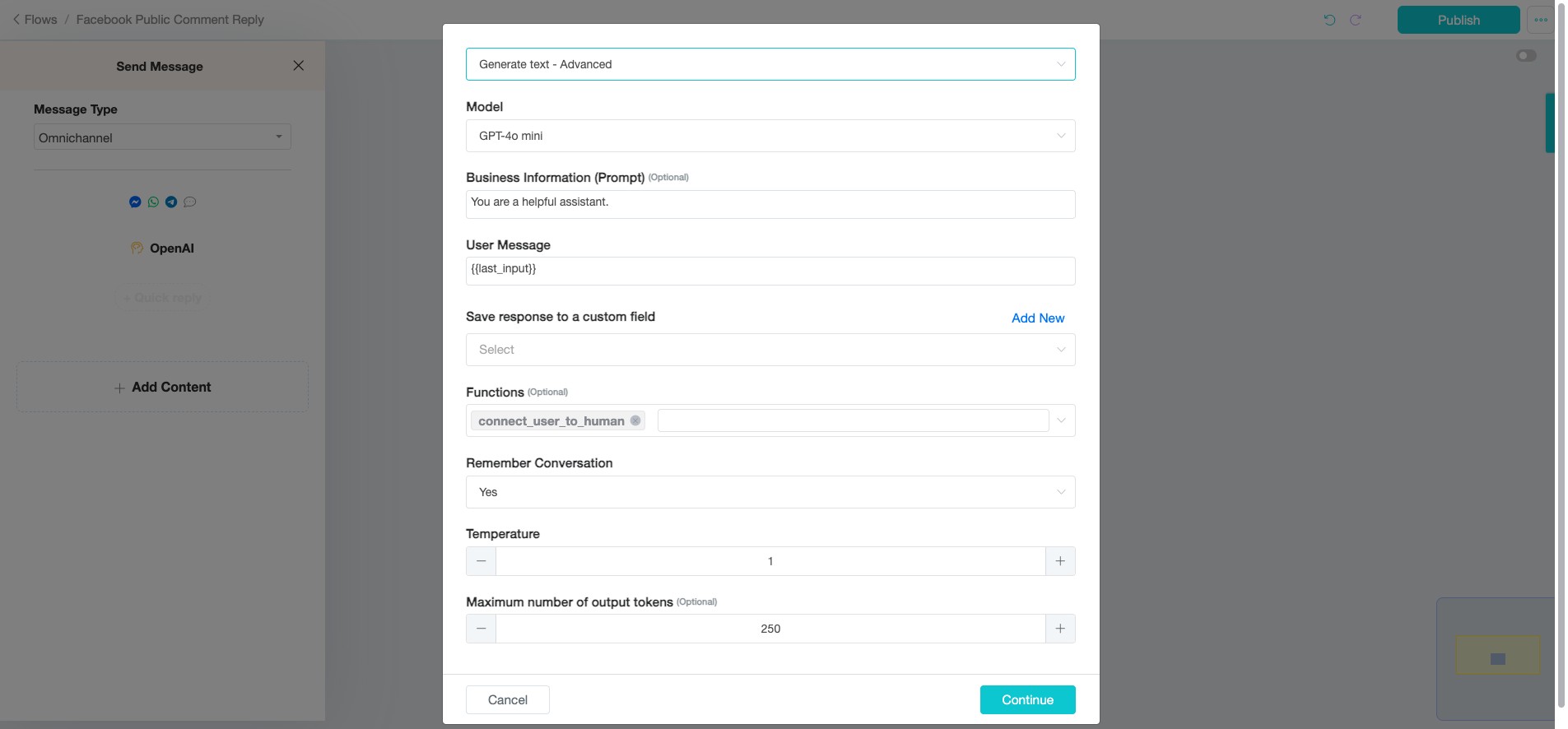
Insert your prompt by providing relevant details about your business or specific context for the Facebook post. If you have not trained your AI with your Business Information, include the necessary background, such as product details, customer FAQs, or any key points you want the AI to consider in generating the responses.
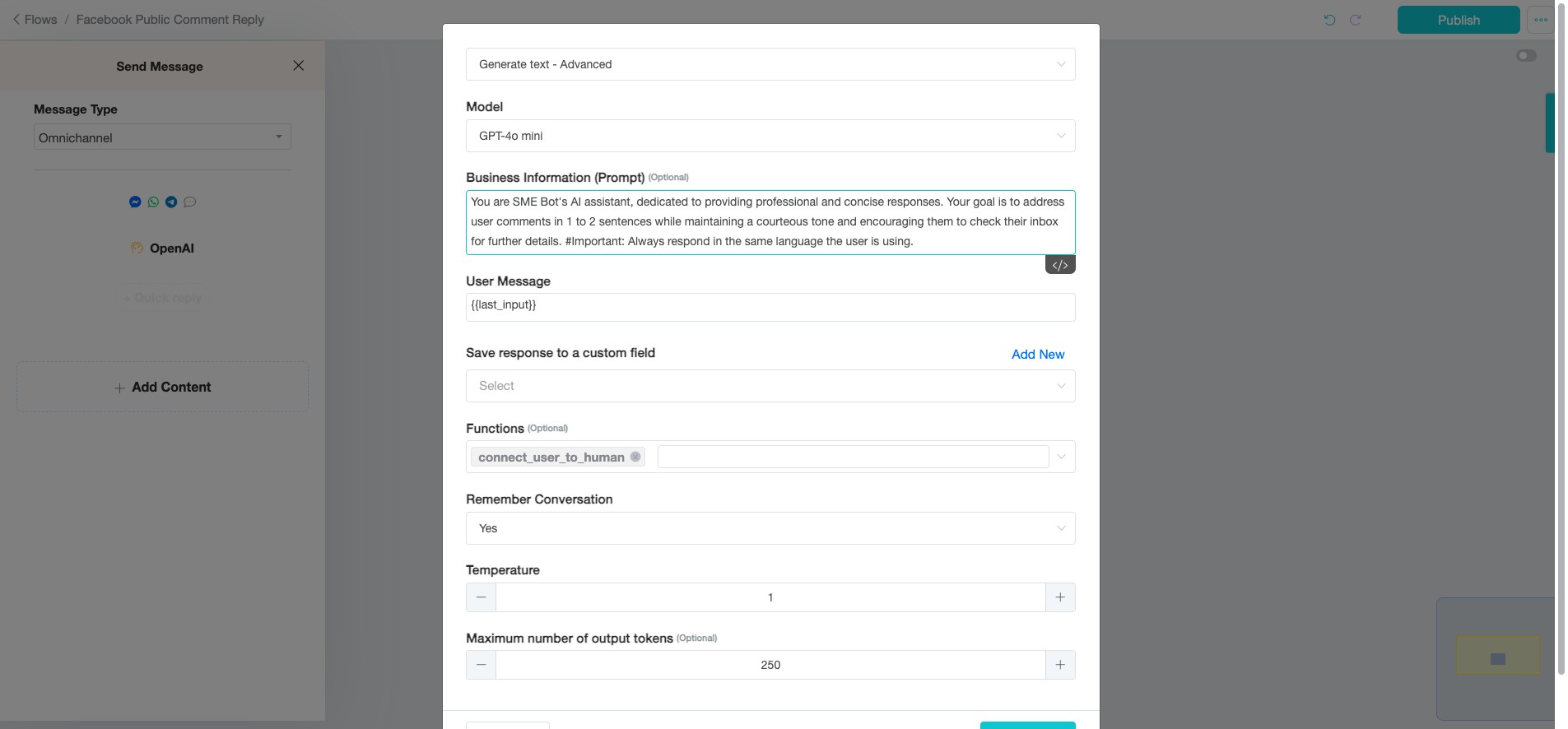
Edit the prompt as needed to suit your business context. You are SME Bot's AI assistant, dedicated to providing professional and concise responses. Your goal is to address user comments in 1 to 2 sentences while maintaining a courteous tone and encouraging them to check their inbox for further details. #Important: Always respond in the same language the user is using.
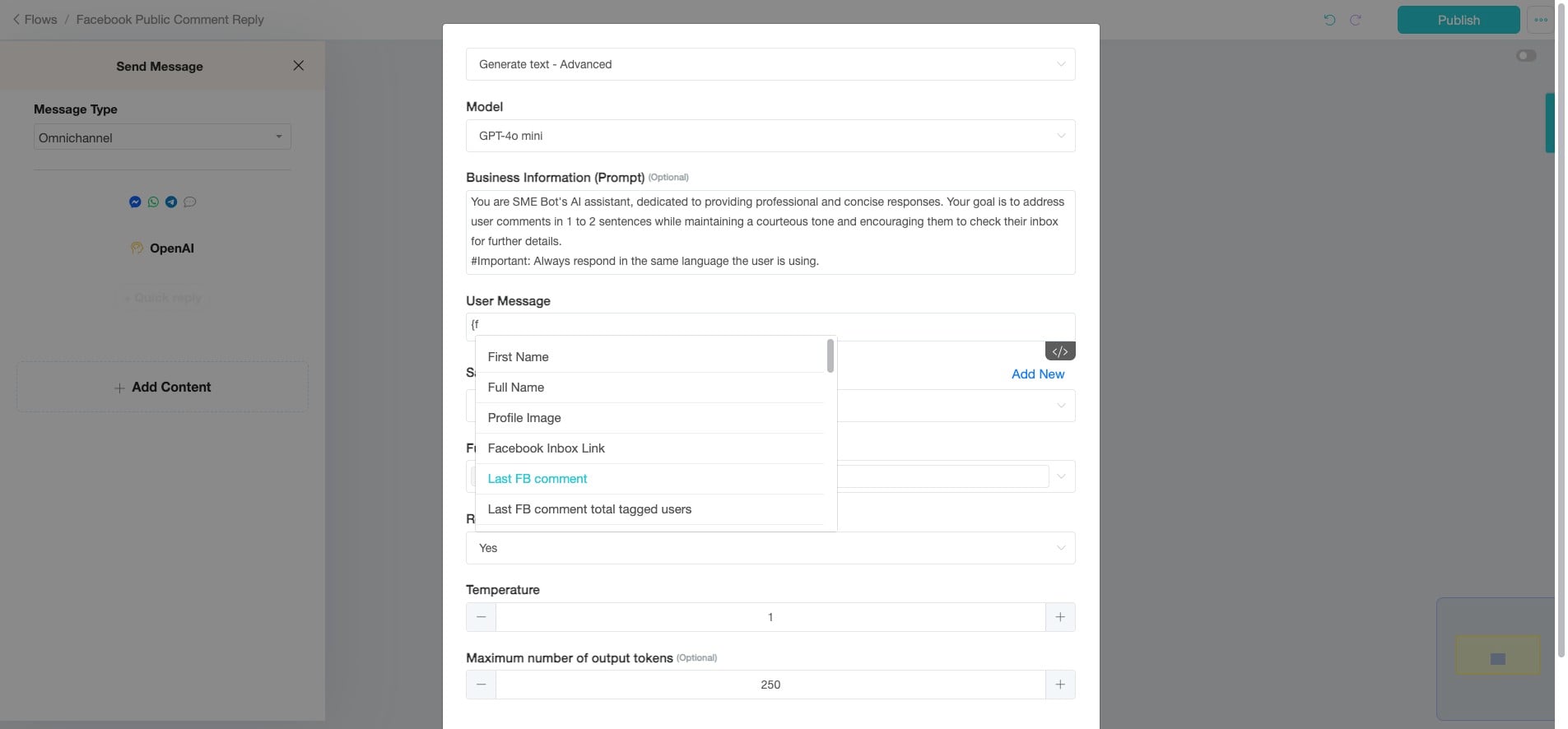
Instead of the usual {{Last_input}}, use {{Last_FB_Comment}} for User Message. Click here to select it.
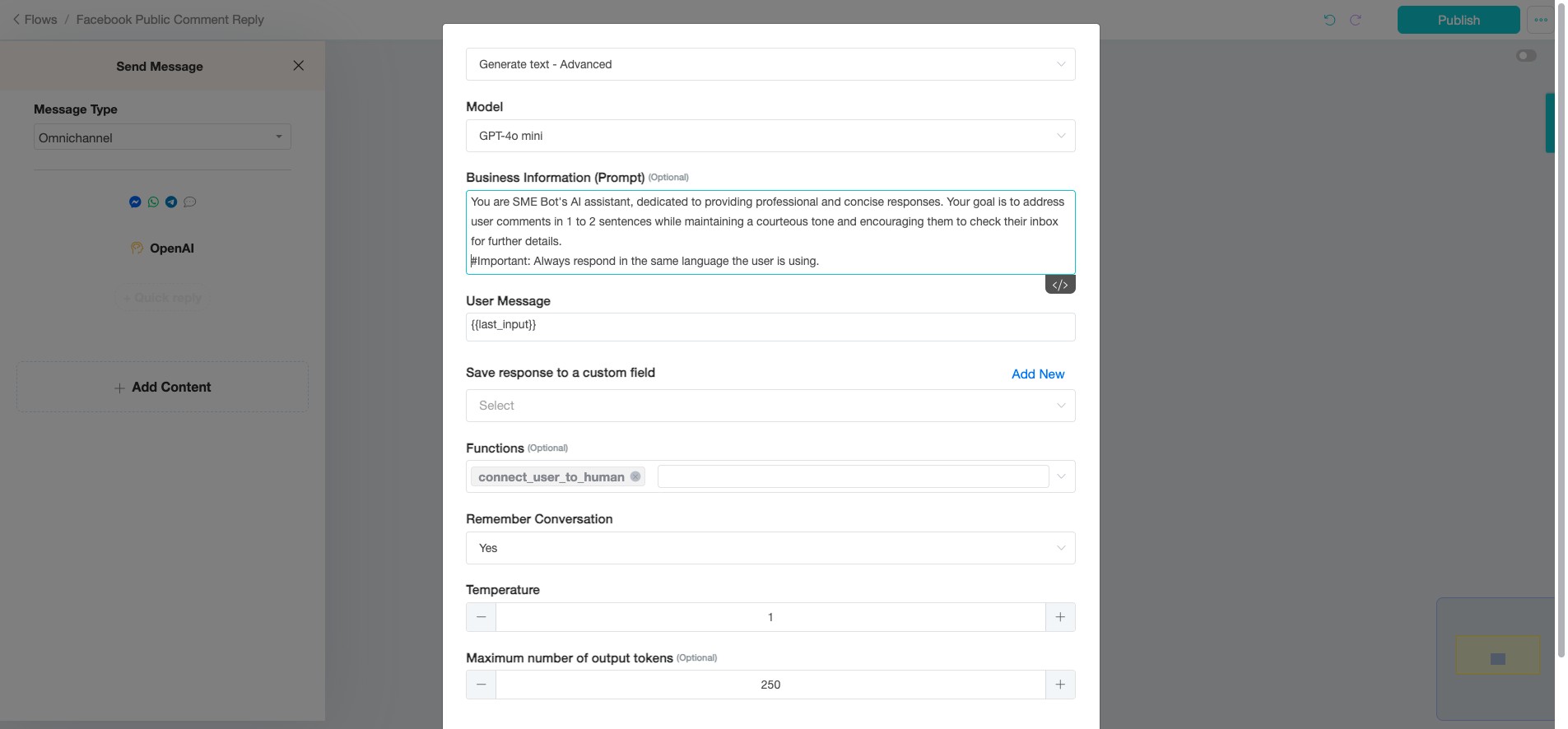
📌 For Your Information: When configuring the AI, you need to specify what the AI should use as input to generate its response. In this setup, the "user message" is set to the "last Facebook comment."
Click "Last FB comment"
To designate a new Custom Field for saving all responses in this flow, click "Add New" to create it.
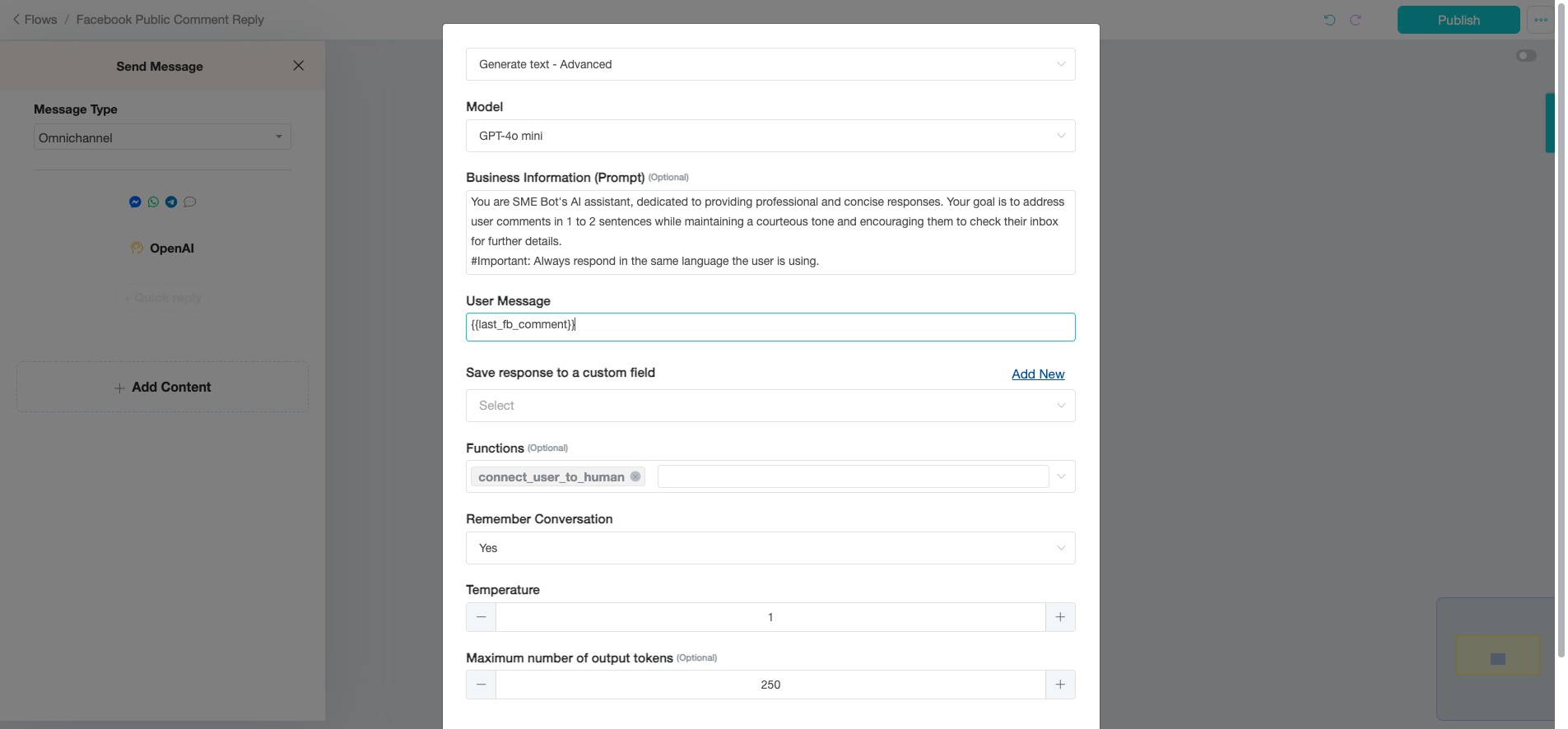
📌 For Your Information:
Once the AI generates a response, it needs to be saved for future reference or analysis. You can either use an existing Custom Field or create a new one to store these responses.
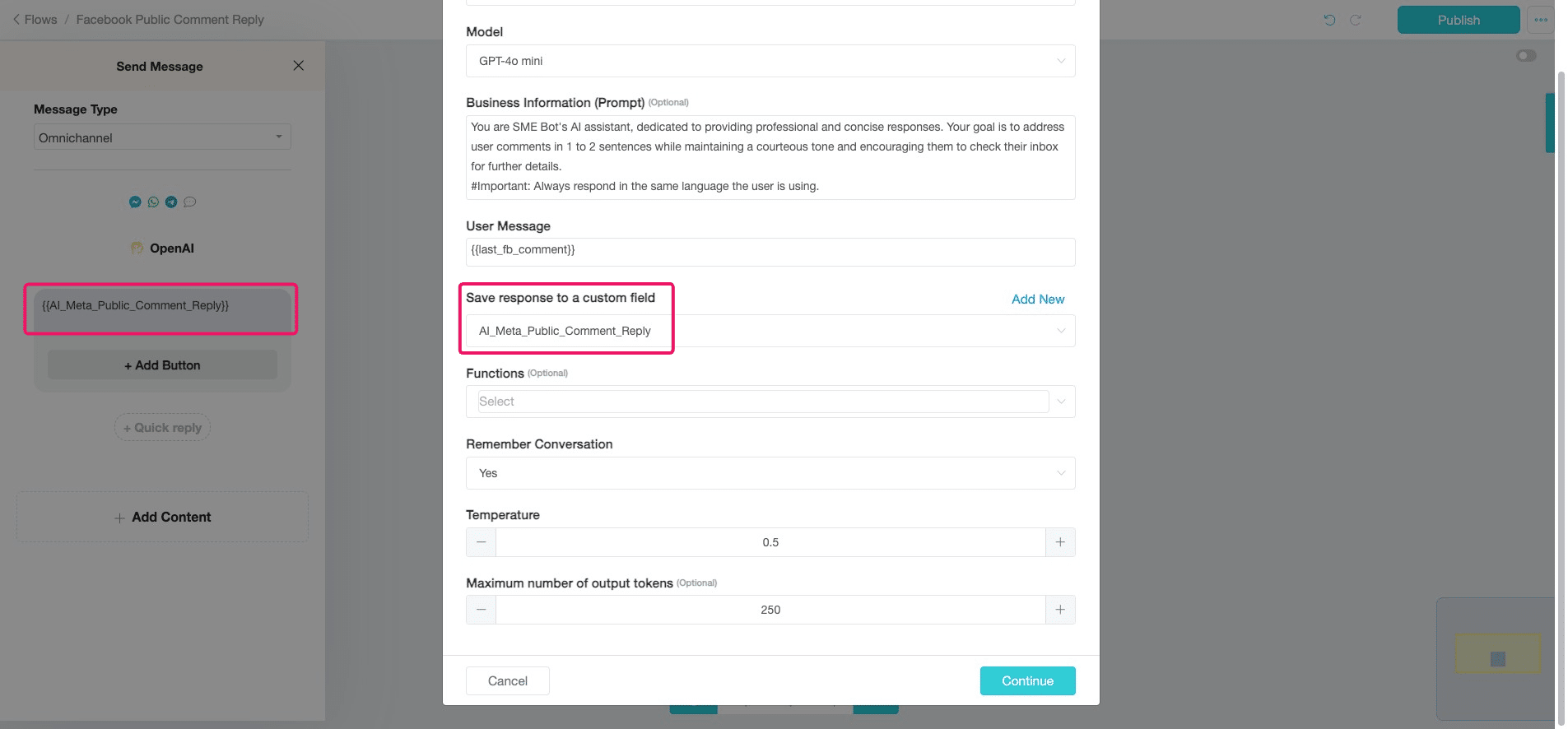
In this example, a new Custom Field named "AI_Meta_Public_Comment_Reply" is created to save the AI-generated replies, helping to organize and manage interactions effectively.
Provide "Custom Field" Name.
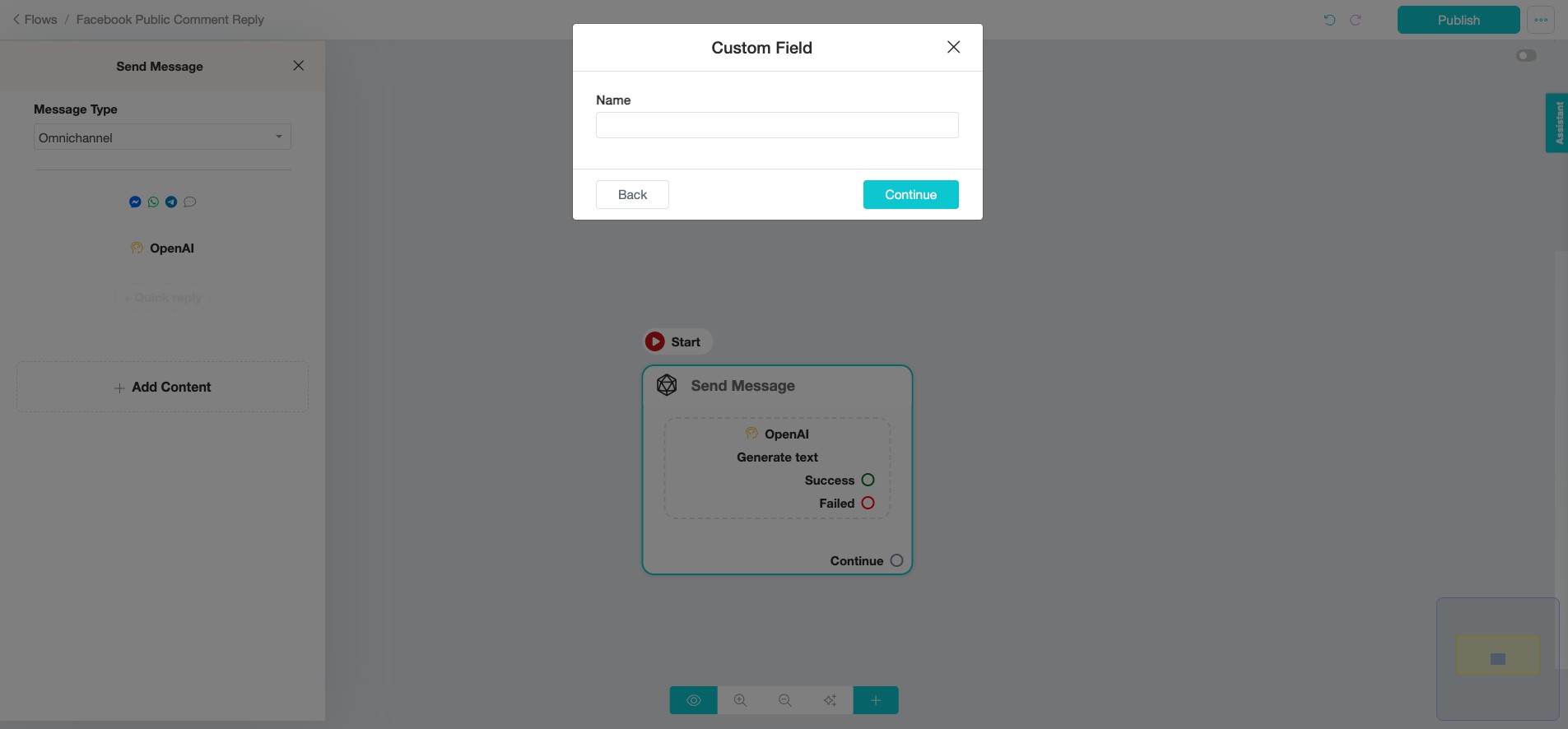
Enter the name for the "Custom Field" and click "Continue" to proceed.
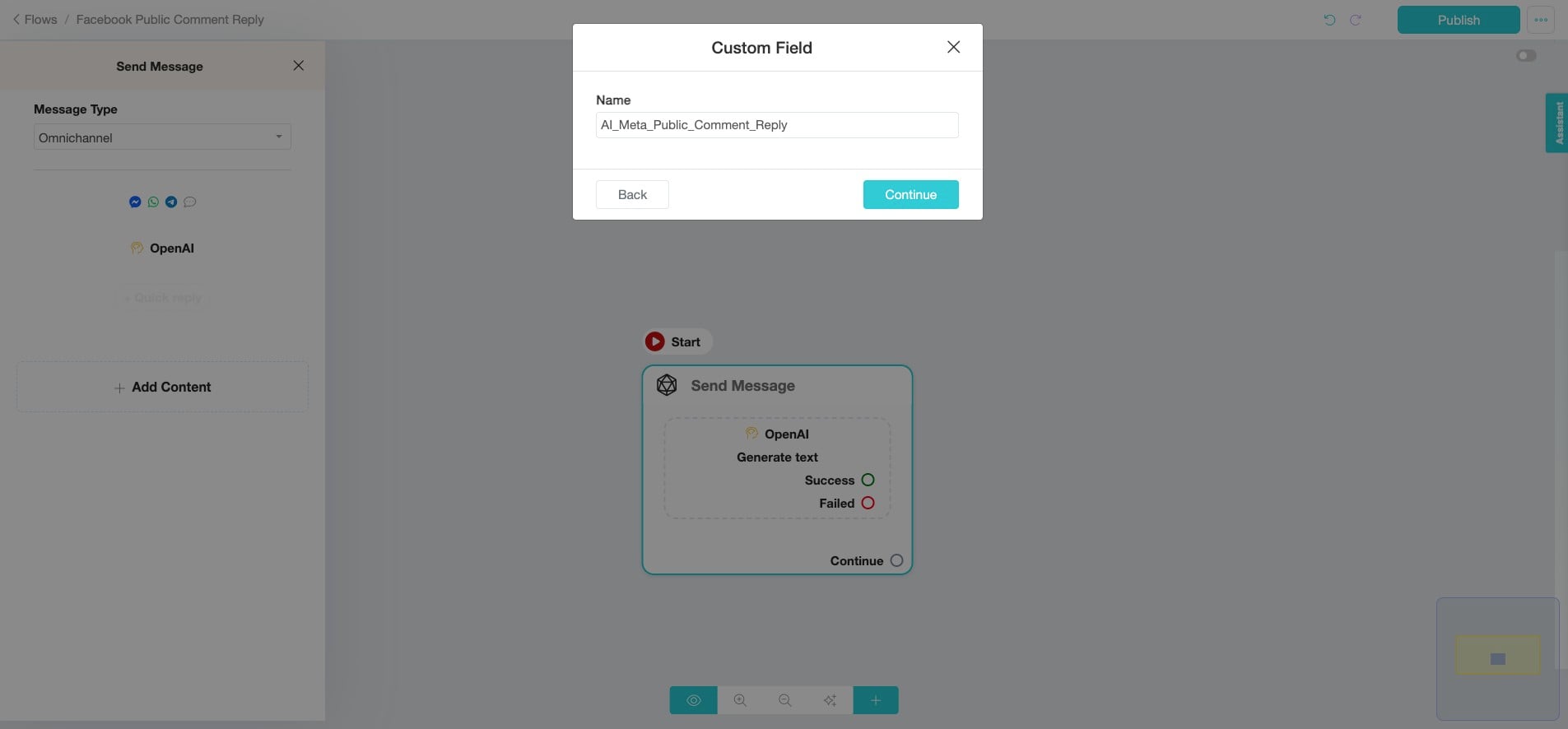
We are not using "Functions", and will remove "connect_user_to_human" to prevent the bot from auto-connecting users to a human agent.
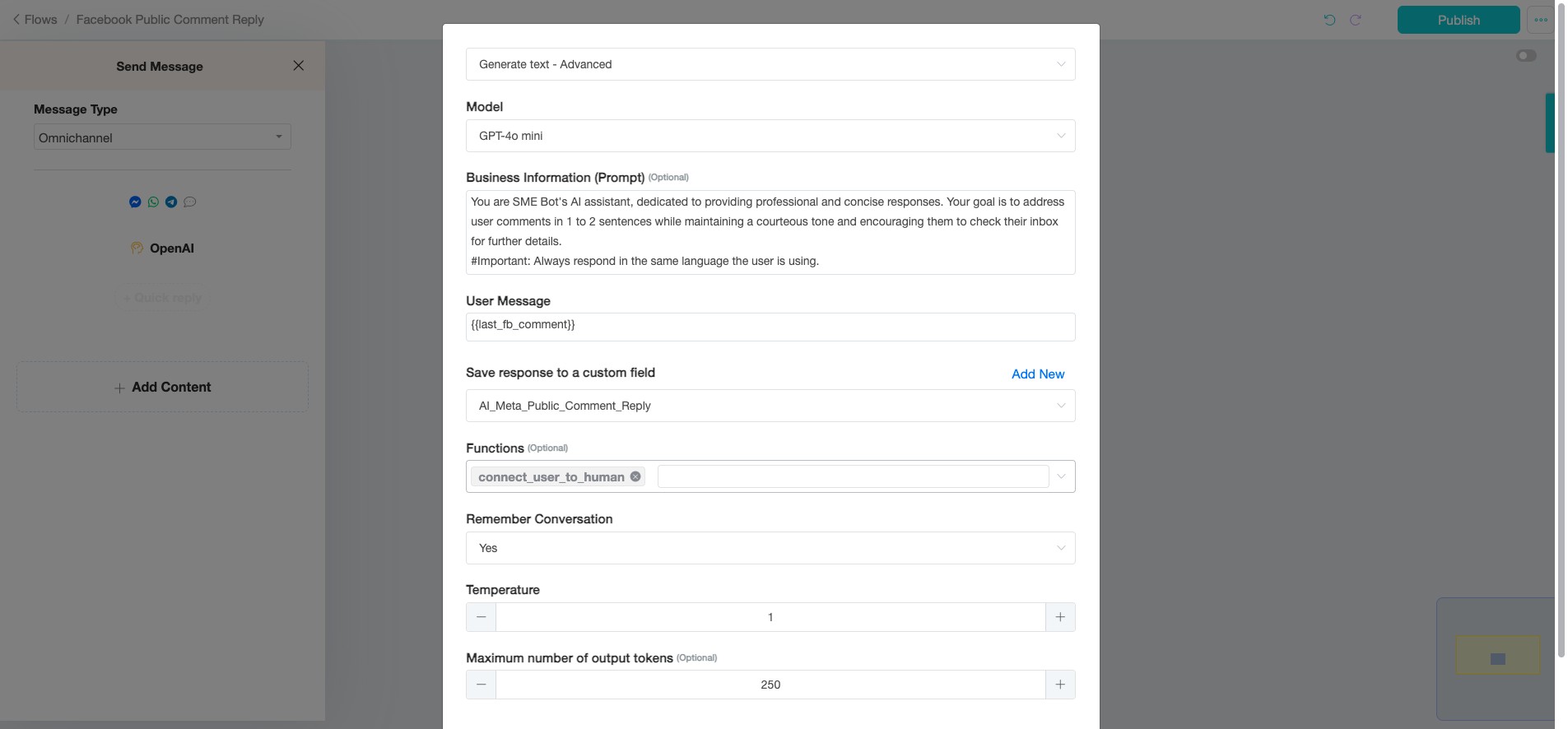
Select "Yes" to ensure the AI remembers conversations for this flow, and set the "Temperature" to 0.5 for balanced responses.
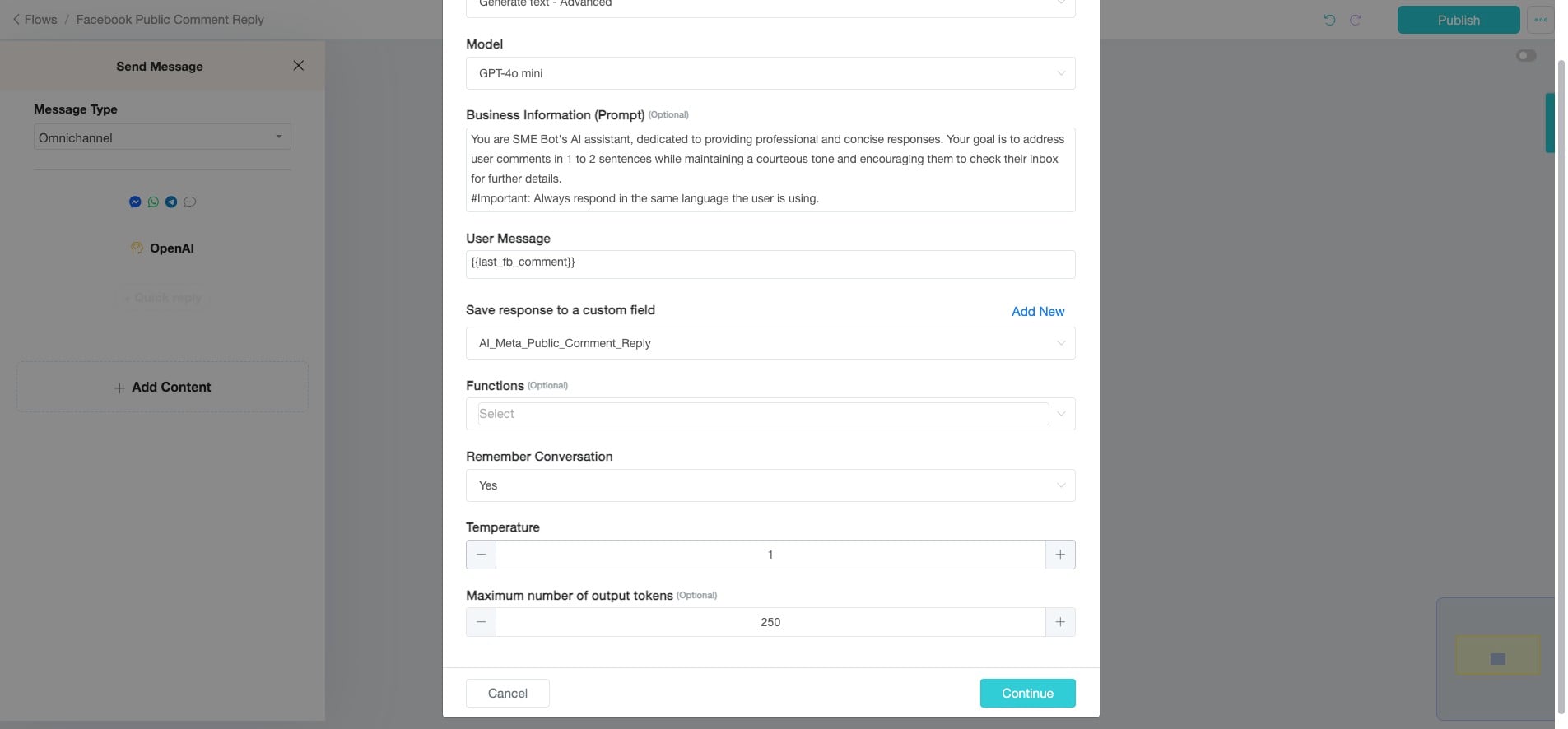
Click "Continue"
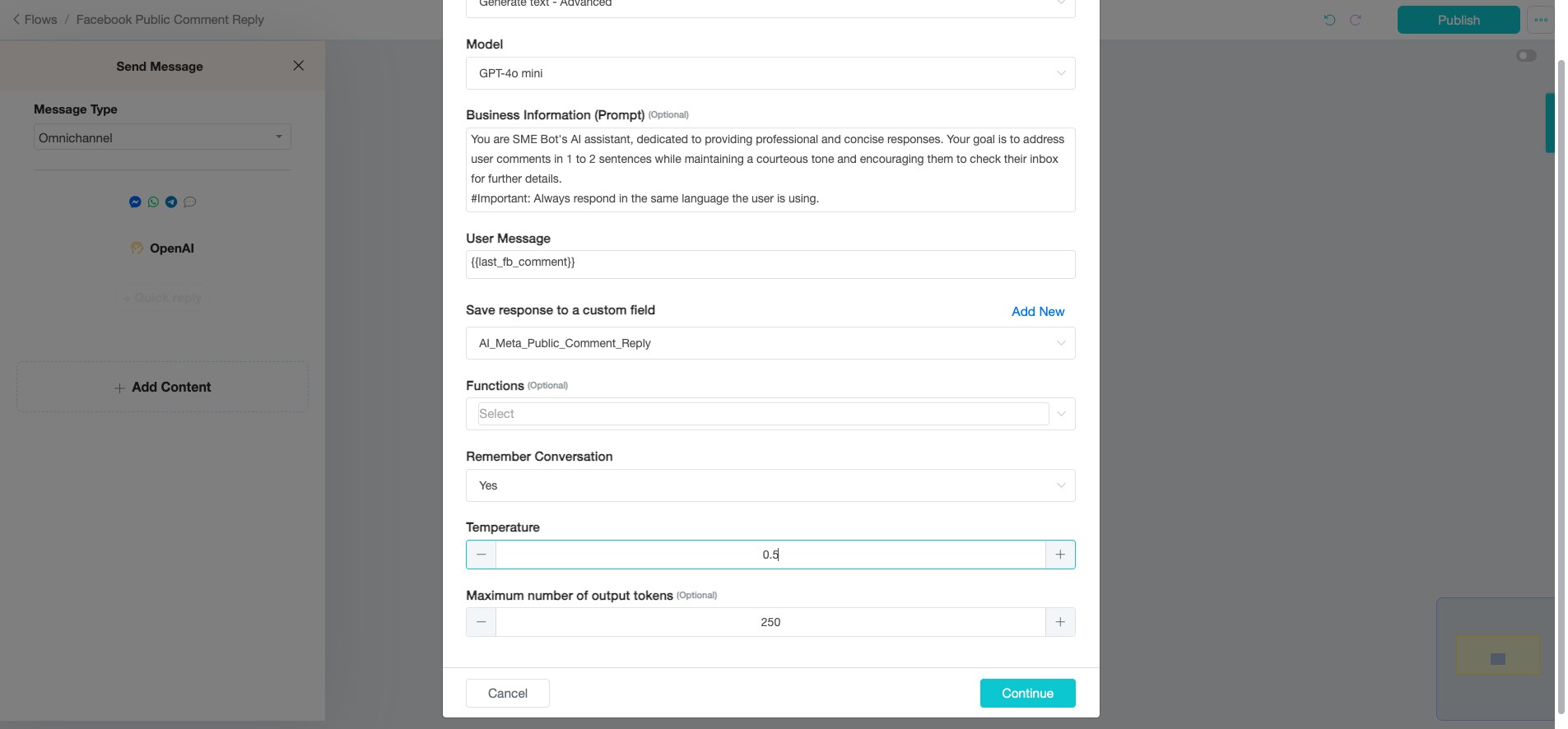
We are adding one more content for the AI to use when displaying responses. Click "Add Content".
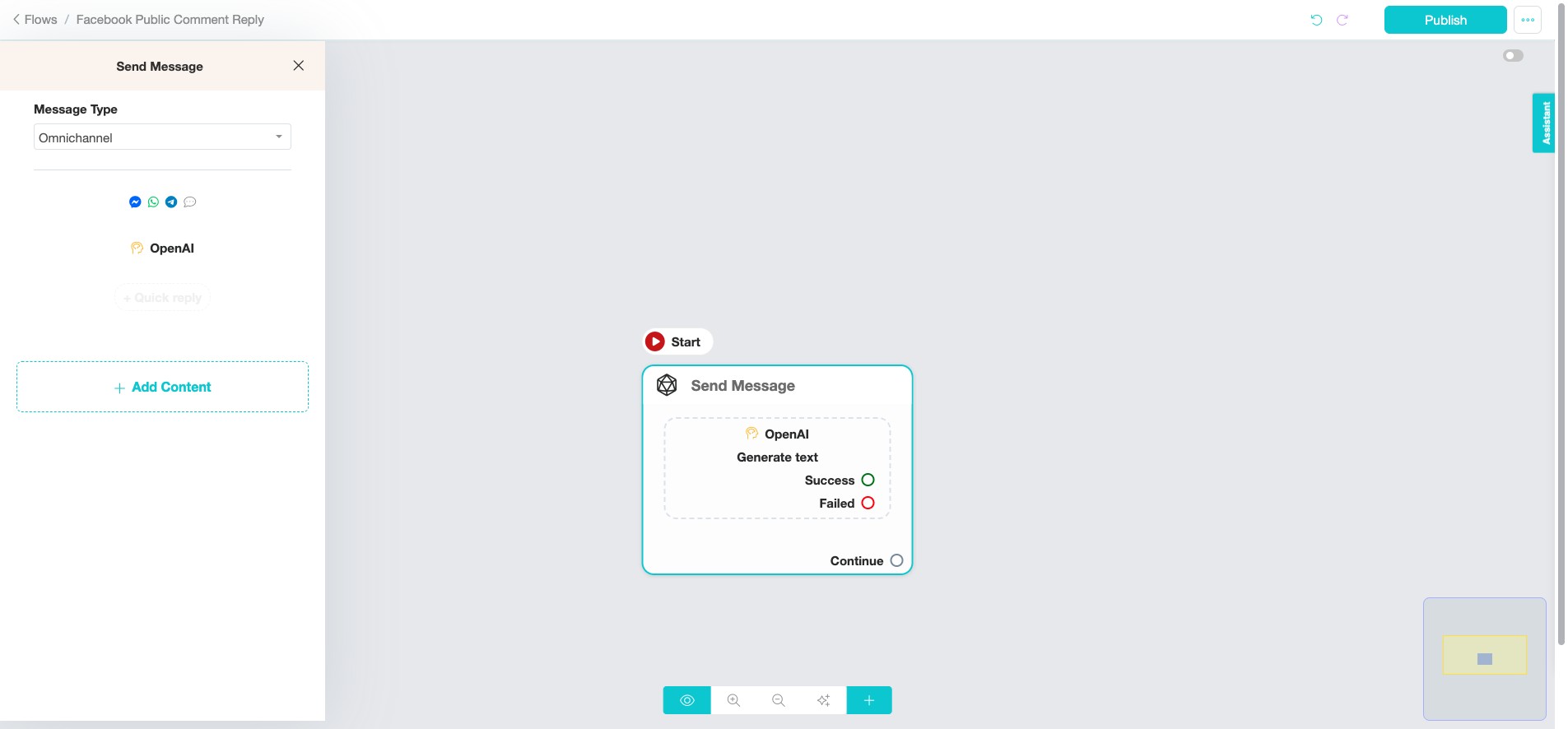
Click "Text"
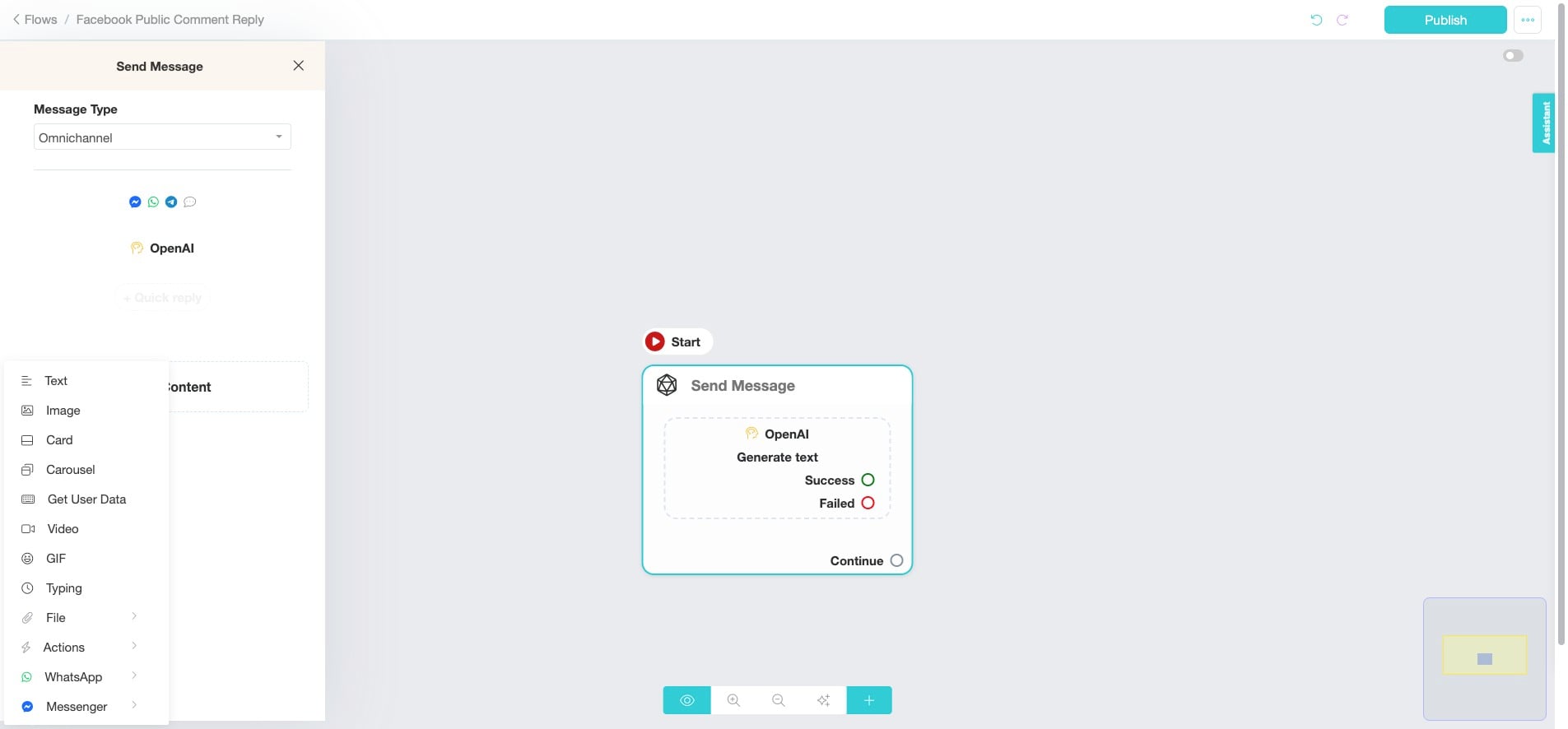
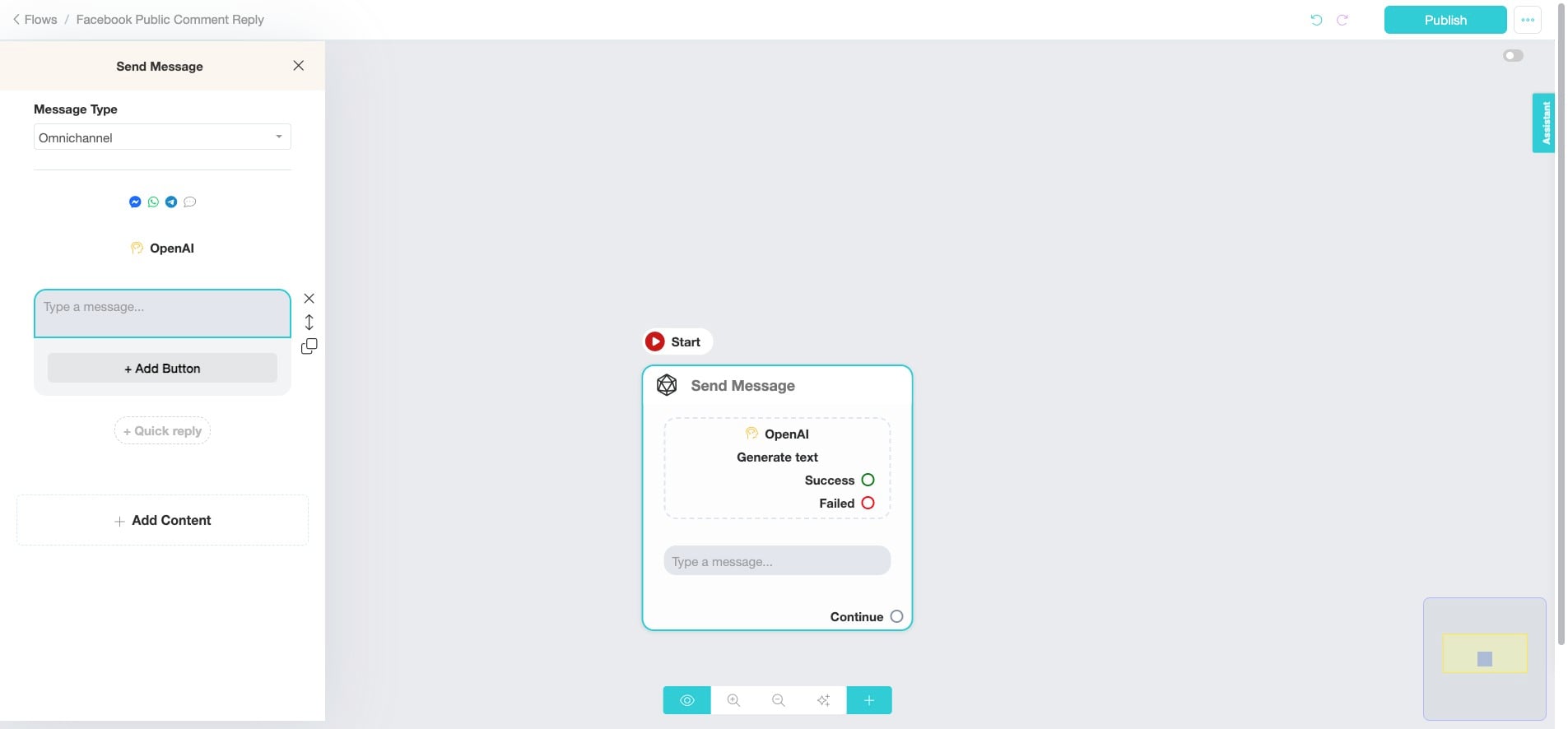
Click on the text box and insert "{" to select the designated Custom Field we created earlier.
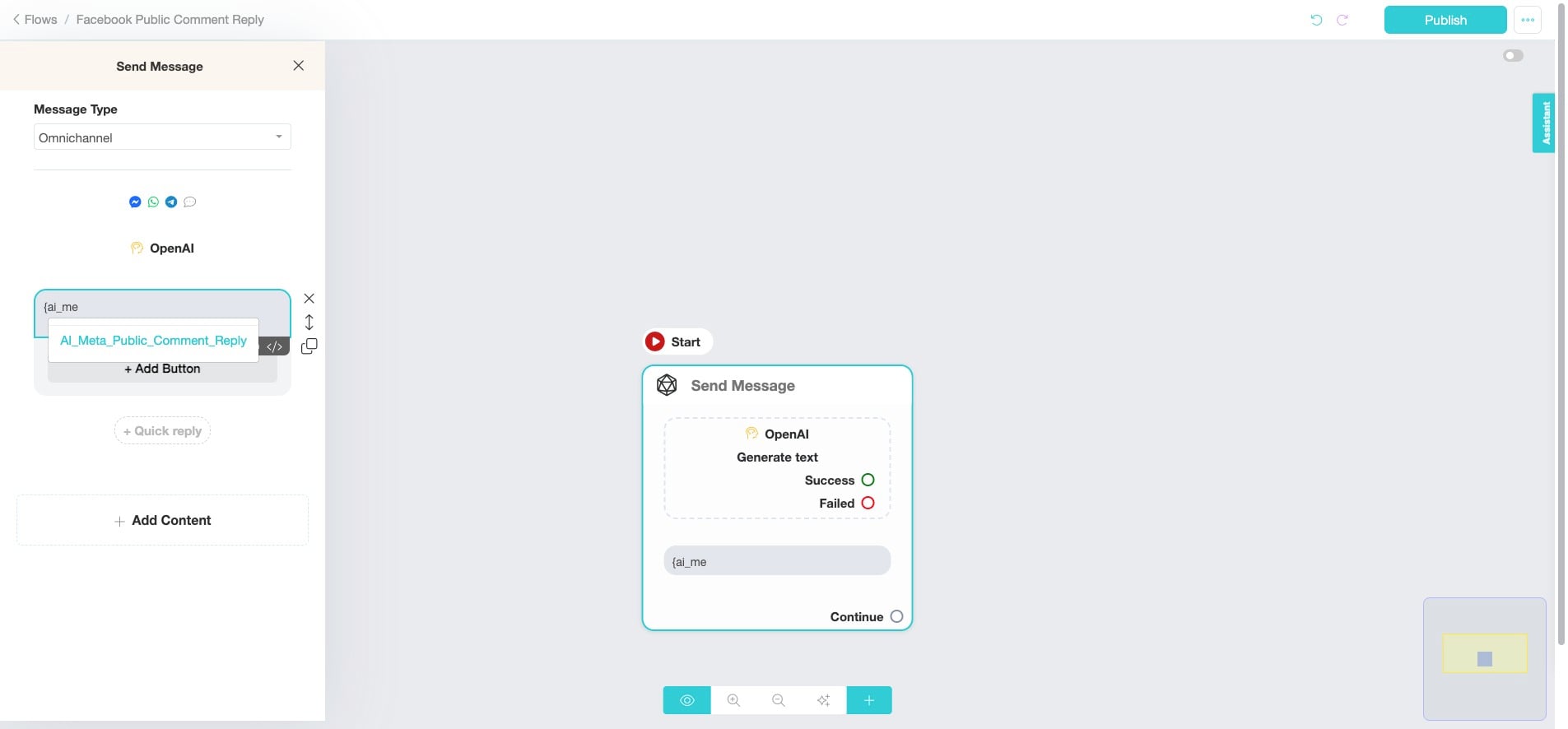
Click "AI_Meta_Public_Comment_Reply"
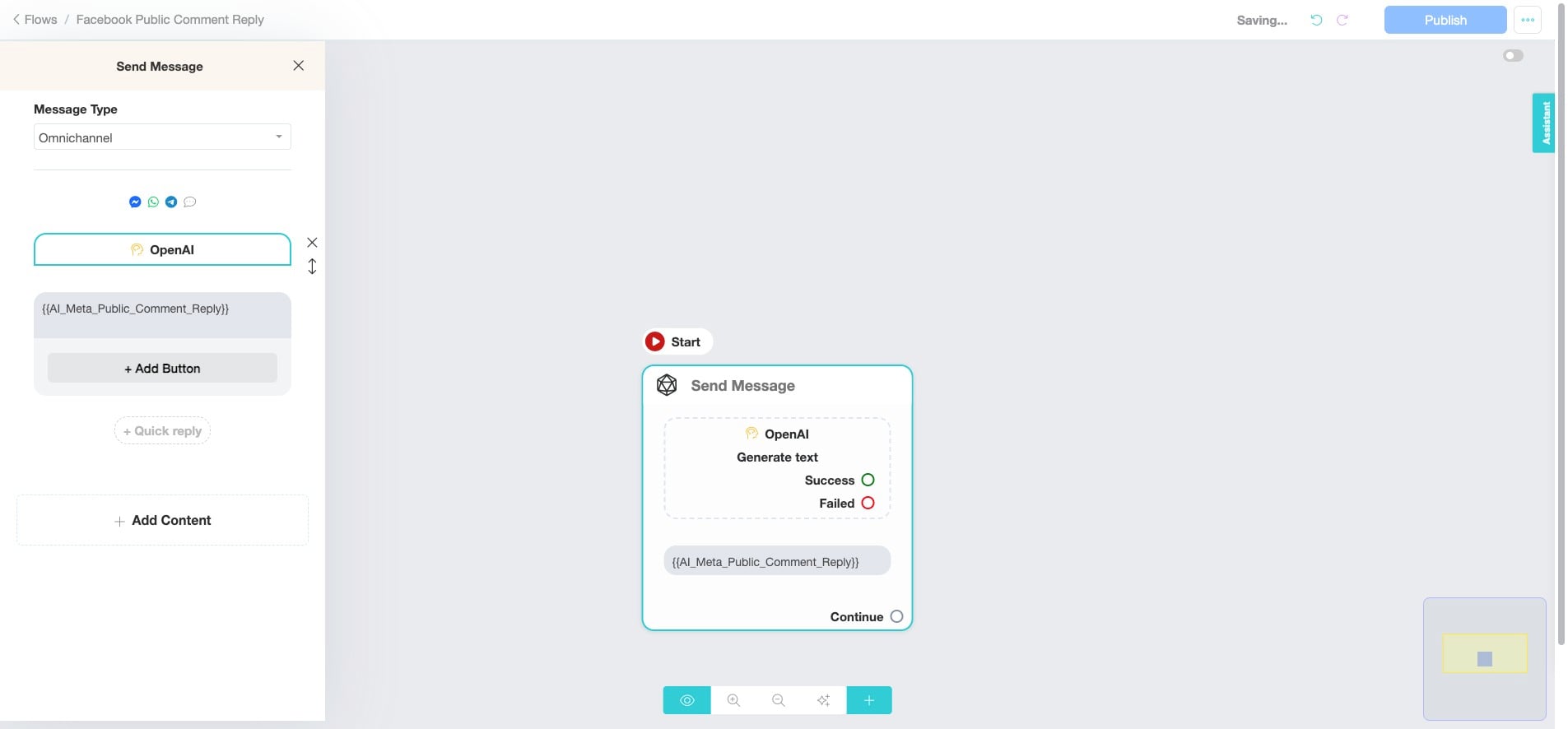
To verify if the correct Custom Field is selected, click "OpenAI".
Once checked, click "Continue" to exit and publish the flow.
Click "Publish" ✅ Done! You’ve successfully created the flow for Facebook Public Comment Automation. 🚀