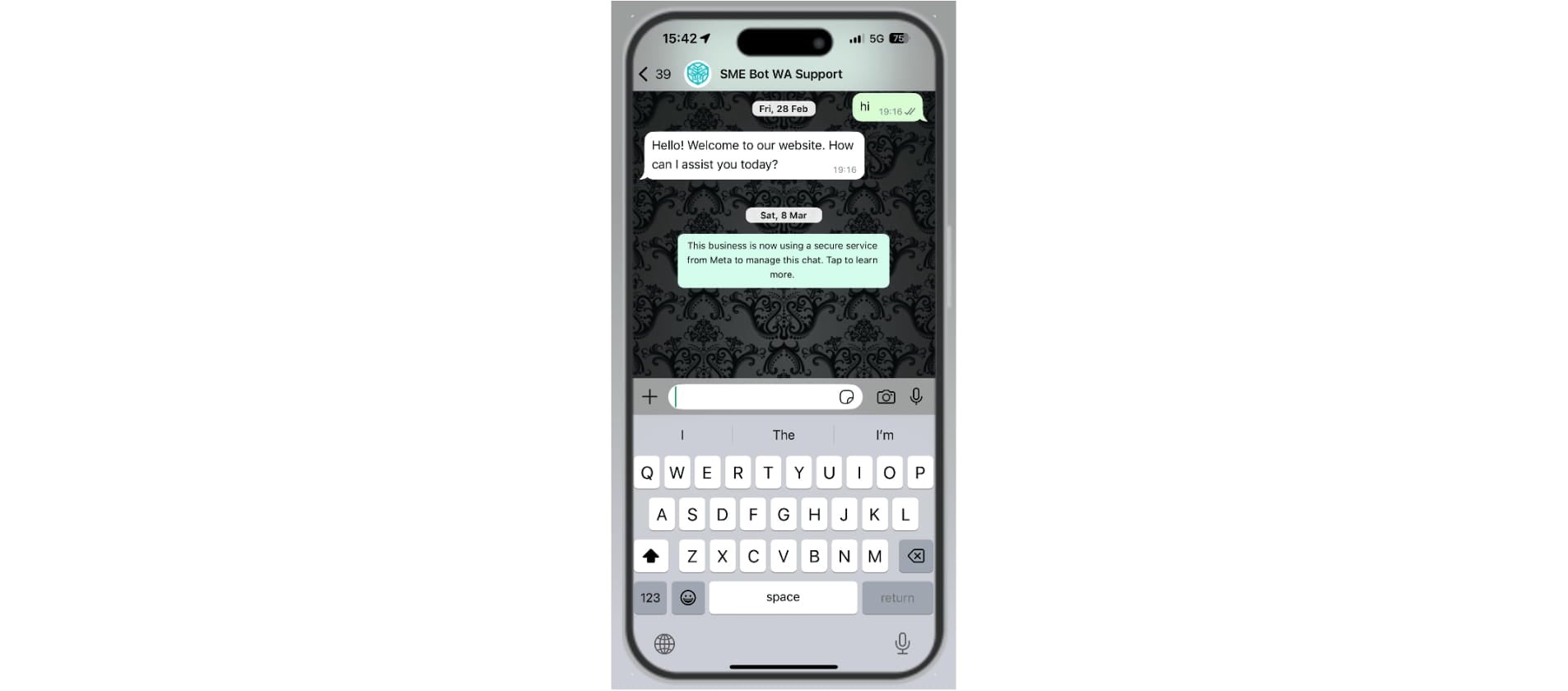
WhatsApp Cloud API Integration 1
Learn how to integrate WhatsApp with SME Bot to scale your engagement at the most popular messaging app.
💡 Pro Tip!
WhatsApp Integration involved a few other aspects. Be sure to check out the article Get Started with WhatsApp.
Navigate to your SME Bot, then click "Channels". To start the process of creating your WhatsApp SME Bot, see the article Get Started with WhatsApp.
, then click "Channels". To start the process of creating your WhatsApp SME Bot, see the article **[Get Started with WhatsApp](https://help.smeguru.ai/articles/get-started-with-whatsapp)**.](https://assets.guidejar.com/uploads/7b36f163-21e4-4639-8aff-a61a5e2a3e9c/oP4PD8qOFVglaEHJwcYKbX5jyJh1/539bdf2e-efaf-4b15-bbb3-3574b90ece1a/1740459650432.jpeg)

Click "WhatsApp"
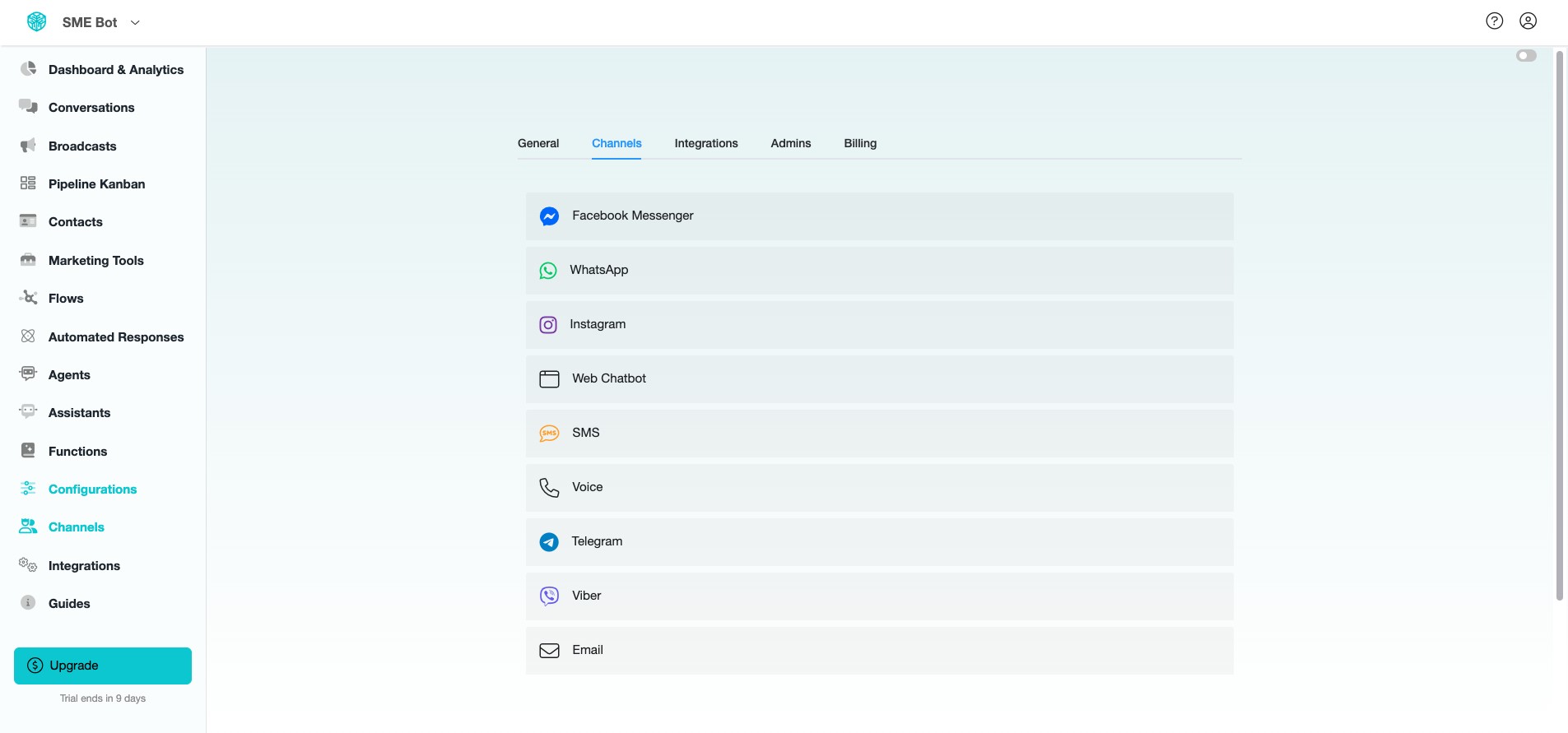
Click "Connect"
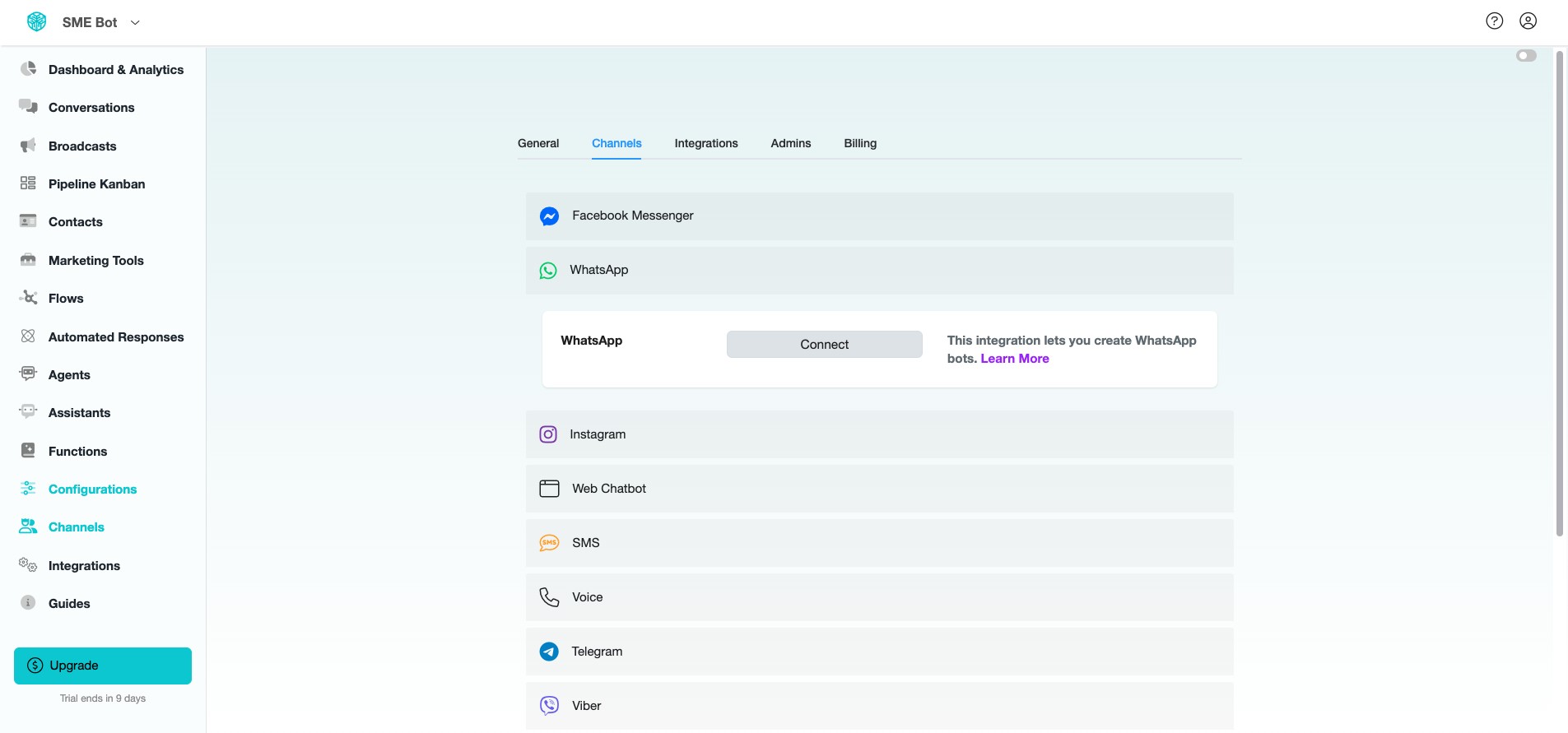
Select both "Connect an existing WhatsApp Business Account" and "Manual connect using System User Access token".
You must provide your WhatsApp Business Account (WABA) ID and Permanent Access Token. Refer to Step 24 in this Guide or the Get Started with WhatsApp article for details.
 or the **[Get Started with WhatsApp](https://help.smeguru.ai/articles/get-started-with-whatsapp)** article for details.](https://assets.guidejar.com/uploads/7b36f163-21e4-4639-8aff-a61a5e2a3e9c/oP4PD8qOFVglaEHJwcYKbX5jyJh1/e4d80d5e-89ea-4a02-bd1b-82801006cdd6/1740460085064.jpeg)
Once you have entered both the WABA ID and Access Token in your SME Bot account, click "Continue".
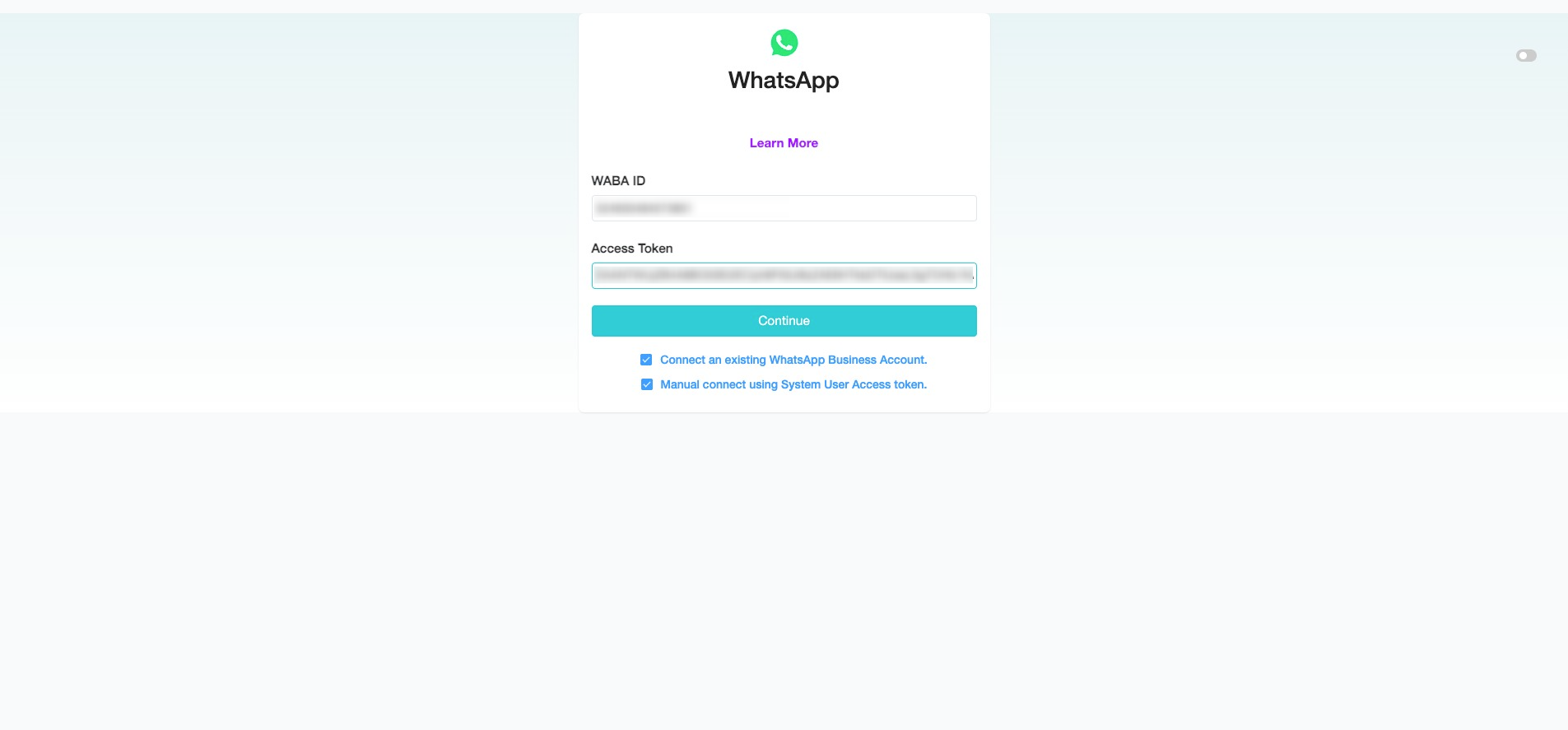
Click "Connect" for the new number.
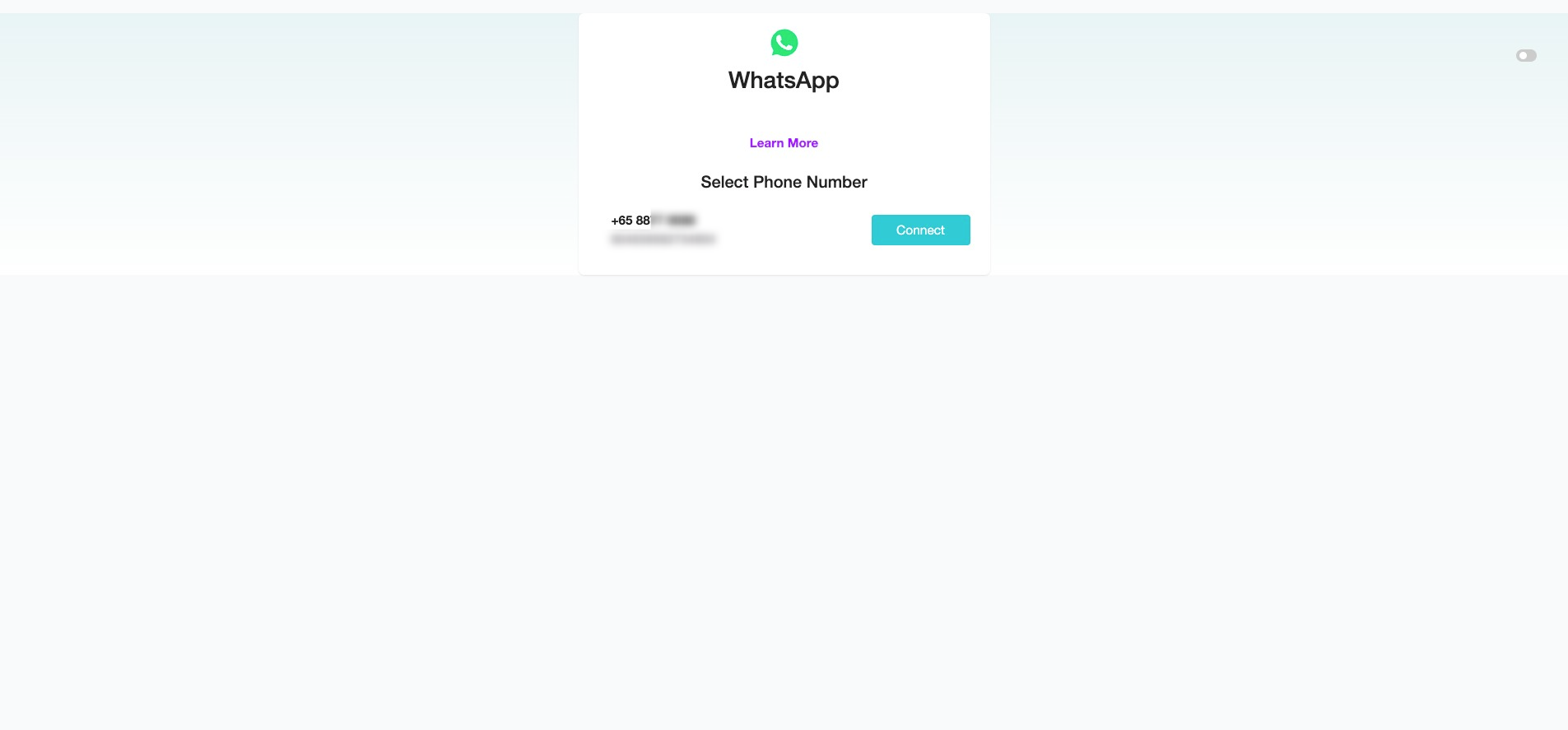
You've successfully connected your SME Bot to the Number.
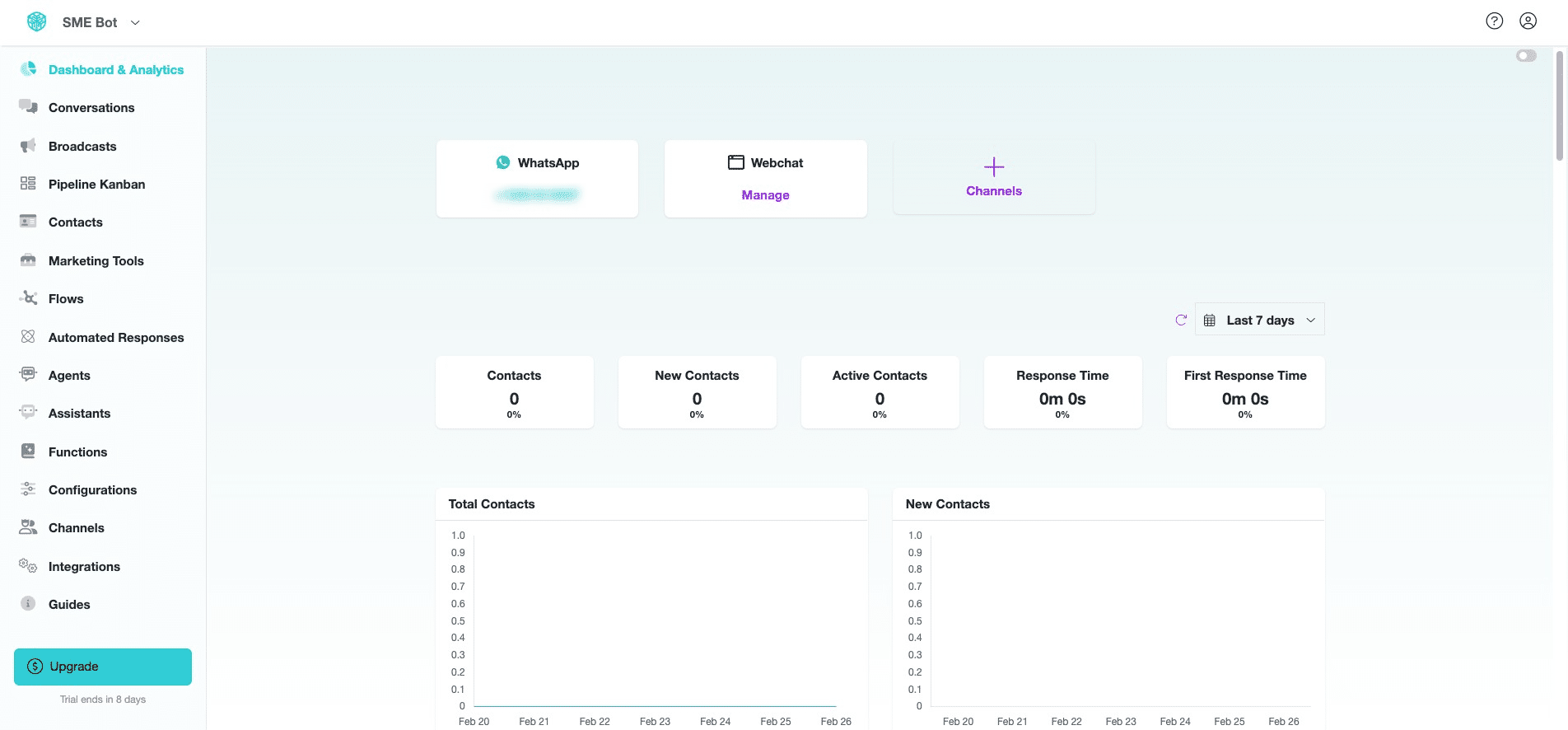
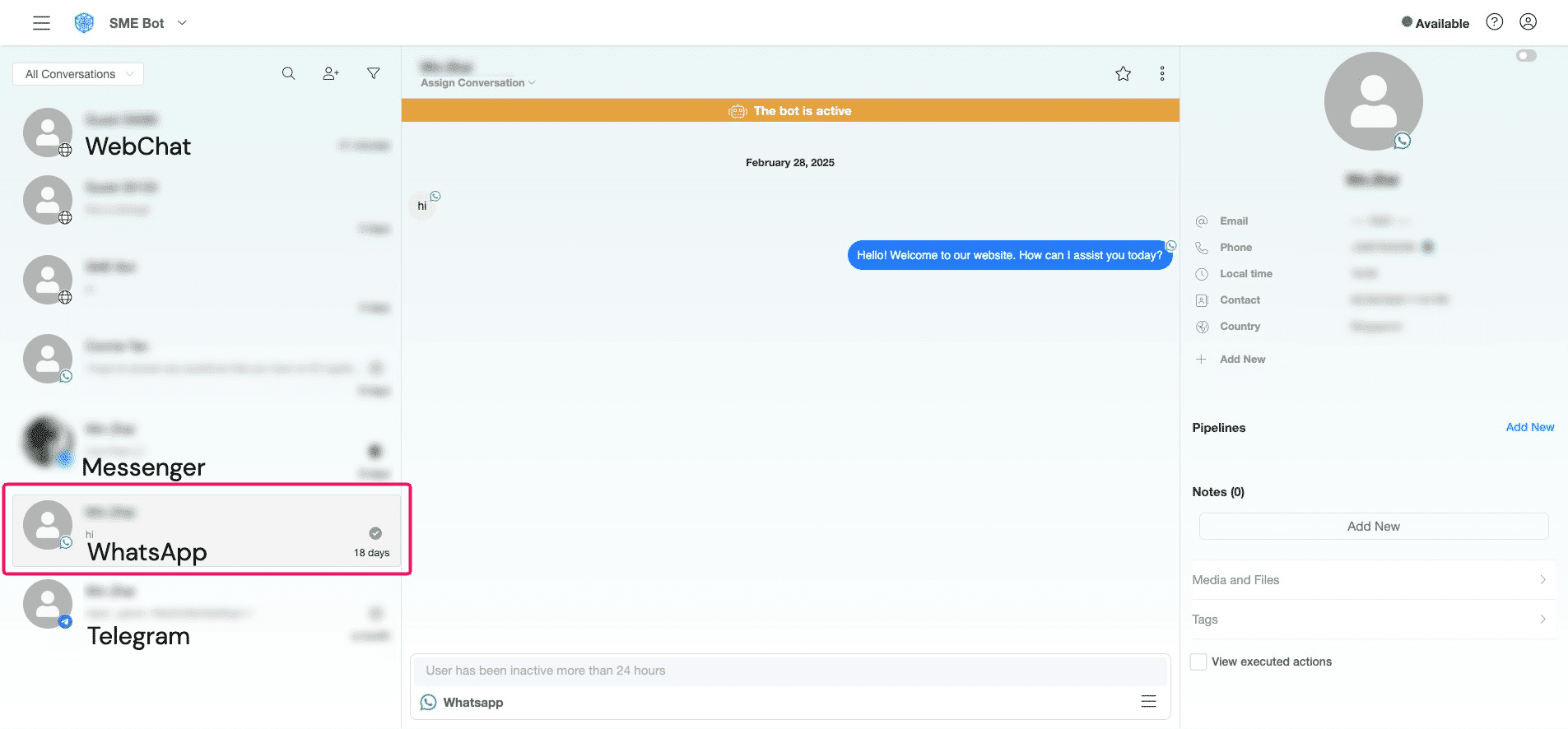
Click "Conversations" to access all Users' chats across WhatsApp, Telegram, Messenger, Instagram, webchat, SMS, and more.
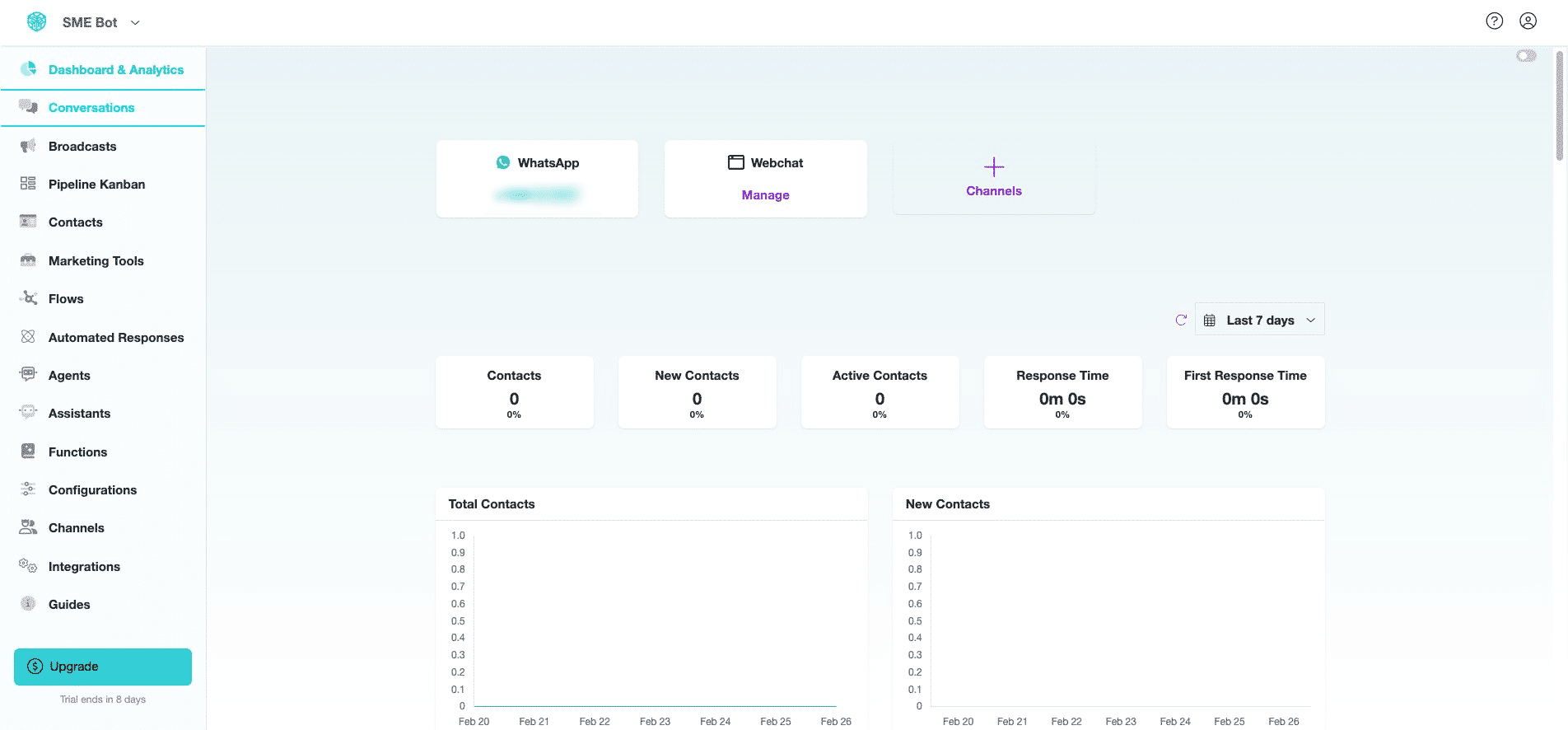
Click "User's Name" to view or engage in a Live Chat with the user. Remember to hand over the conversation back to the bot for seamless automated engagement.
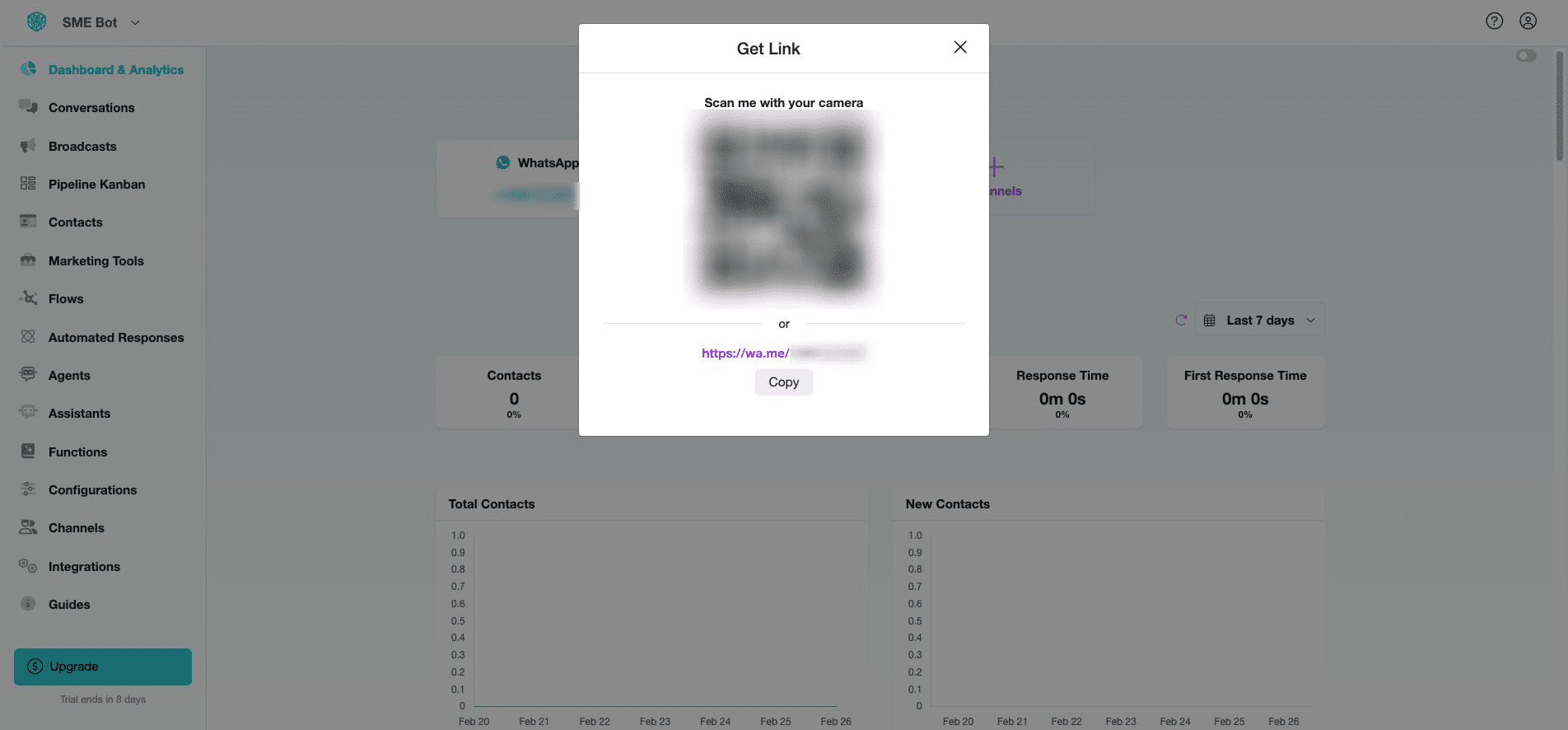
At "Dashboard & Analytics", click on the WhatsApp number to generate a link or QR Code for testing.
A pop-up will appear, allowing you to copy the link or scan the QR Code to initiate a chat with the WhatsApp number.
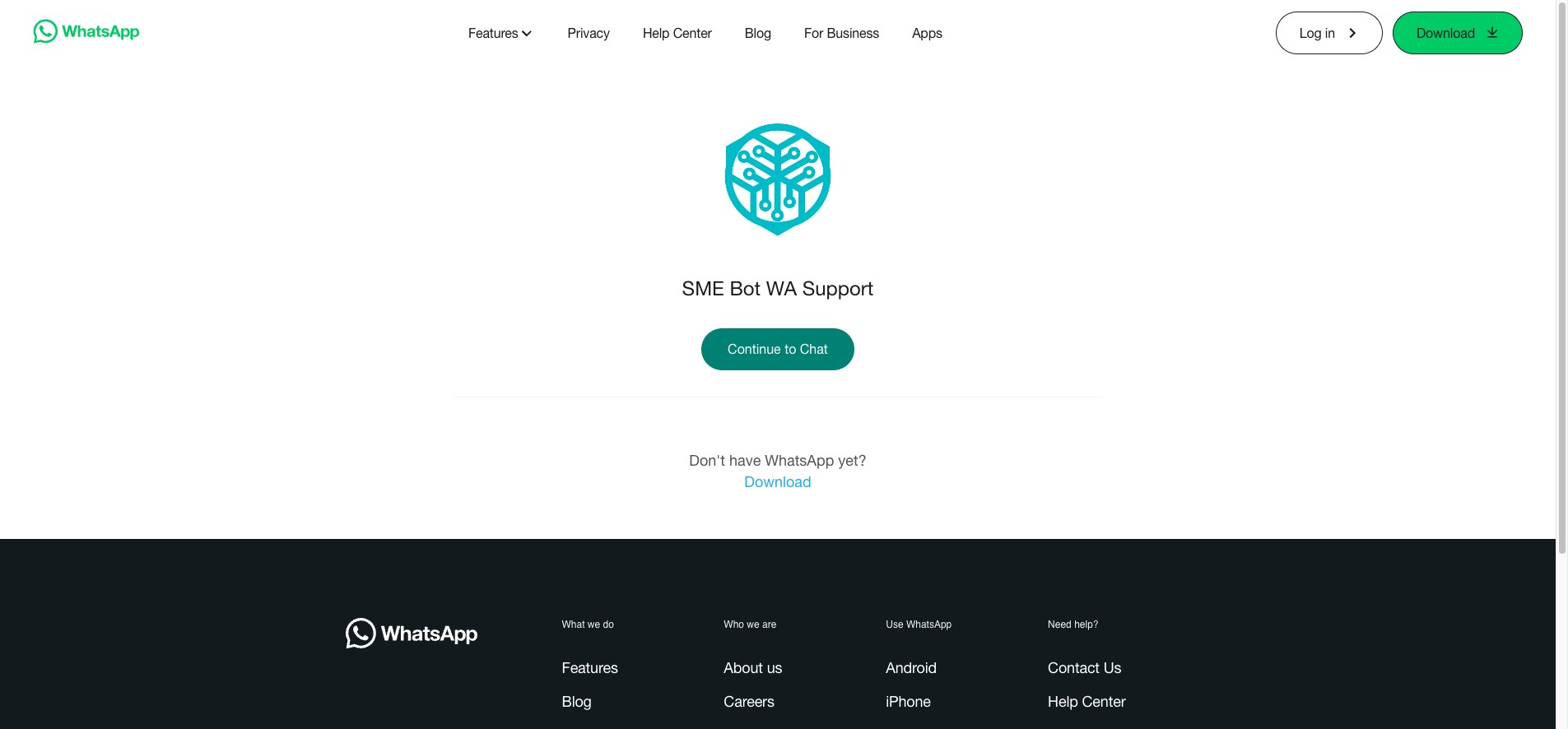
A new browser window with WhatsApp Web will open. Click "Continue to Chat" to proceed. Start chatting. Be sure your SME Bot is trained and integrated with AI for a seamless experience.
✅ Done! You’ve successfully integrated WhatsApp with SME Bot. 🚀