Instagram Integration
Learn how to integrate Instagram with SME Bot to manage automated interactions seamlessly.
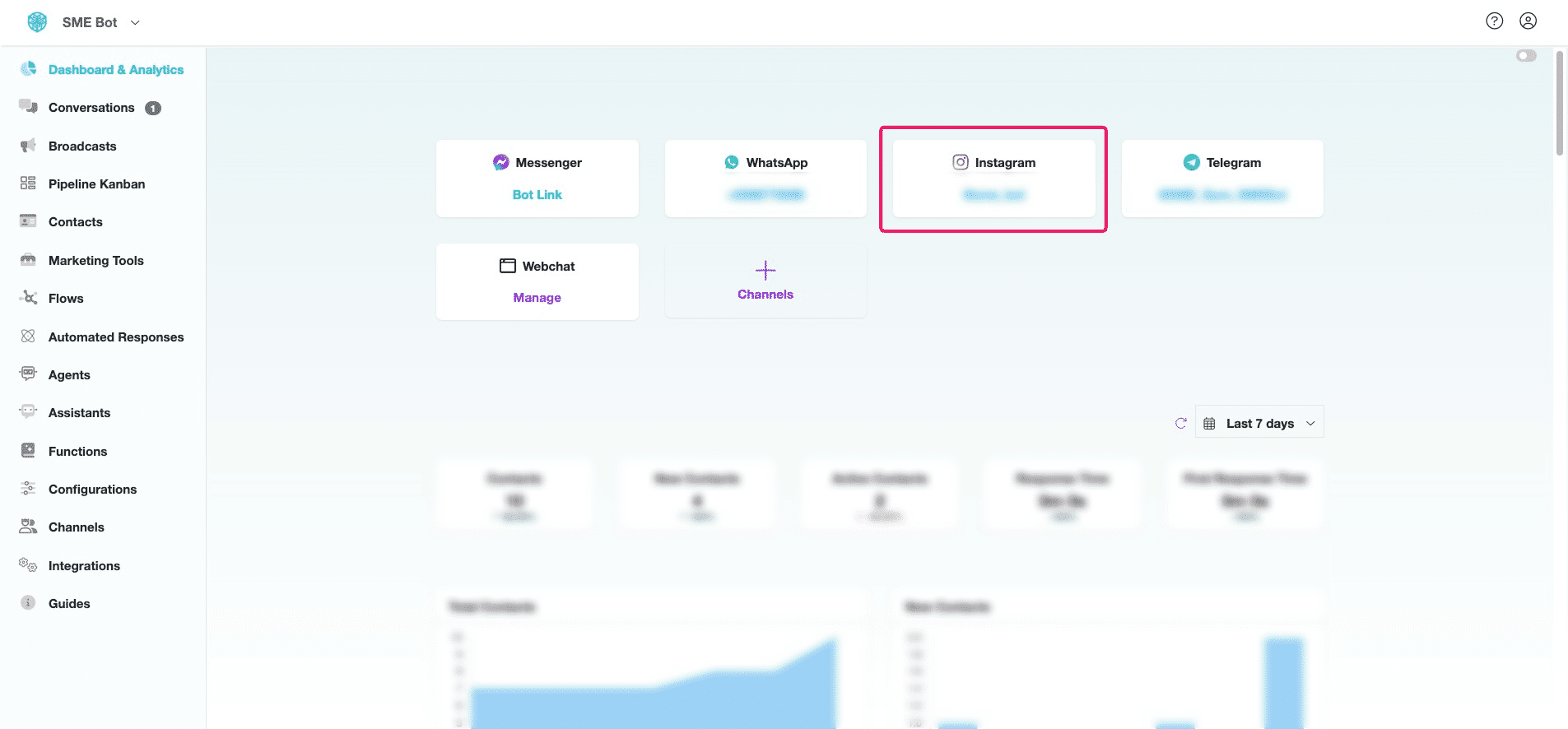
Navigate to https://app.smebot.ai/en/settings#channels
Click "Channels"
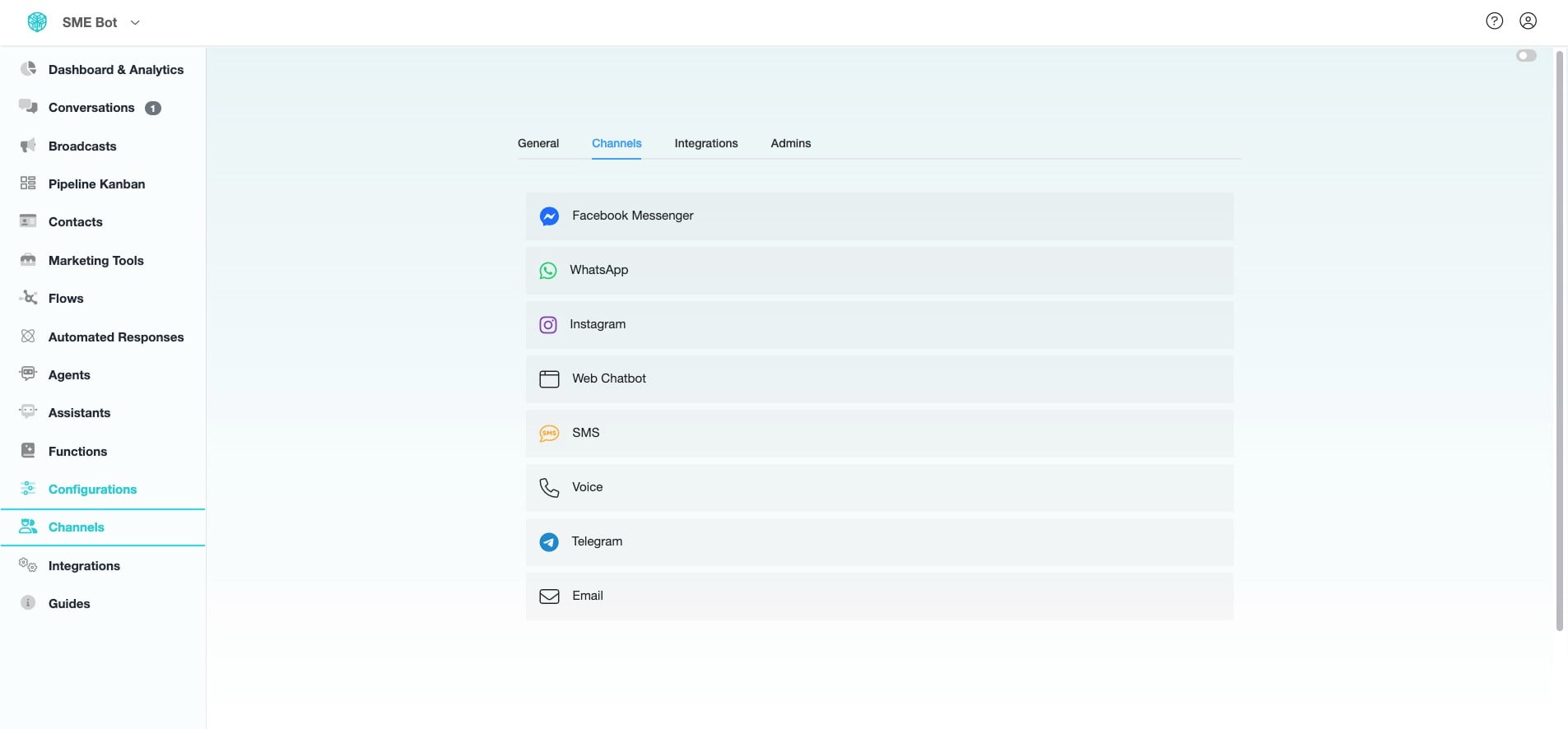

Click "Instagram"
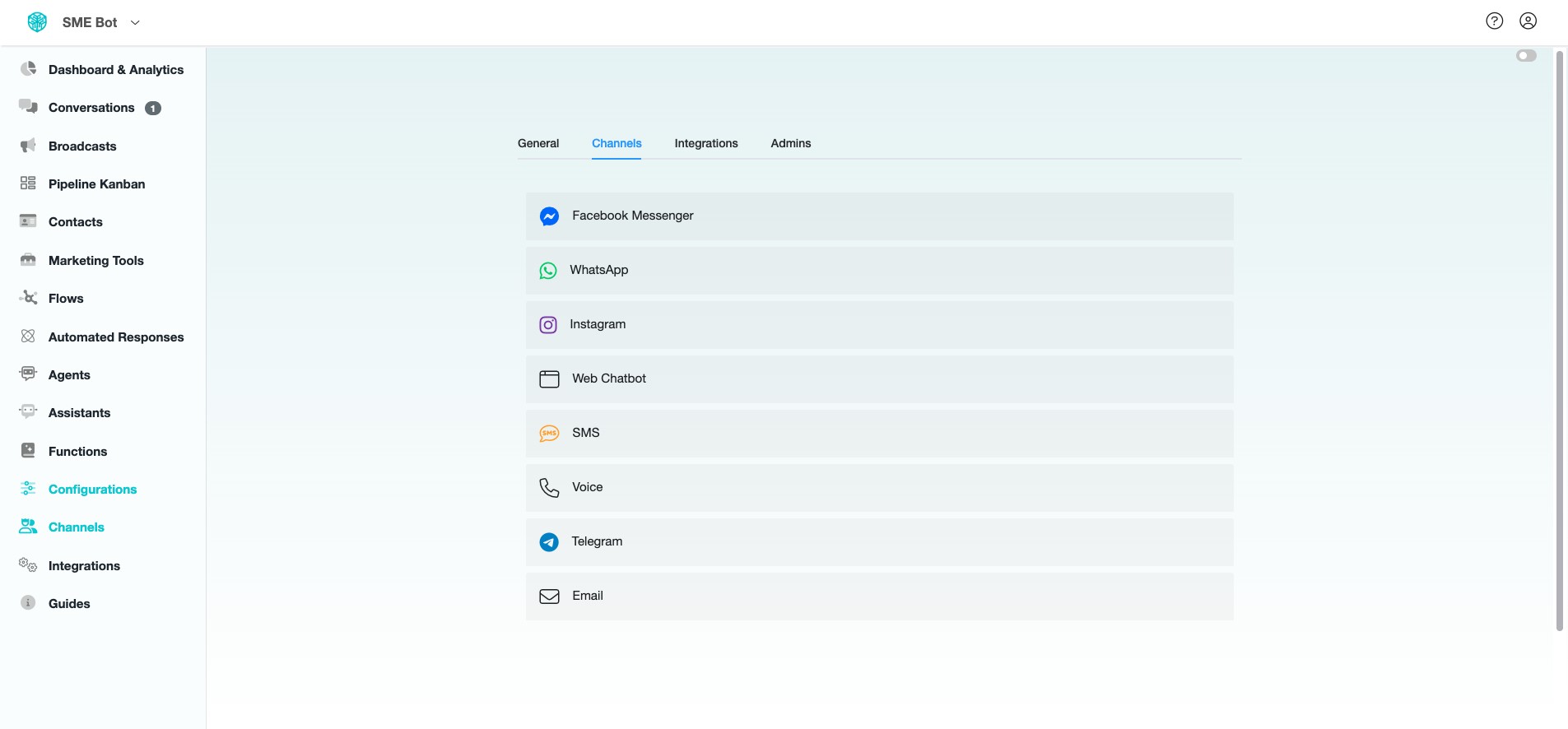
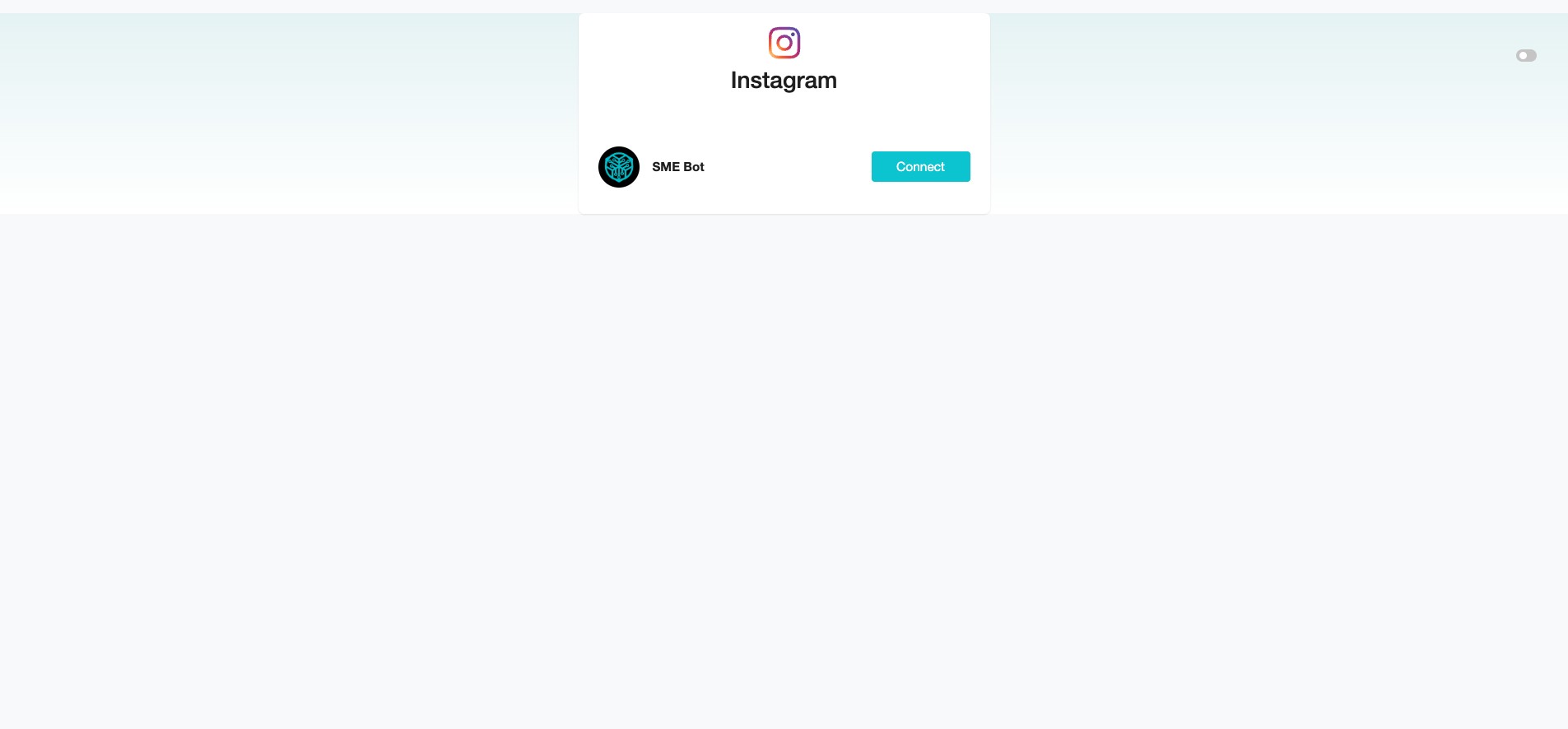
Click "Connect" to proceed with the Instagram Integration.
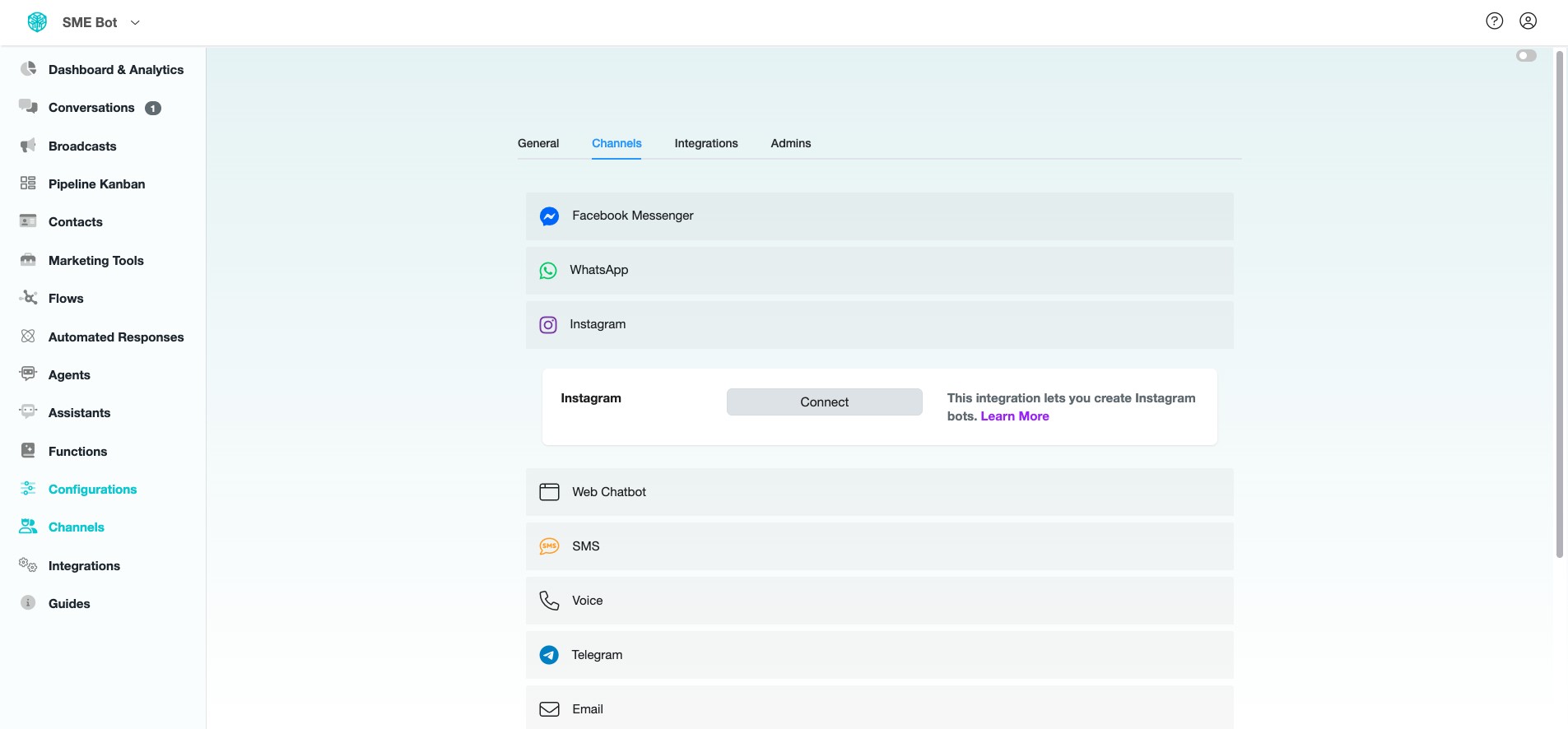
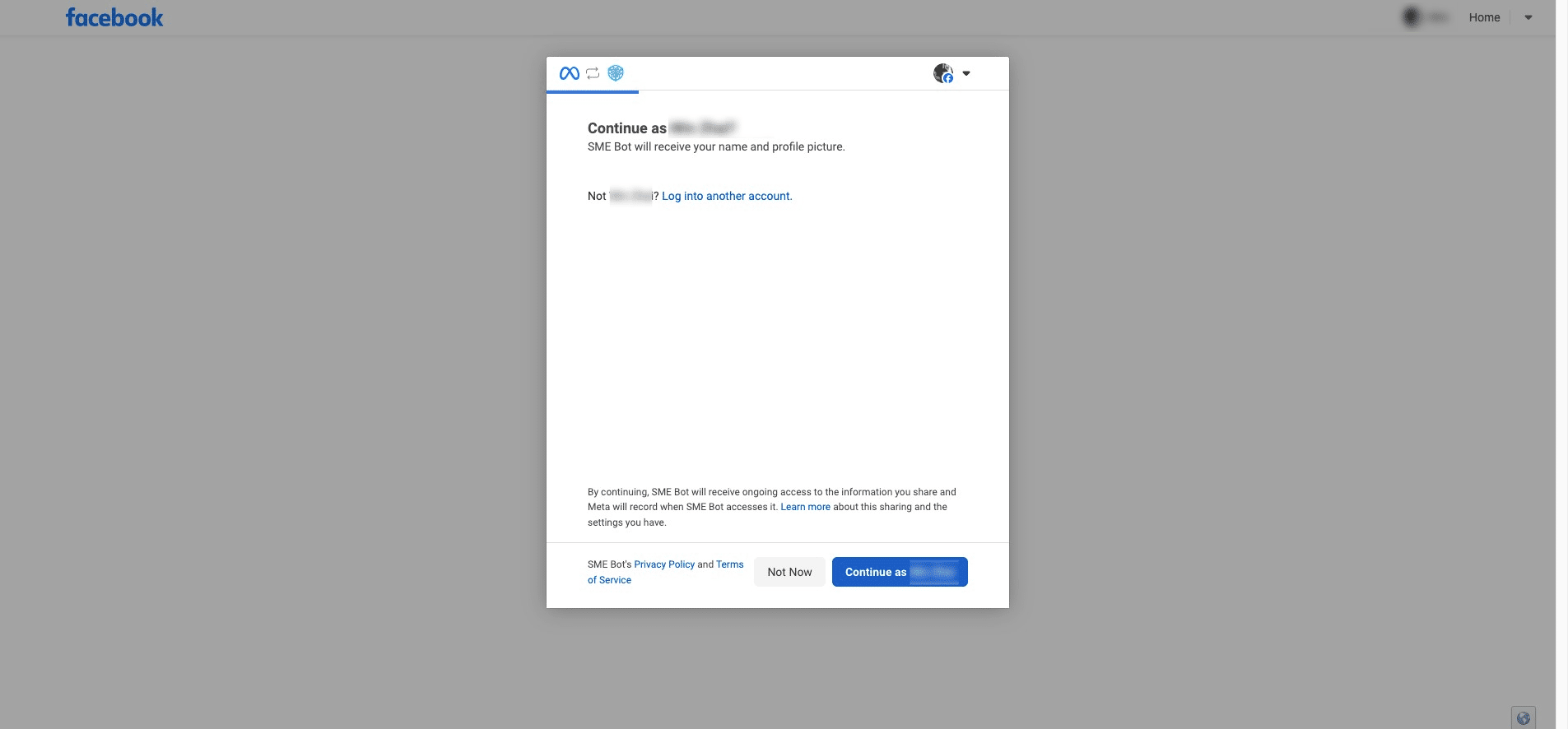
You will be redirected to Facebook. Click "Continue as Personal Profile" to proceed.
Select and click on the Facebook Page you want to integrate, then click "Continue" to proceed. Ensure that your Instagram have connected to your Facebook Page.
.](https://assets.guidejar.com/uploads/31eaede6-5d19-42b2-ba6b-c01cf975a63e/oP4PD8qOFVglaEHJwcYKbX5jyJh1/d274e217-6157-44bd-bc3d-c8ba0eb2420f/1743263515883.jpeg)
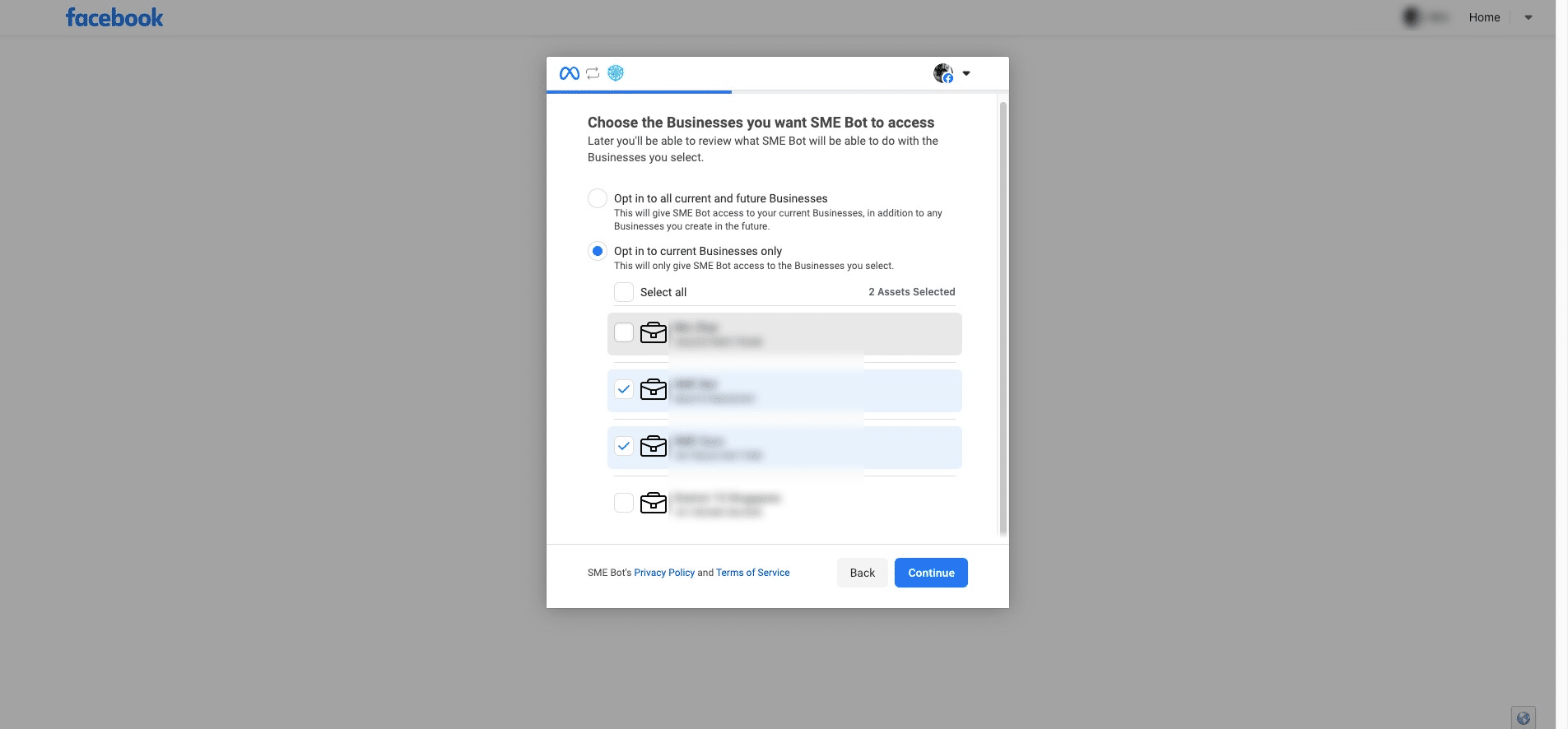
Select and click on the business you want to grant SME Bot access to.
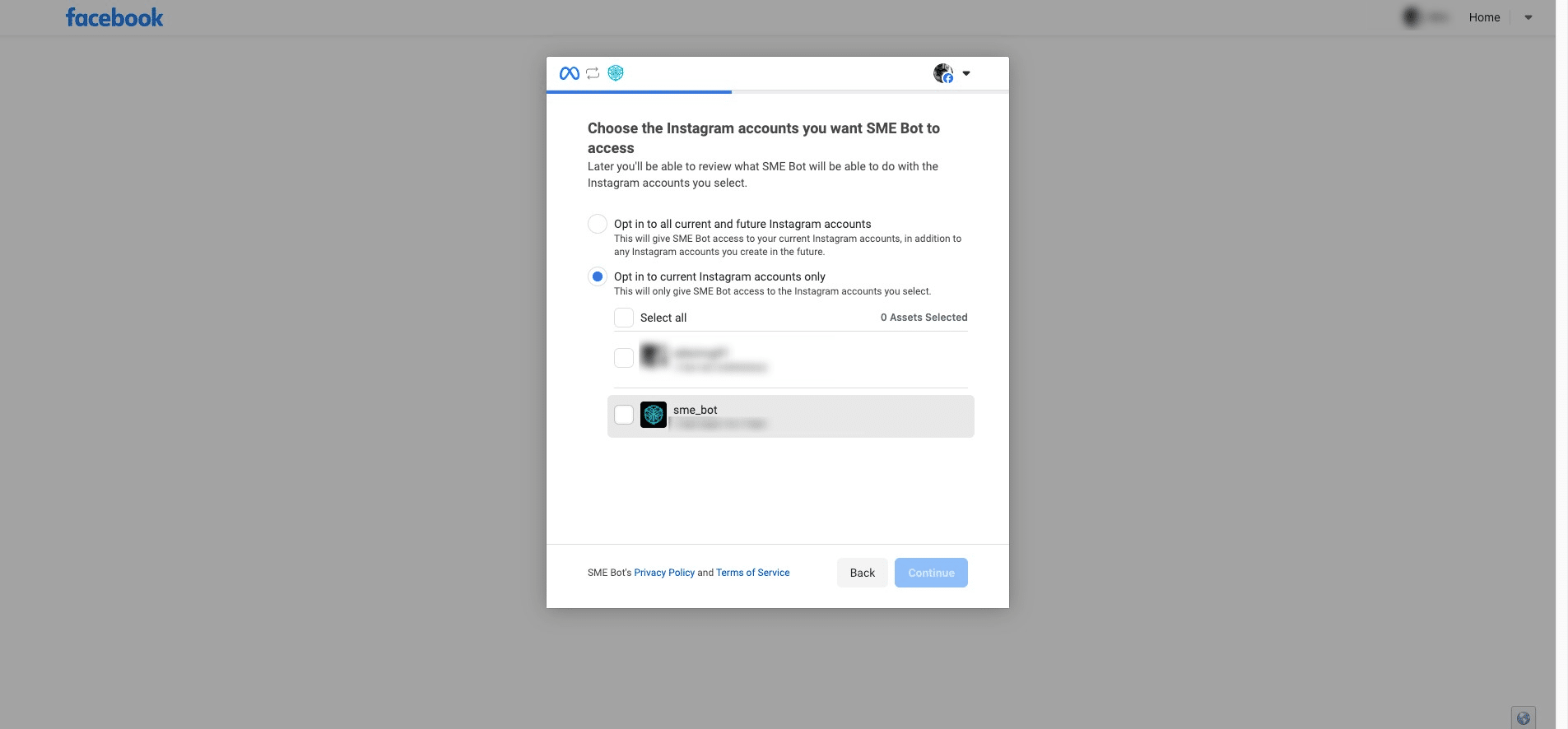
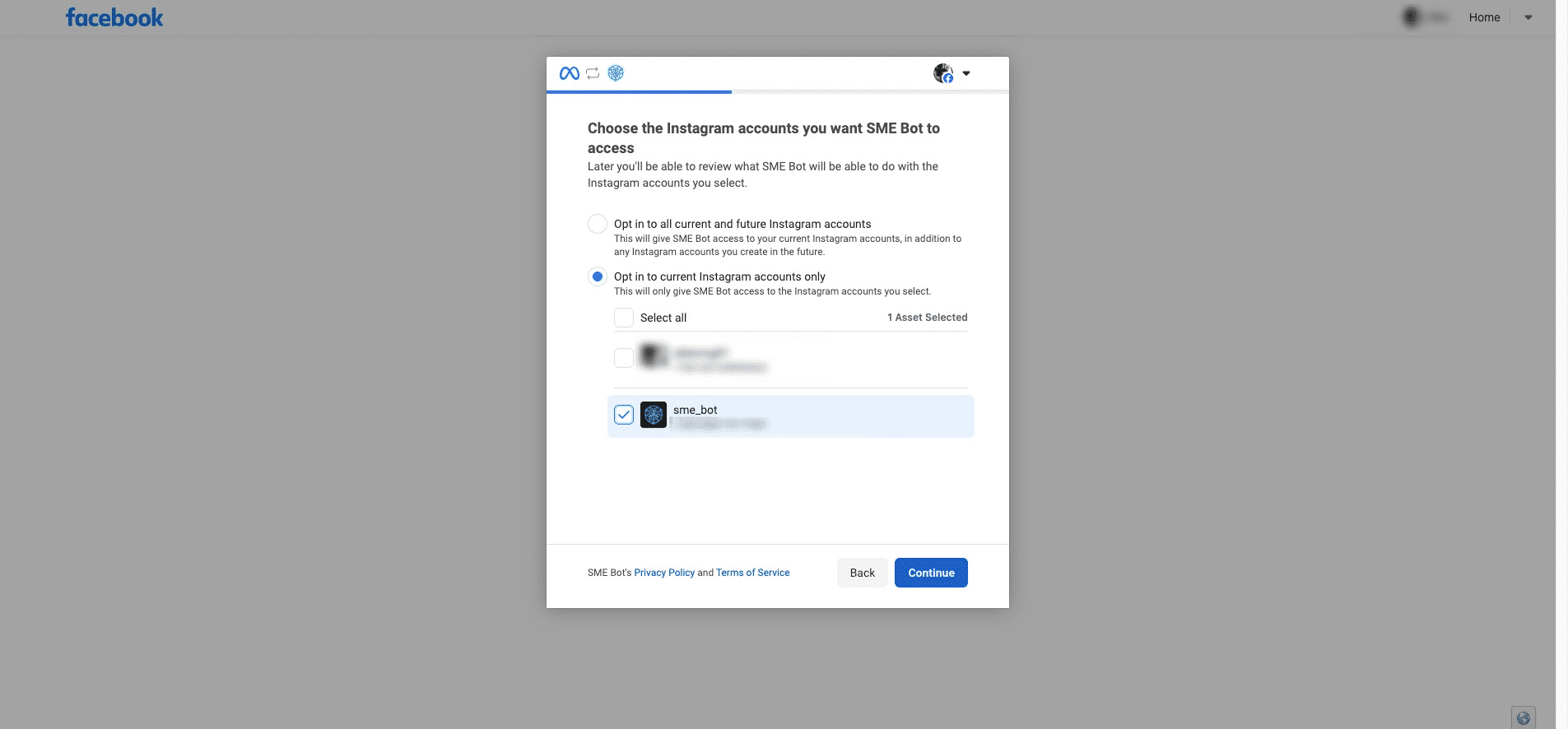
Select and click on the Instagram account(s) that you want SME Bot to integrate with.
Click "Continue"
Review the access and all the connections you're enabling SME Bot to manage. Click "Save" to confirm.
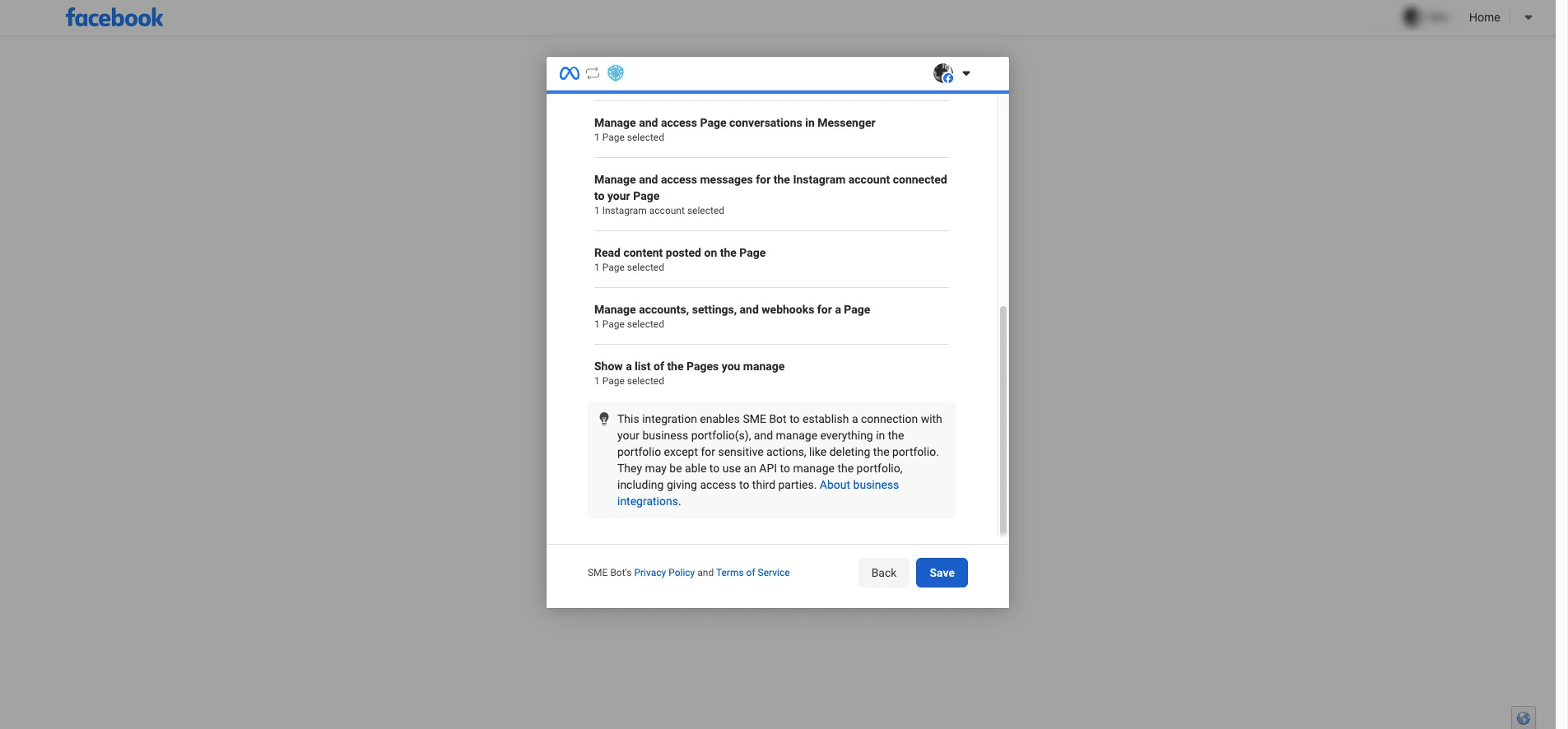
You have been successfully connected to SME Bot. Click "Got it" to proceed. Please go to Business Integration to manage any integration required for Meta.
 to manage any integration required for Meta.](https://assets.guidejar.com/uploads/31eaede6-5d19-42b2-ba6b-c01cf975a63e/oP4PD8qOFVglaEHJwcYKbX5jyJh1/7b3d548a-02a7-44d3-b34c-e800053c7c45/1743650563229.jpeg)
You will be redirected back to SME Bot. At the intended Instagram account, click "Connect" to complete the integration.
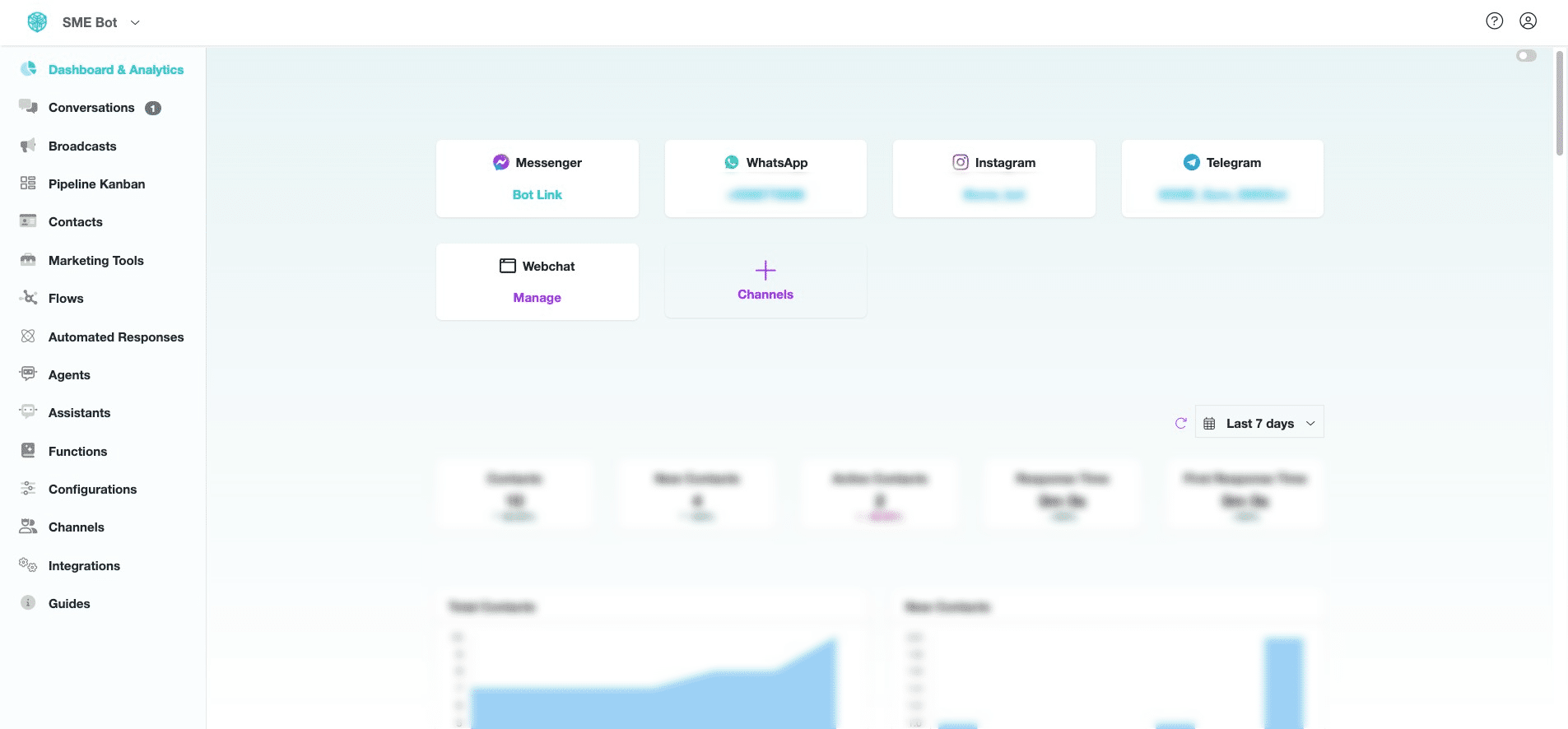
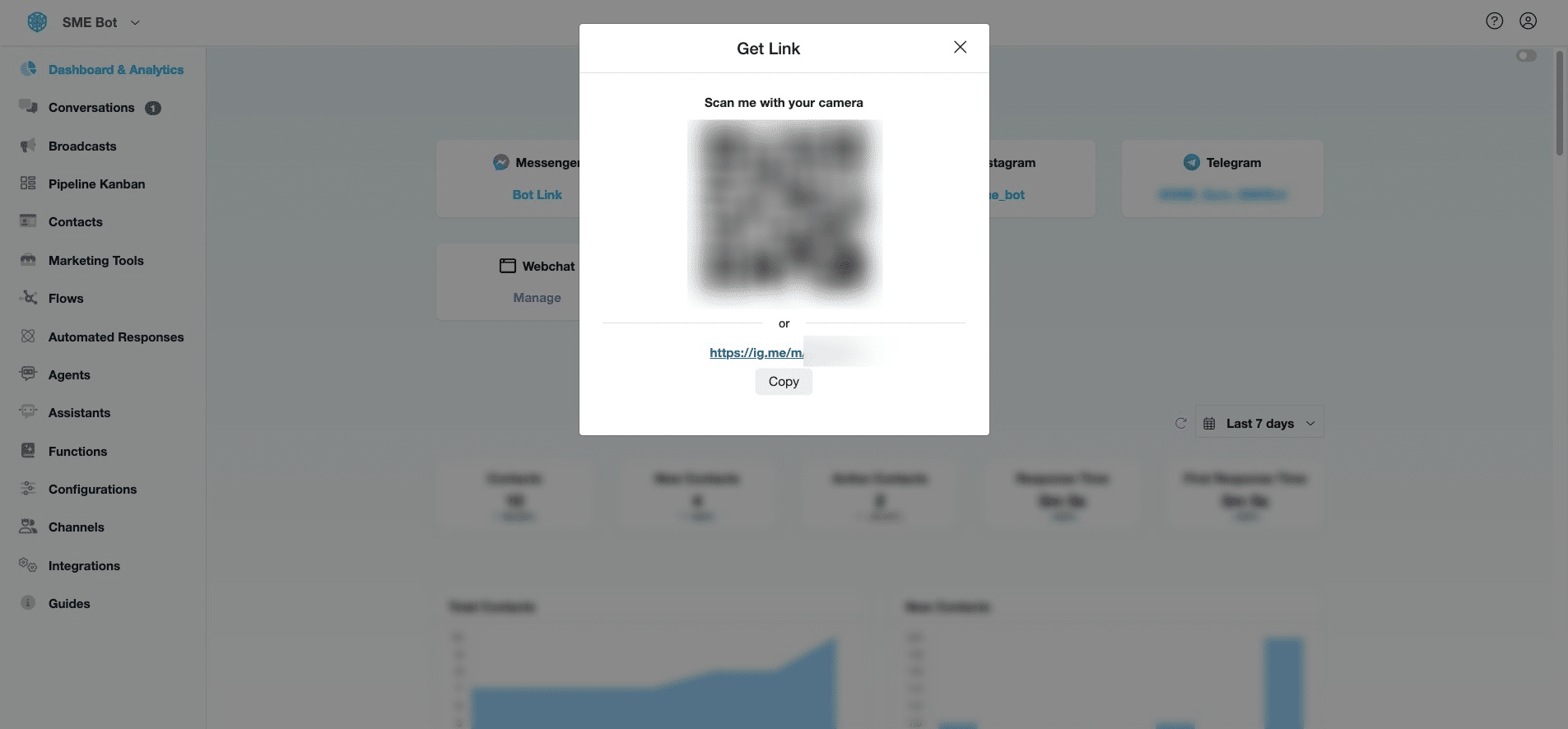
Click integrated Instagram,"@instagram_account" to generate a link or QR Code for chatting with your Instagram SME Bot. You can add the provided link to your website or print the QR Code to display at your business premises, allowing users to interact with your Instagram SME Bot easily.
Click on the link or scan the QR Code to test your Instagram SME Bot.
Log in to Instagram and configure "Message Control" before testing the automation.
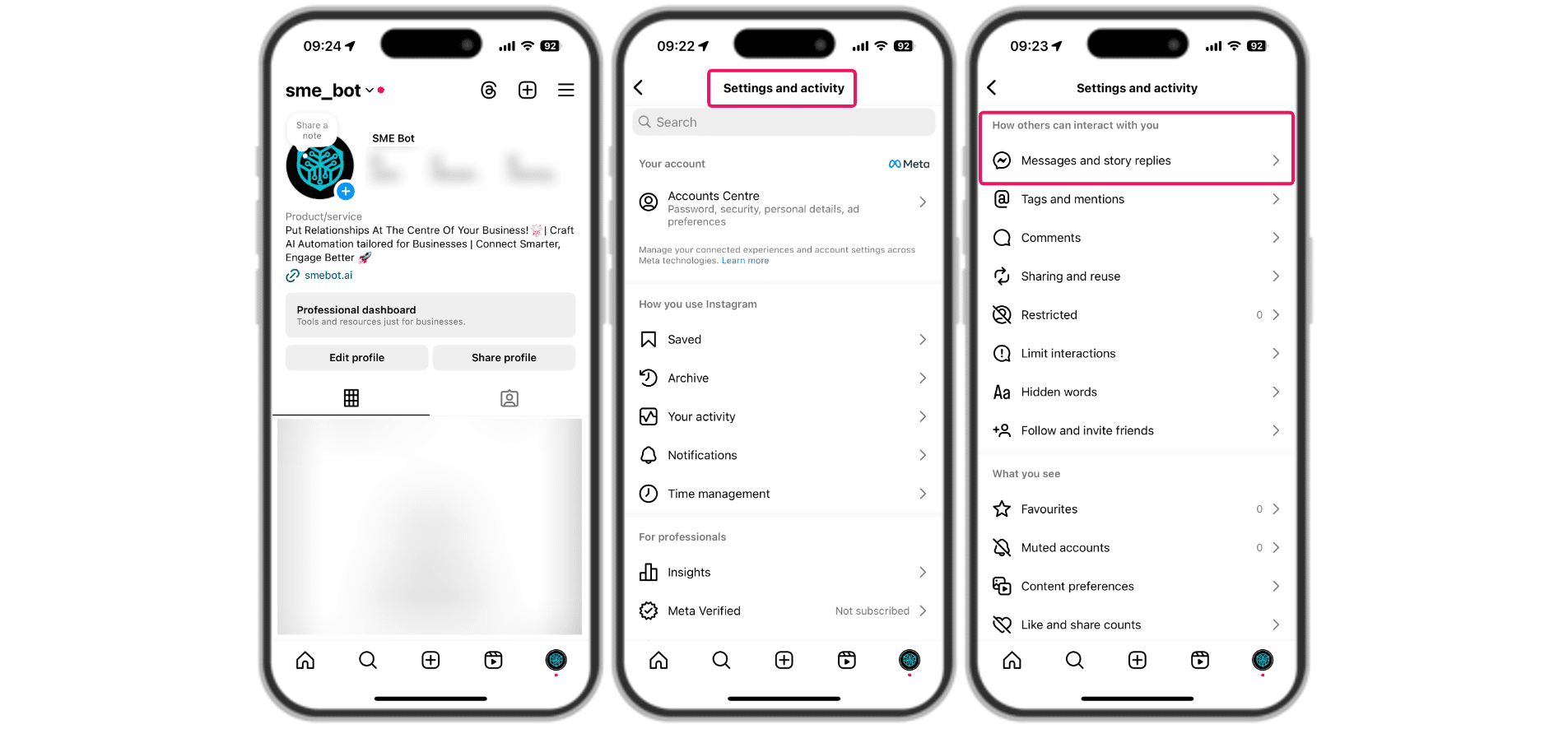
In your Instagram, click the "hamburger icon" (three horizontal lines) at the top right corner. Tap "Settings and activity," then scroll down to "How others can interact with you".
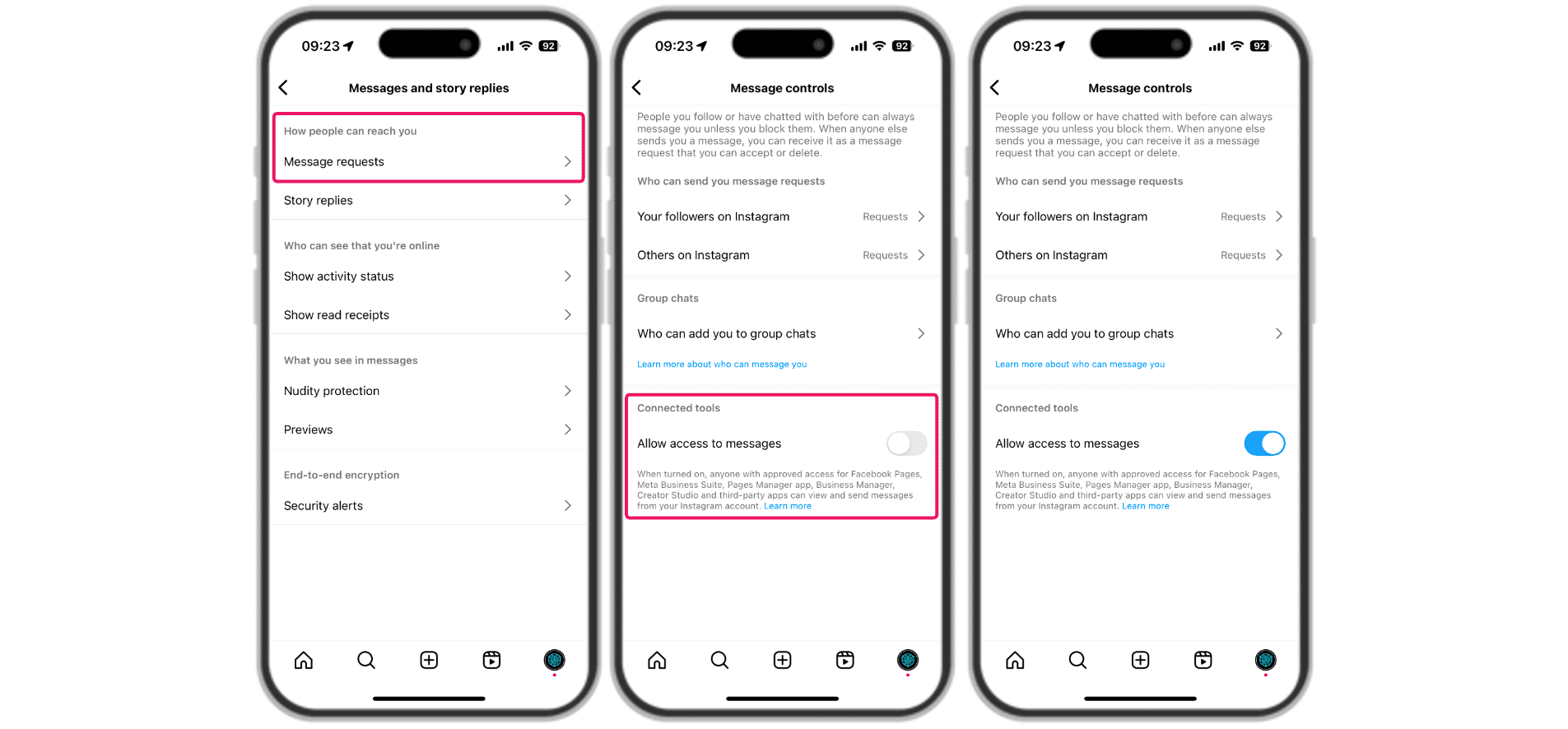
Under "How people can reach you," tap "Message requests." Then, under "Connected tools," click and enable "Allow access to messages" to allow SME Bot to perform "Instagram Comment Automation".
✅ Done! You’ve successfully integrated Instagram as a channel into SME Bot. 🚀