
Send a WhatsApp Template Message from the Conversations
Learn how to send WhatsApp Template Messages directly from the Inbox. Please note that when a contact has been inactive for more than 24 hours, any new messages sent will initiate a business-initiated conversation. These conversations are opened and charged upon the delivery of your template messages.
Navigate to https://app.smebot.ai/
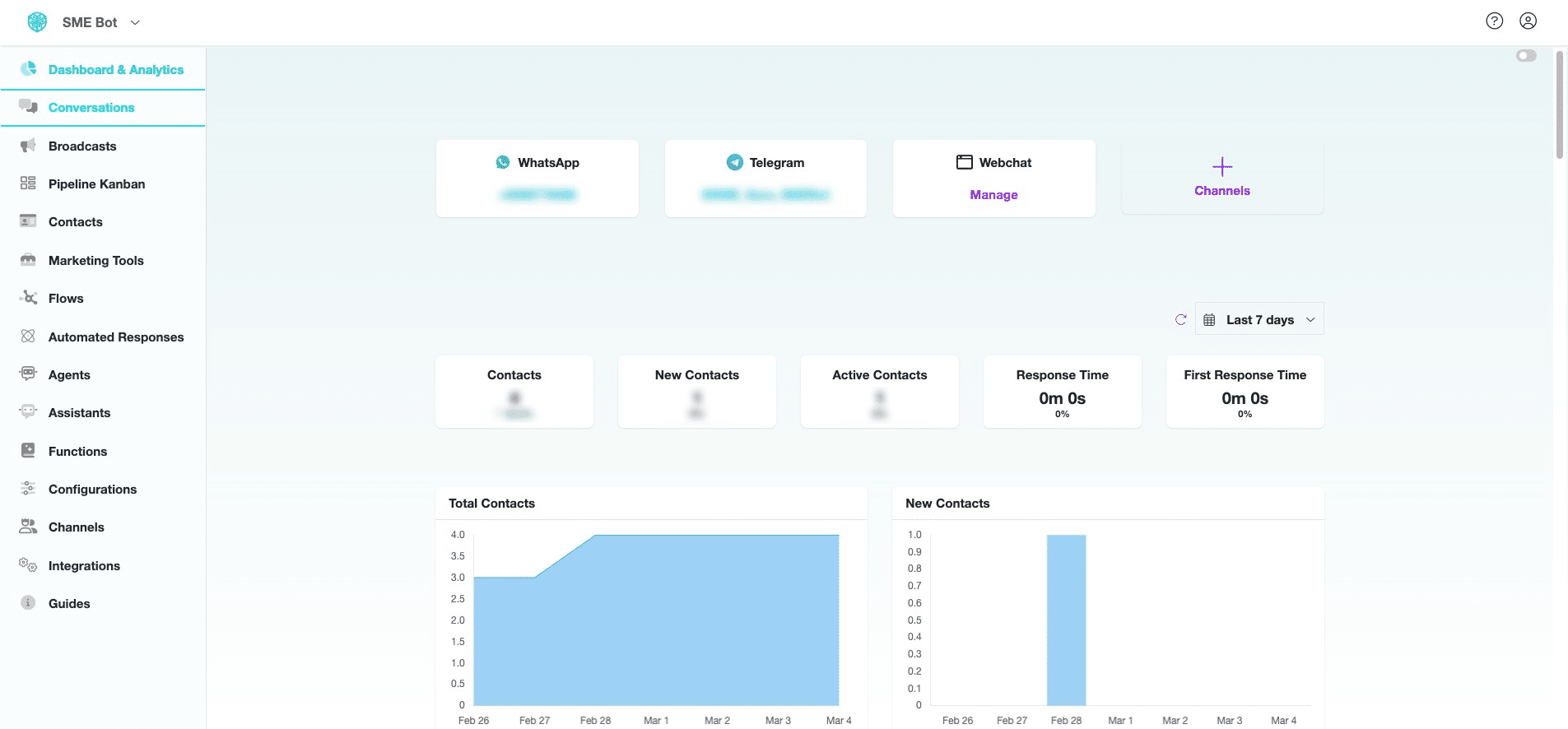
In your SME Bot, Click "Conversations"

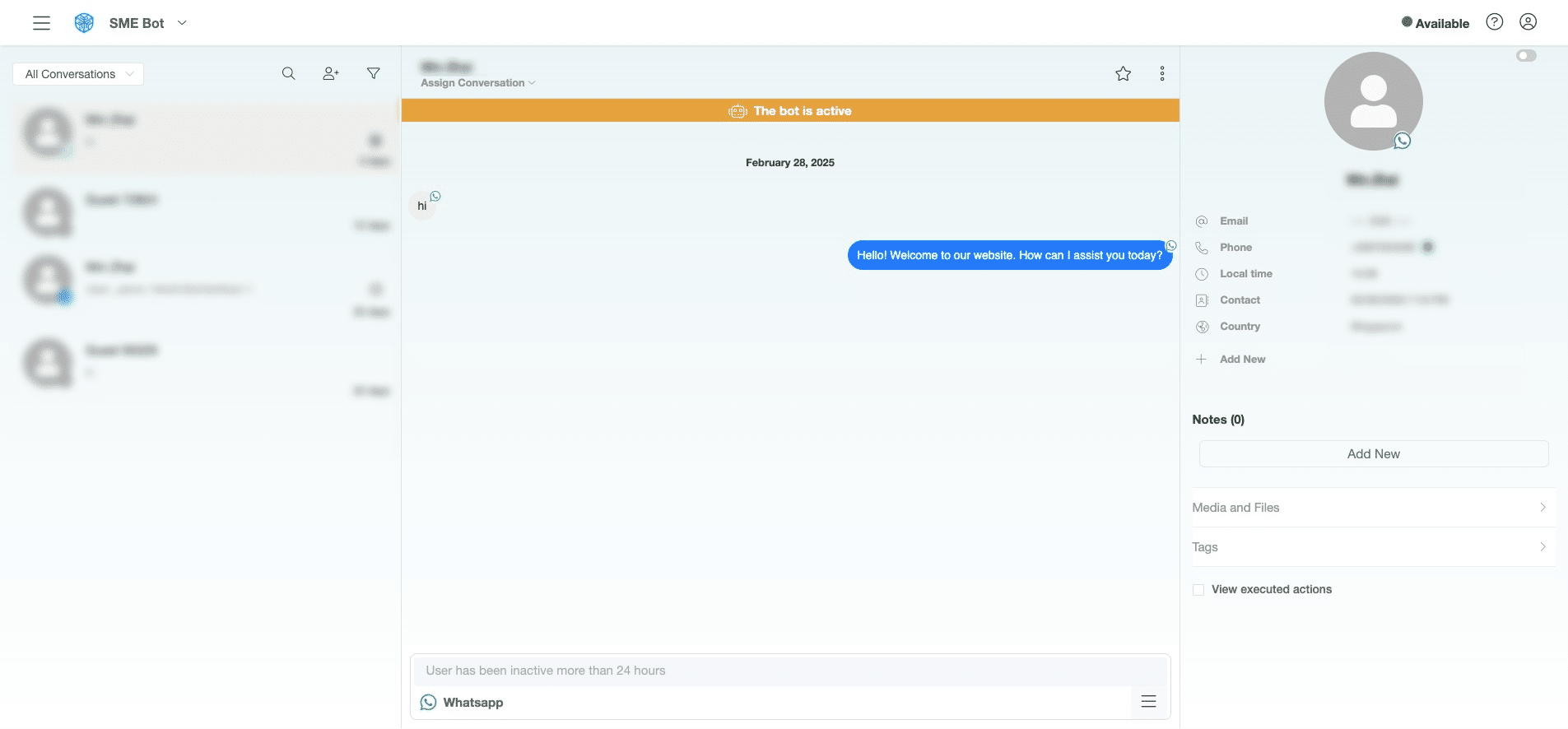
Click the Hamburger icon at the bottom.
Click "Send Flow" to proceed.
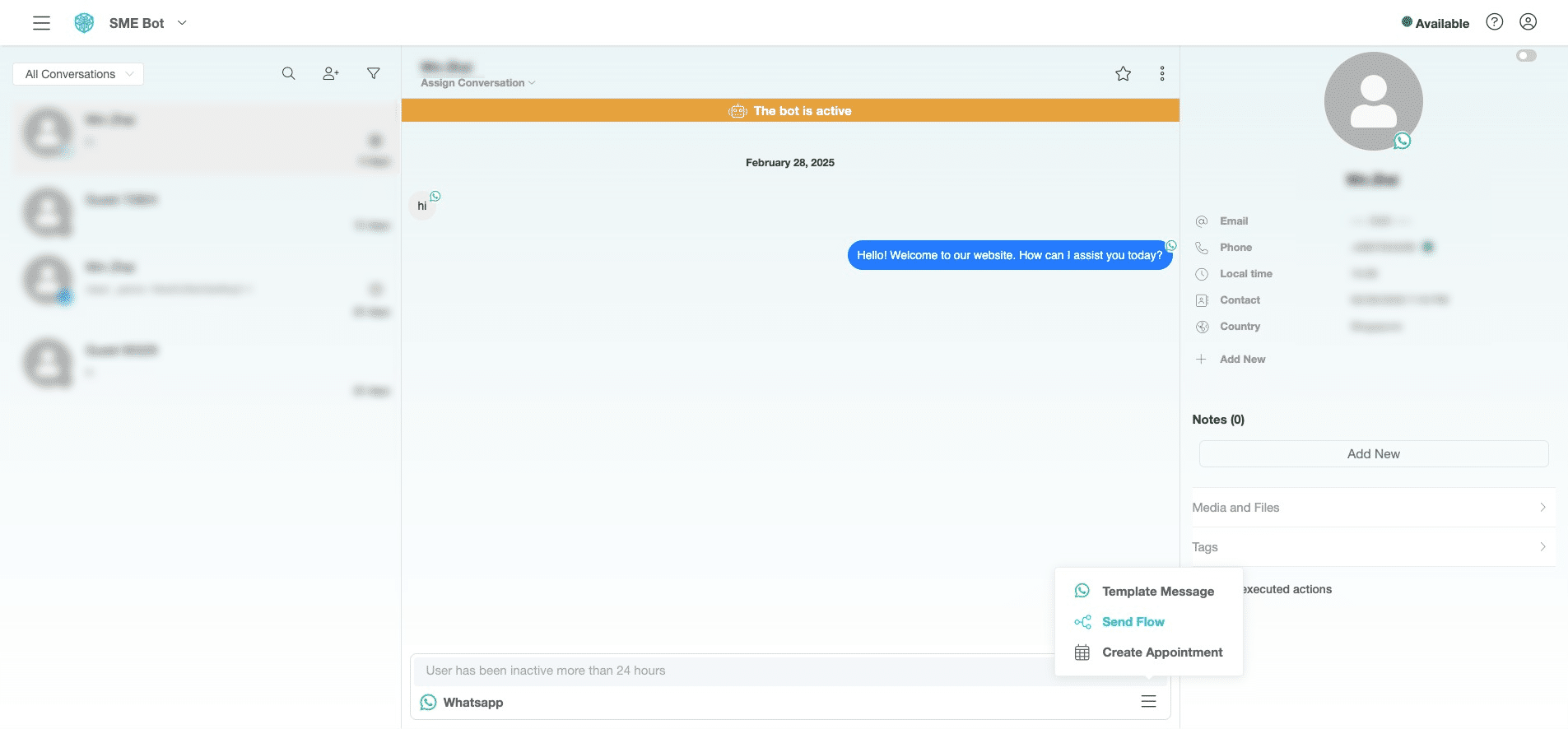
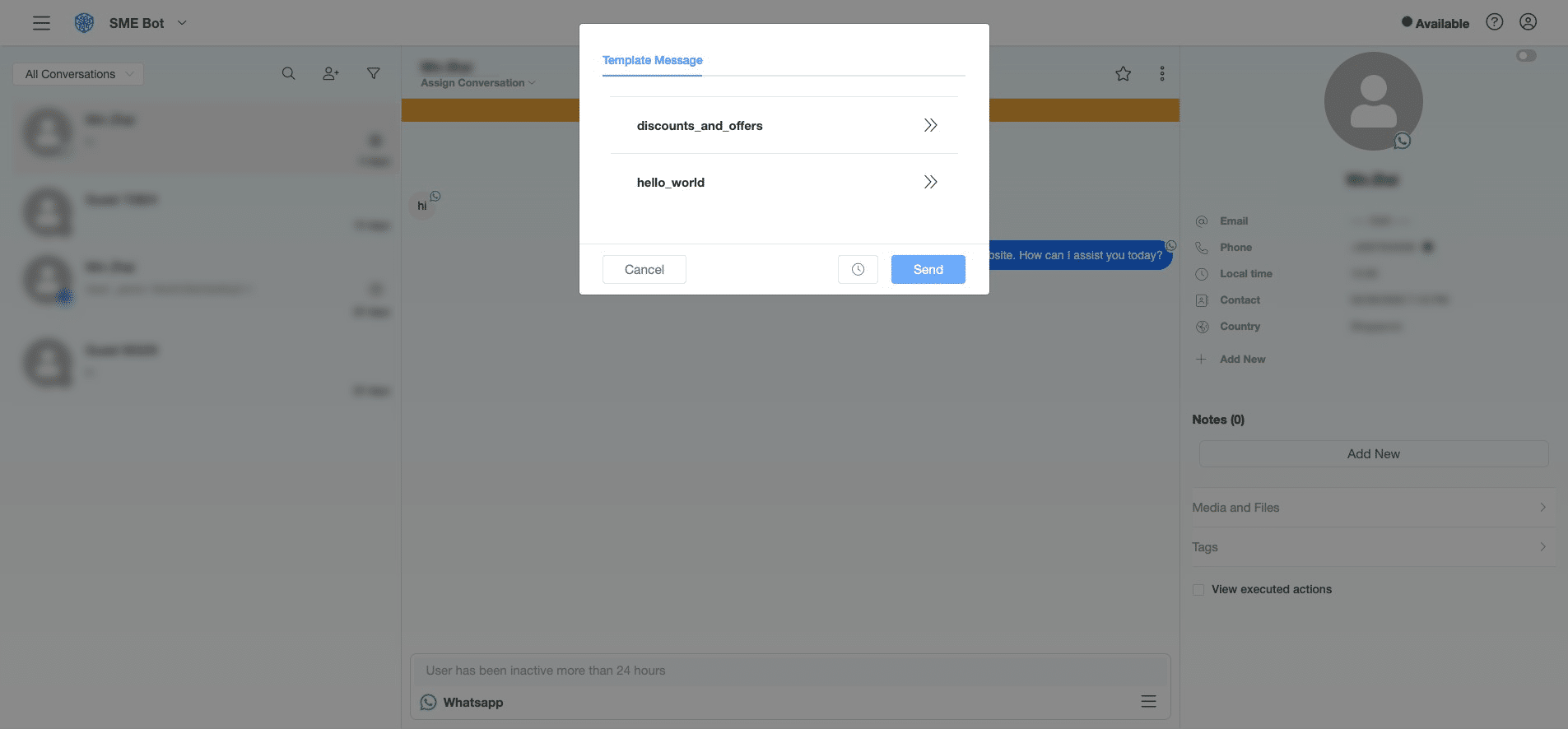
Click "Template Message" to select the template.
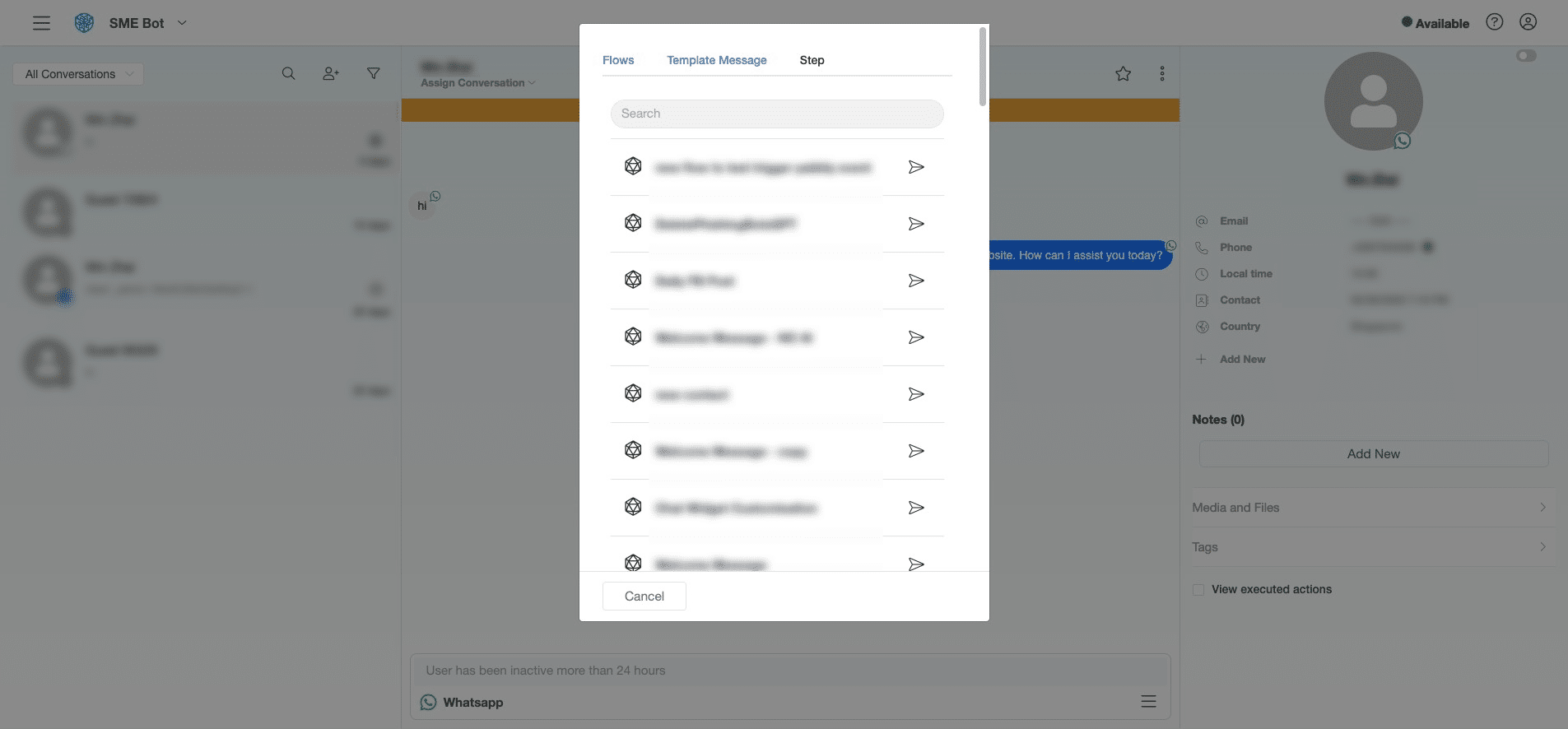
Select the template.
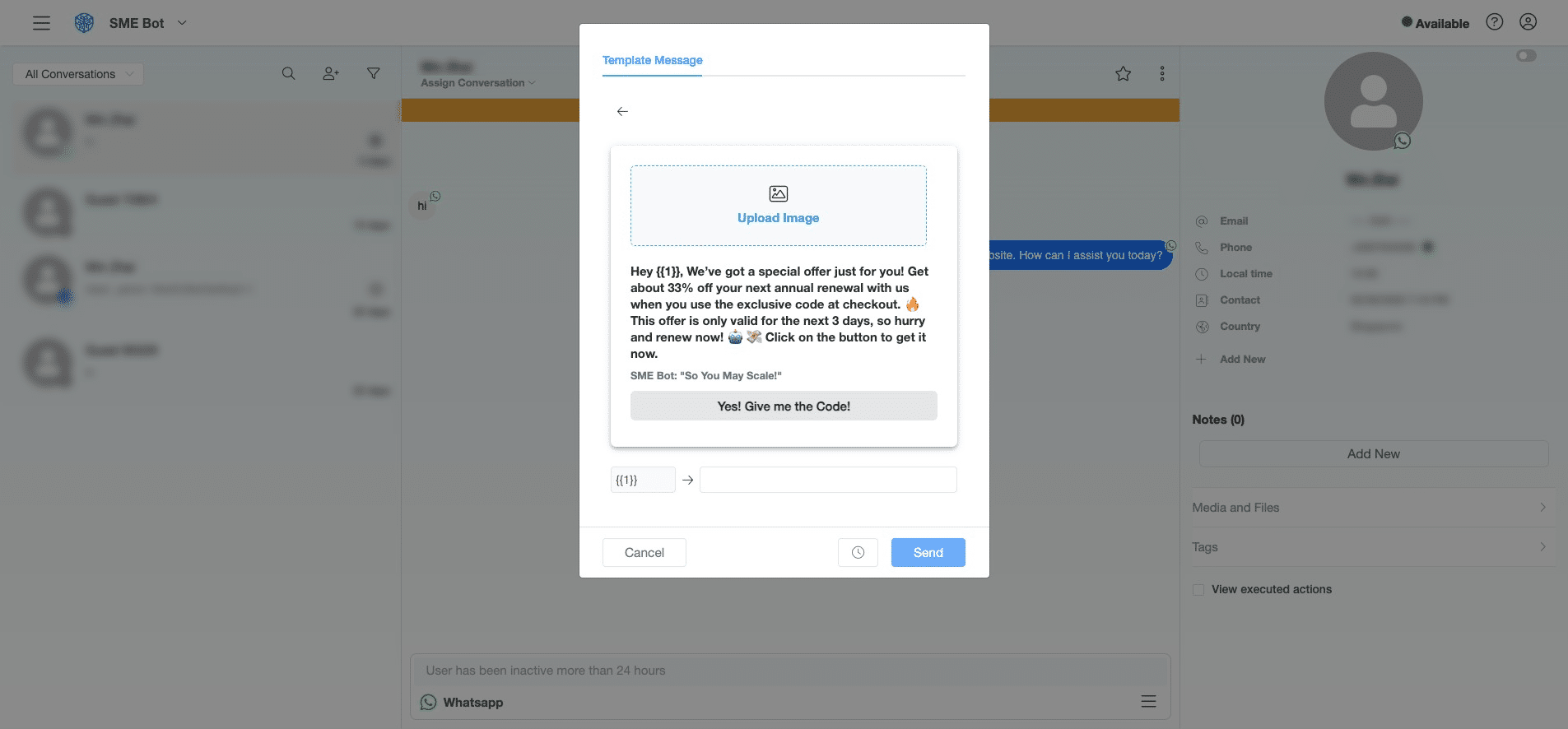
Click "Upload Image" if the image is not displaying, and upload the image.
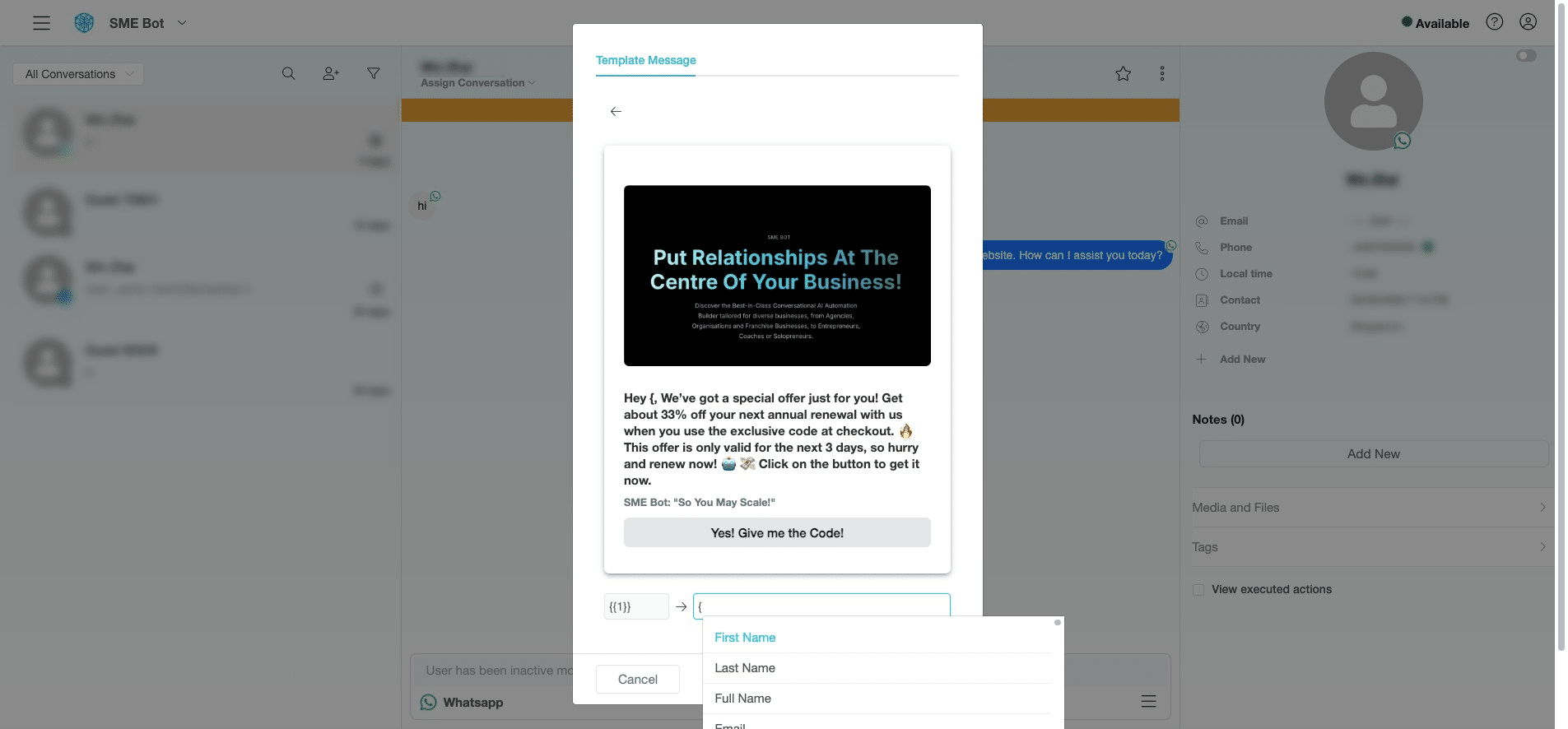
Click here, type "{" to insert the variable, then click "first_name" to personalize the message with the recipient's First Name
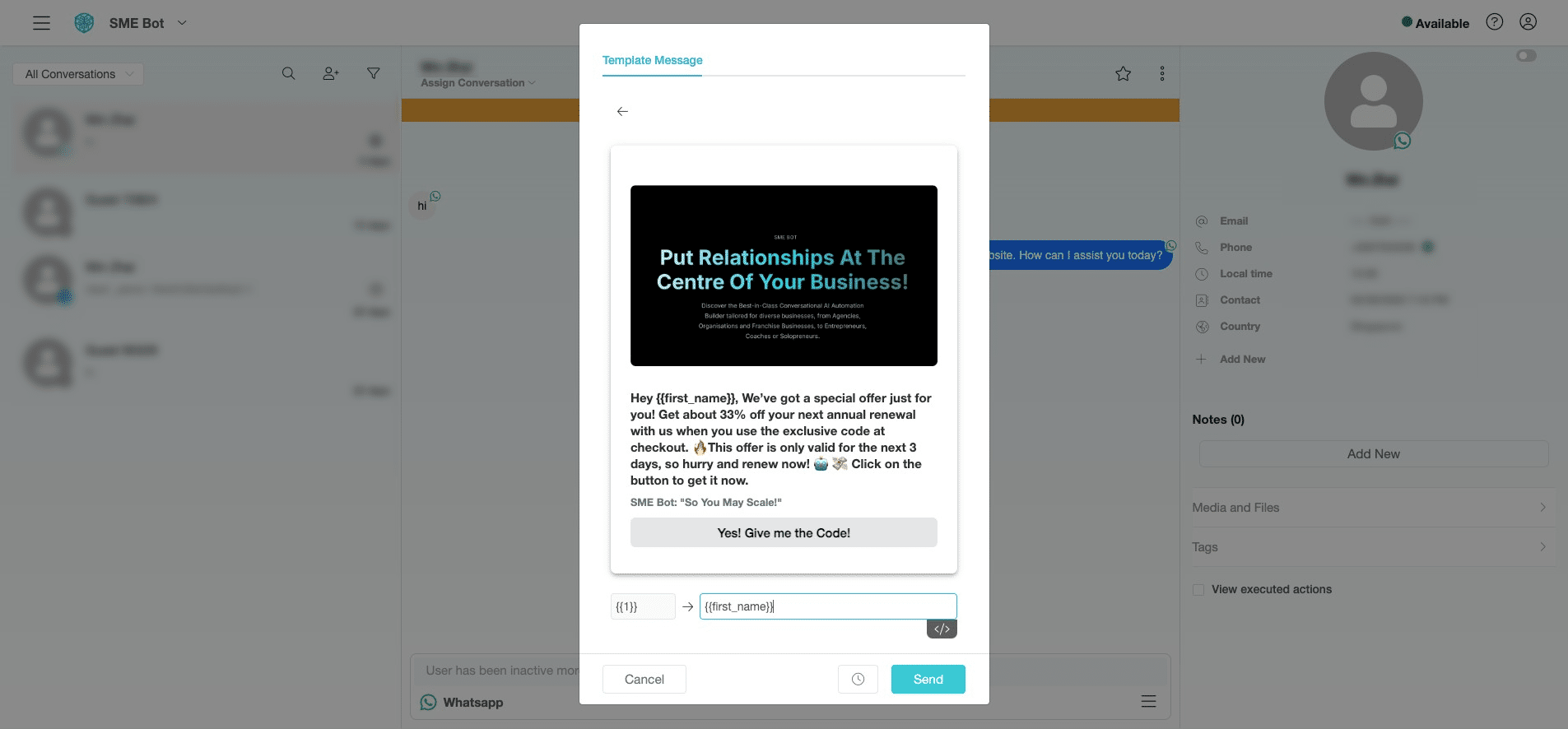
You can choose to send the message at a later time or send it immediately. Click the Clock icon to schedule or click "Send" to send it right away.
✅ Done! You’ve successfully Send a WhatsApp Template Message from the Conversations. 🚀
Frequently asked questions for Send a WhatsApp Template Message from Conversations
- What is a WhatsApp Template Message?
WhatsApp Template Message is a pre-approved message format that businesses can use to send notifications, updates, or promotional messages to users, especially after the 24-hour messaging window.
- Why do I need to use a Template Message after 24 hours of inactivity?
WhatsApp requires businesses to use pre-approved templates for business-initiated conversations when users haven't interacted for more than 24 hours to ensure message quality and prevent spam.
- Can I personalize WhatsApp Template Messages?
Yes, you can insert variables like the recipient's first name to personalize messages directly in the template.
- Will I be charged for sending WhatsApp Template Messages?
Yes, business-initiated conversations are charged upon delivery of the template message, according to WhatsApp's pricing policy.
- Can I schedule a WhatsApp Template Message?
Yes, you can schedule messages directly from the Conversations by using the Clock icon, or through the Broadcast feature in SME Bot for bulk messaging.